Create an account and the introduction
WhereSign in › four-step introduction
Sign in
Choose Sign in at the top right. Without signing in, you only see the public pages and the library.


You reach the Skillties sign-in page. Which options it offers depends on your organisation:
| Option | When | What you need |
|---|---|---|
| Microsoft | your company uses Entra ID | your Microsoft account, no new password |
| Email and password | you come without a company account | an email address you confirm |
After signing in, you return to the page you came from. A sign-in lasts up to 24 hours. After that, Skillties signs you in again quietly as long as your session with the provider is still running.
You can't sign in without an email address. If you haven't confirmed your address yet, the account is still created, but you only join your company's workspace once it is confirmed. The sign-in page sends the confirmation link.
The four-step introduction
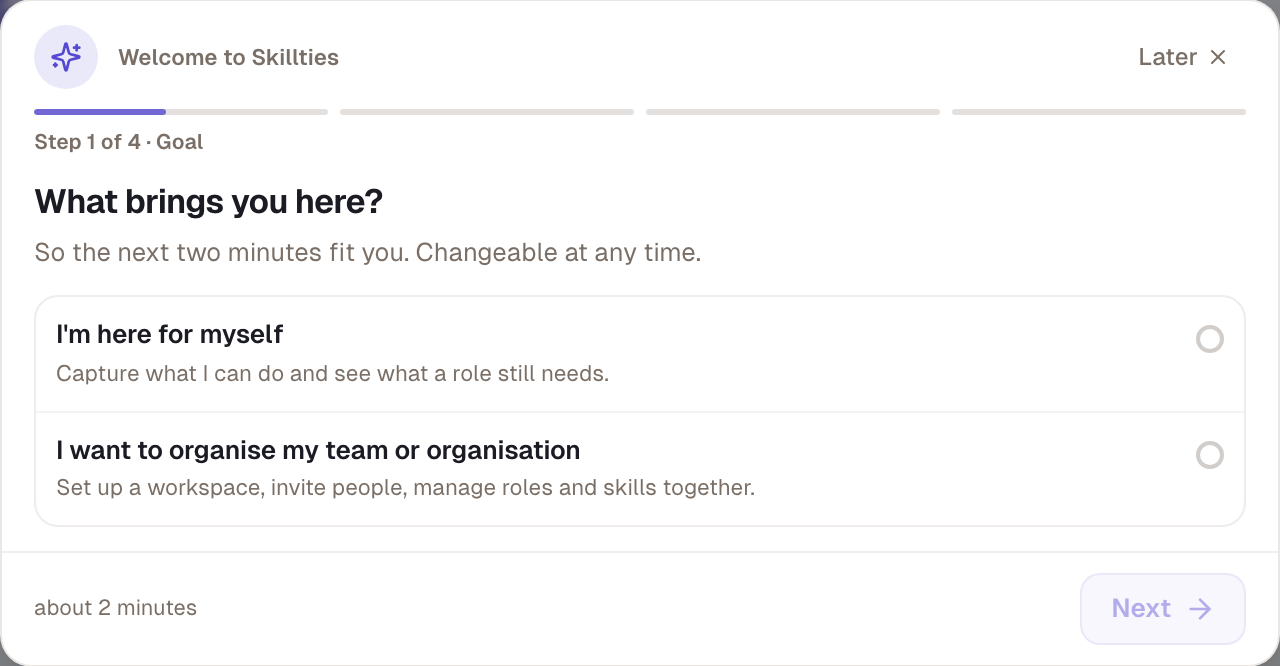
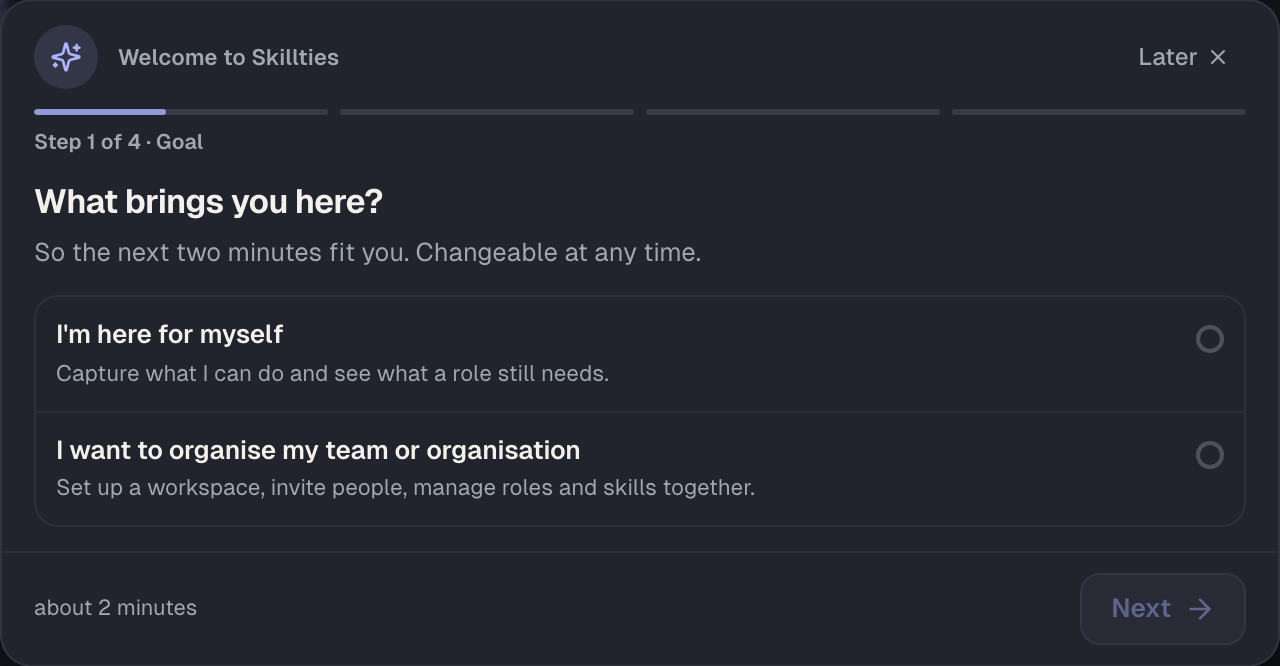
The first time, a dialog titled “Welcome to Skillties” opens. At the top it shows which step you're on and that it takes about two minutes. At the bottom are Later, Back and Next.
Step 1: Goal
Under “What brings you here?”, choose between I'm here for myself and I want to organise my team or organisation. The choice is saved and changes nothing else. Both lead to the same steps.
Step 2: Role
Under “Which role describes you best?”, use Search role to find a Skills Profile from the library, such as “Data analyst”. The chosen profile becomes your main profile.
If none fits, choose Create your own Skills Profile. You enter a title and a description, pick skills and create the profile with Create publicly. Every chosen skill gets the target 3. A profile from the introduction is always public, because you're not in a workspace yet. Private profiles only exist there.
Step 3: Rate
Under “How well can you do this already?”, you see up to six of the profile's skills as cards. For each skill, tap a level from 1 to 5, or Can't do it or Skip. Every answer saves at once. See result takes you on; with your own profile it's Done.
Step 4: Visibility
Under “What is visible?”, you see your first match and who sees your information. Keep rating lets you rate the remaining skills; To dashboard starts you off with Skillties.
Interrupt and come back
Later closes the dialog. The first time, “See you later” appears with Got it. Your progress is stored in your account, not in the browser: sign in on another device and you continue at the same place.
Example
Lena Berg was added by CSV and received an email with the sign-in link on her first working day. She signs in with her Microsoft account. Because her address belongs to Nordwind's domain, she is a member of the workspace right away. In the introduction she chooses “Data analyst”, rates four of six skills and chooses To dashboard. Under My Skills her main profile now shows a first match, and the two open skills wait for her there.
Checked with version 0.6.0 · 20 Oct 2026