Join a workspace
The three routes compared
| Invitation | Company address | Added by an admin | |
|---|---|---|---|
| Who starts it | an admin invites your address | you sign in with an address of the company domain | an admin adds you by CSV or from Entra ID |
| What you do | read the email, sign in, Accept | sign in; the address must be confirmed | nothing, until the admin grants access |
| Valid for | 28 days | no limit | no limit |
| Suits | guests, projects, workspaces without a domain | every employee with a company address | preparation before the first working day |
By invitation
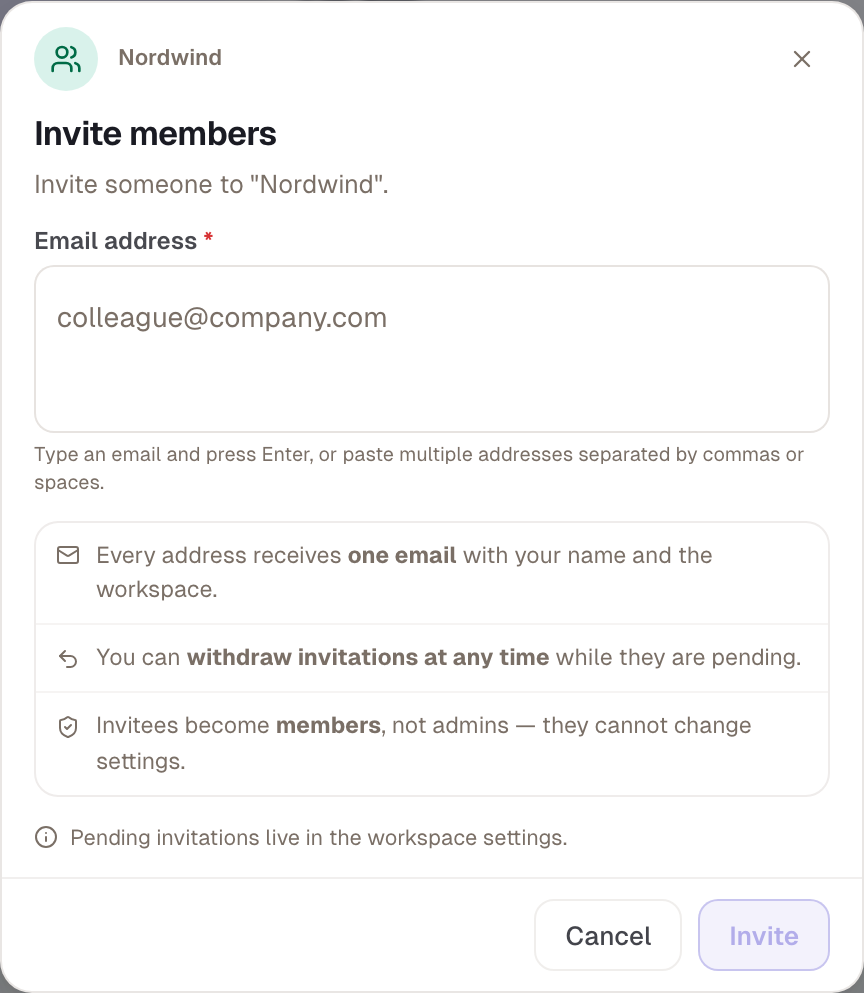
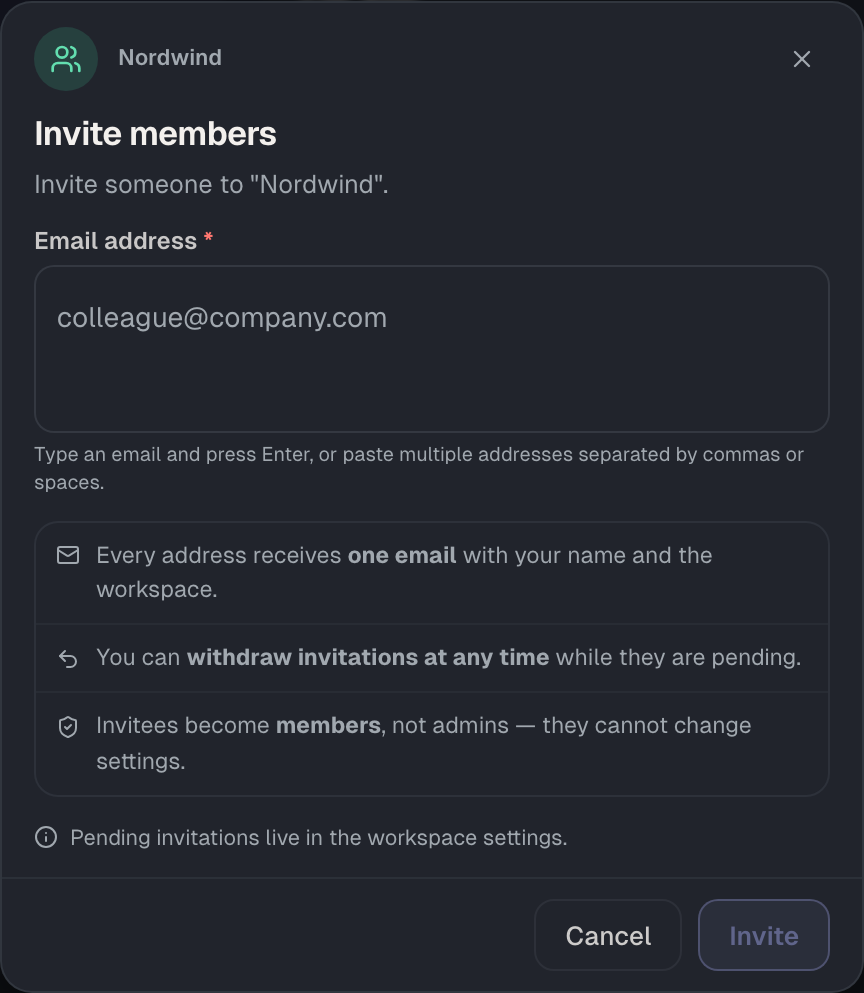
An admin invites your email address. You receive an email with the workspace's name, the inviter's name and a sign-in link. The link doesn't lead straight into the workspace but to sign-in. Afterwards the invitation appears in Skillties as a notification: “… invited you to “…”” with Accept and Decline.
Accepting only works with the account whose address was invited. If you sign in with a different address, you won't find the invitation. After accepting, the new workspace is active and you land on People. An invitation is valid for 28 days. After that it says “Invite not found or expired”, and you ask the admin for a new one.
From the moment of the invitation you're already a member, even before accepting. The admin sees you in the list with the email's status, such as “Email delivered”. If they switched off Grant access now when inviting, you sit under No access until they grant it.
Through your company address
Every company domain has exactly one workspace. If you sign in with an address of that domain, you join automatically at sign-in, once the address is confirmed. You get the notification “You now belong to “…”” with the Go to workspace button. With a private address such as gmail.com or outlook.com this route doesn't exist.
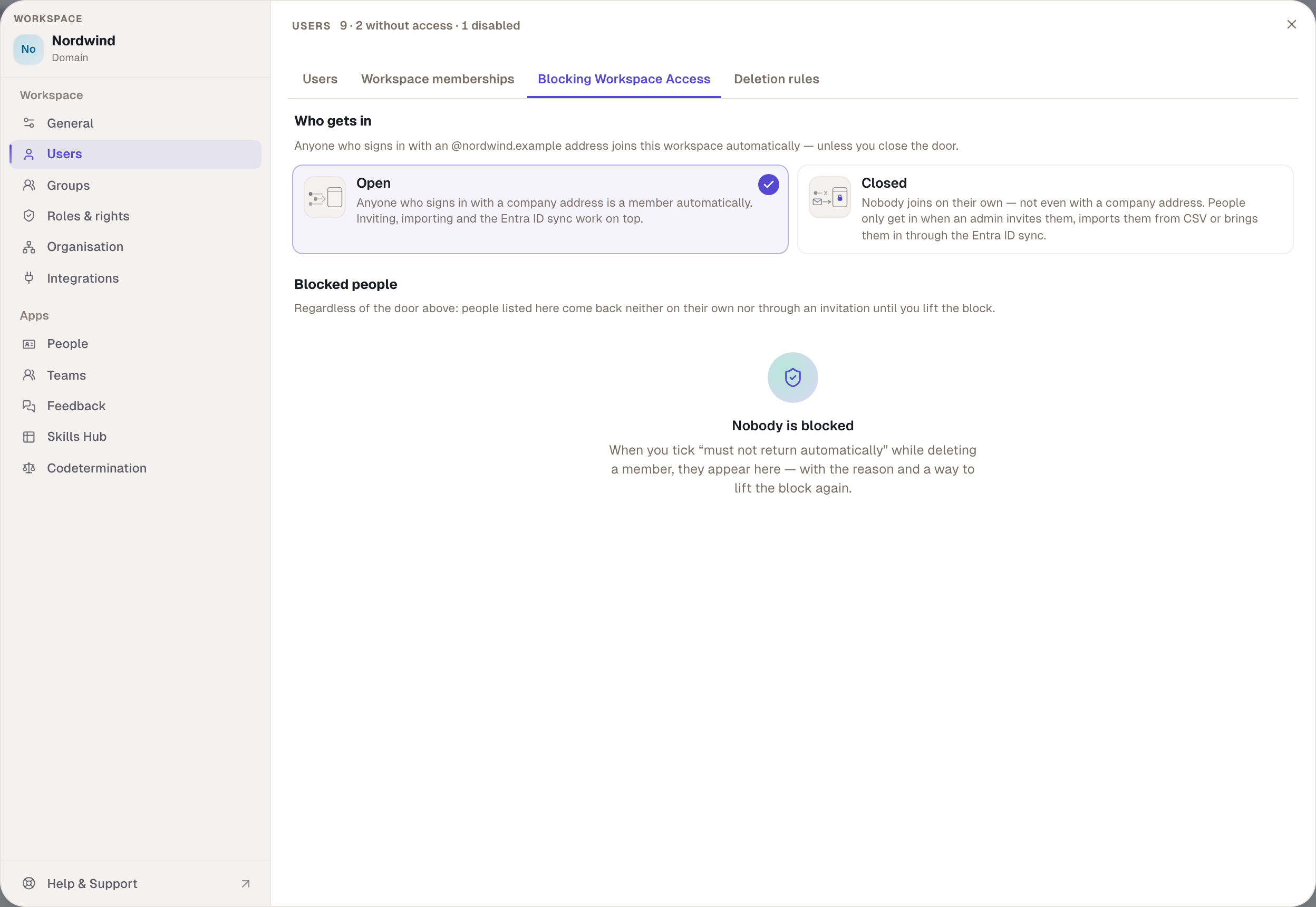
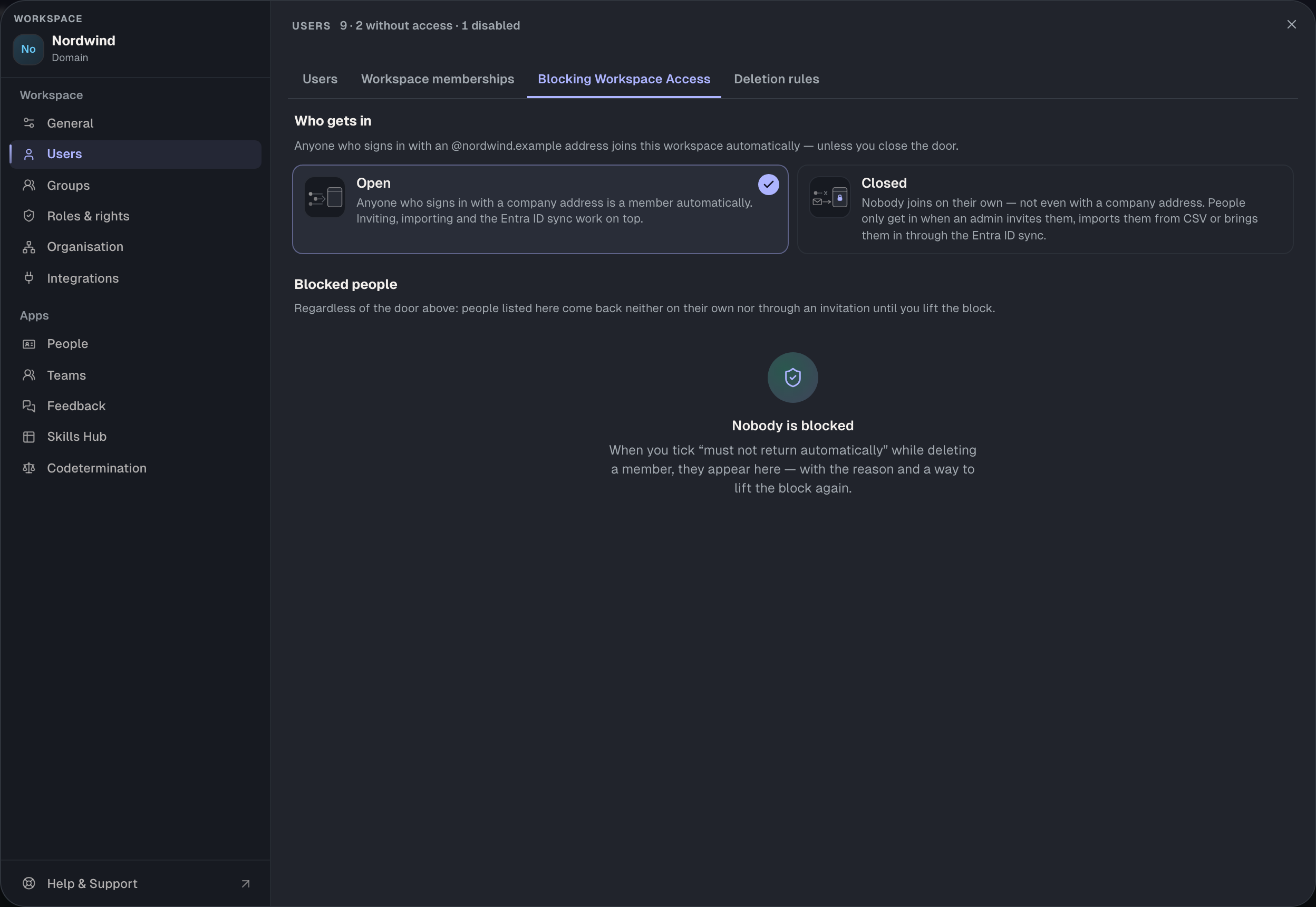
The admin can close the door. If the join rule under Blocking Workspace Access is set to Closed, nobody joins on their own any more, not even with a company address. Invitation, CSV and Entra ID remain. Anyone already in stays in.
Added by an admin
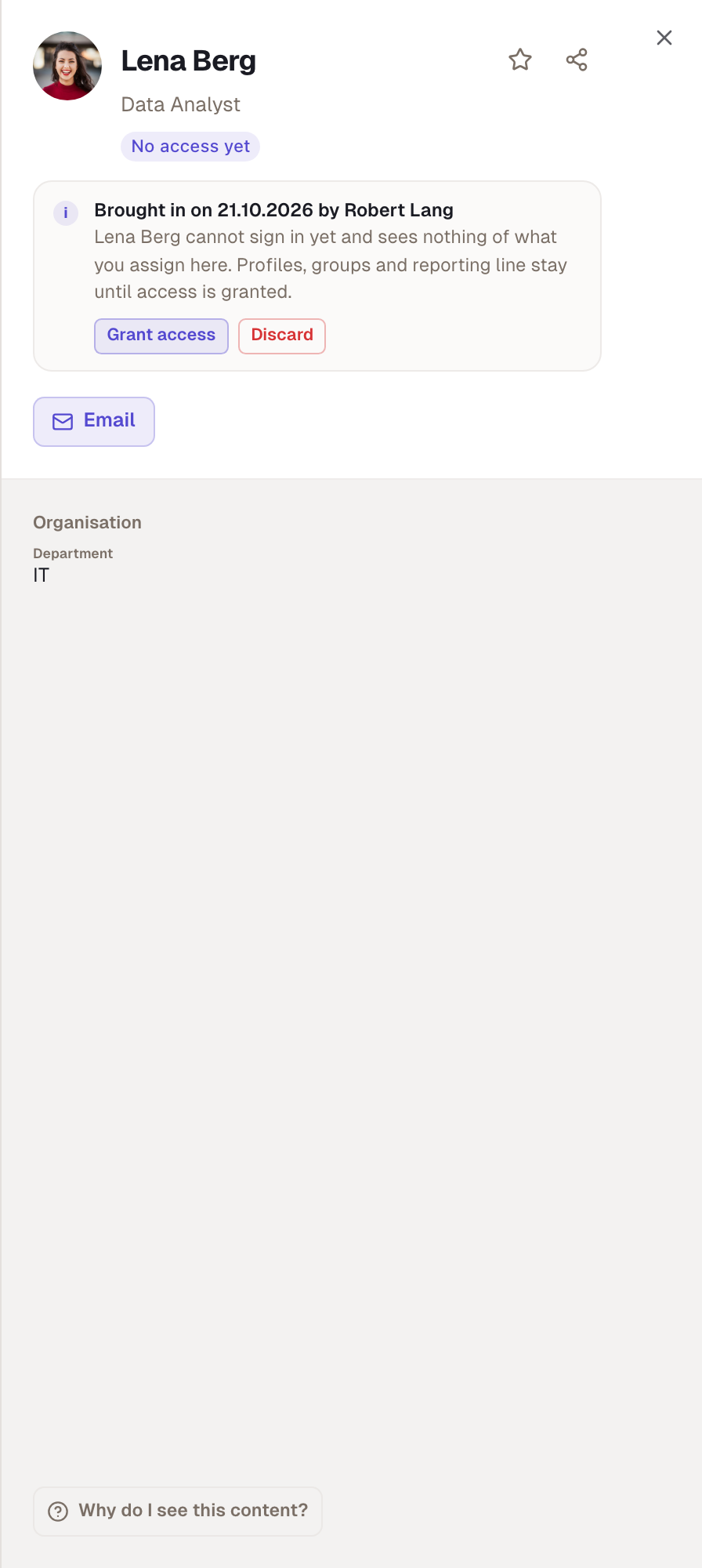
An admin can add you before you start: from a CSV list, individually from Entra ID or through the Entra sync. You then sit in the workspace in the Prepared state. The admin can already assign you a profile, put you in groups and enter your manager. You don't see the workspace yet.
When the admin grants your access, they choose With email or Without email. With email, you get a message with the sign-in link. Without email, your admin tells you and you sign in. Colleagues who look you up under People before that see a note that you've been added but have no access yet.
What happens afterwards
After joining, the workspace is active and sits at the top of the sidebar. You hold the Member role. What that allows is set by the workspace, usually: rate skills, pick profiles, see people. Further roles come from the admin, directly or through groups.
If your admin has set up Entra ID, you stay a member as long as your account is active in Entra. You can't leave an Entra workspace yourself.
When it doesn't work
| What you see | Cause | What helps |
|---|---|---|
| no invitation after signing in | a different account than the invited address | sign in with the invited address |
| “Invite not found or expired” | older than 28 days or already used | ask the admin for a new invitation |
| no joining despite a company address | address not confirmed, door closed or private domain | confirm the address, otherwise ask the admin |
| “Joining is not enabled for your account” | your company doesn't allow outside workspaces | contact your administration; the inviter isn't told why |
| workspace missing from the switcher | you're prepared, disabled or deleted | ask the admin, see “My workspace has disappeared” |
Example
Sarah Winter works for Nordwind as an external and has no company address. Robert invites her. She gets the email, signs in with her own address and sees the invitation as a notification. After Accept, Nordwind appears in her switcher. Her colleague Paul Weber, on the other hand, has an @nordwind.example address: he signs in, confirms his address and is a member without anyone inviting him. Lena Berg was added by CSV before her first day. She only sees Nordwind once Robert grants her access with email.
Checked with version 0.6.0 · 20 Oct 2026