Workspaces: definition, types, switching
WhereSidebar › workspace switcher
The workspace switcher
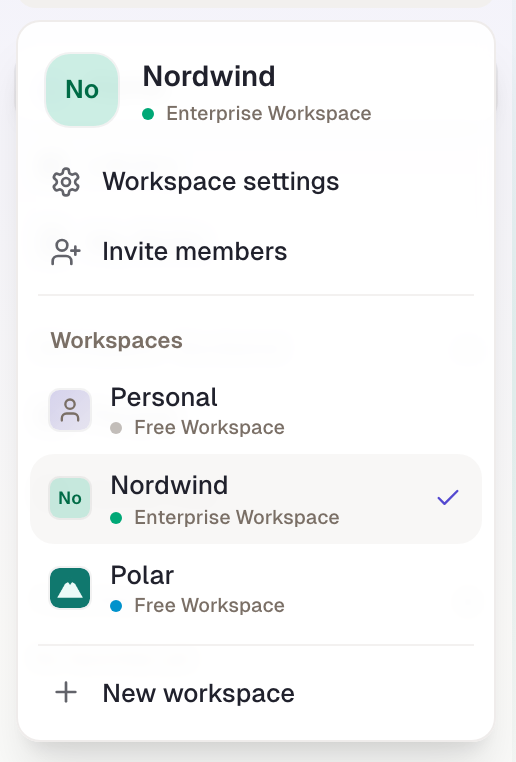
At the top of the sidebar you see which workspace you're working in, with its plan below. One click opens the switcher. It shows Workspace settings and Invite members if you have the rights, then Personal and all your workspaces. The active one has a tick. At the very bottom, New workspace creates another one.
Two kinds of workspace
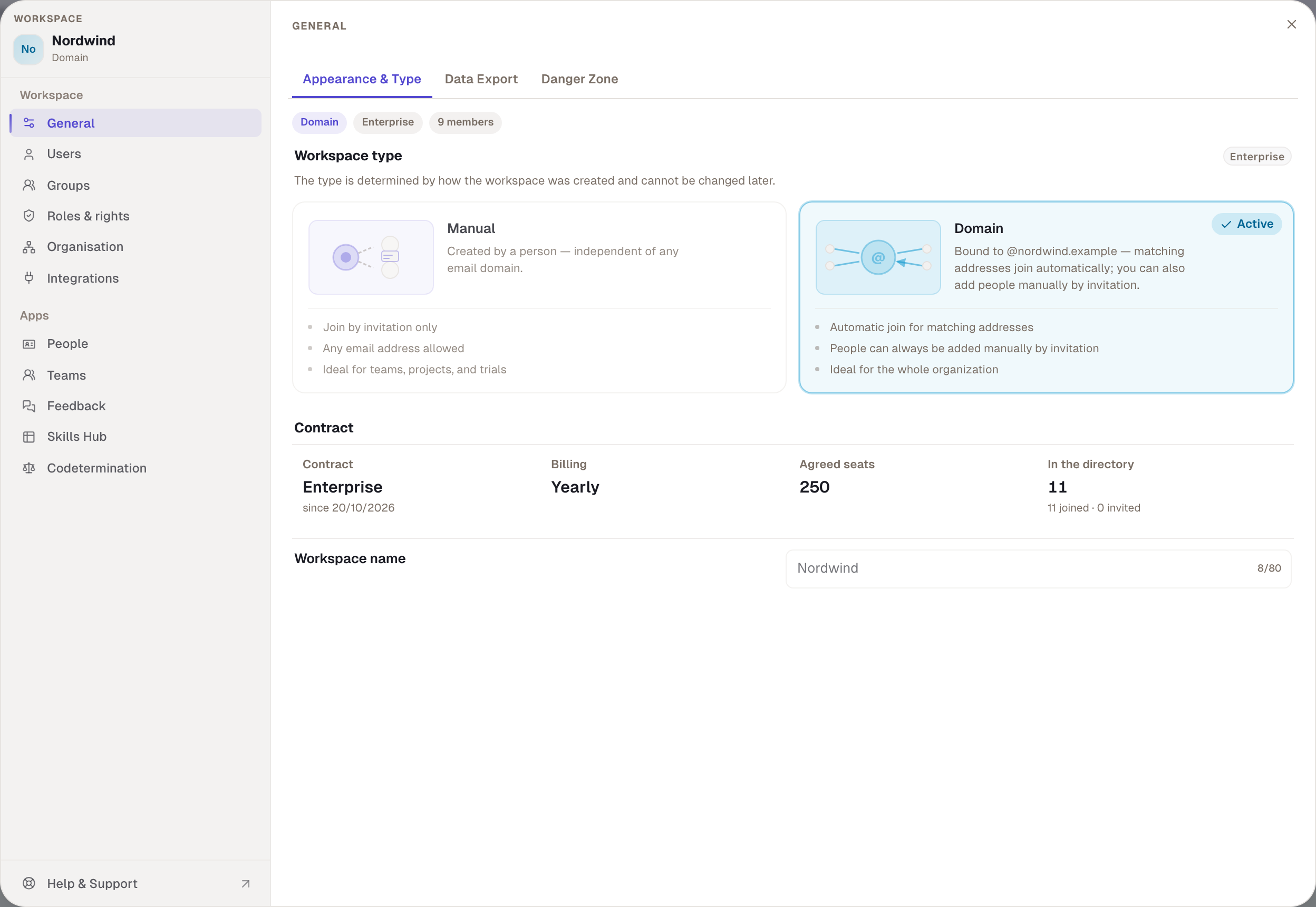
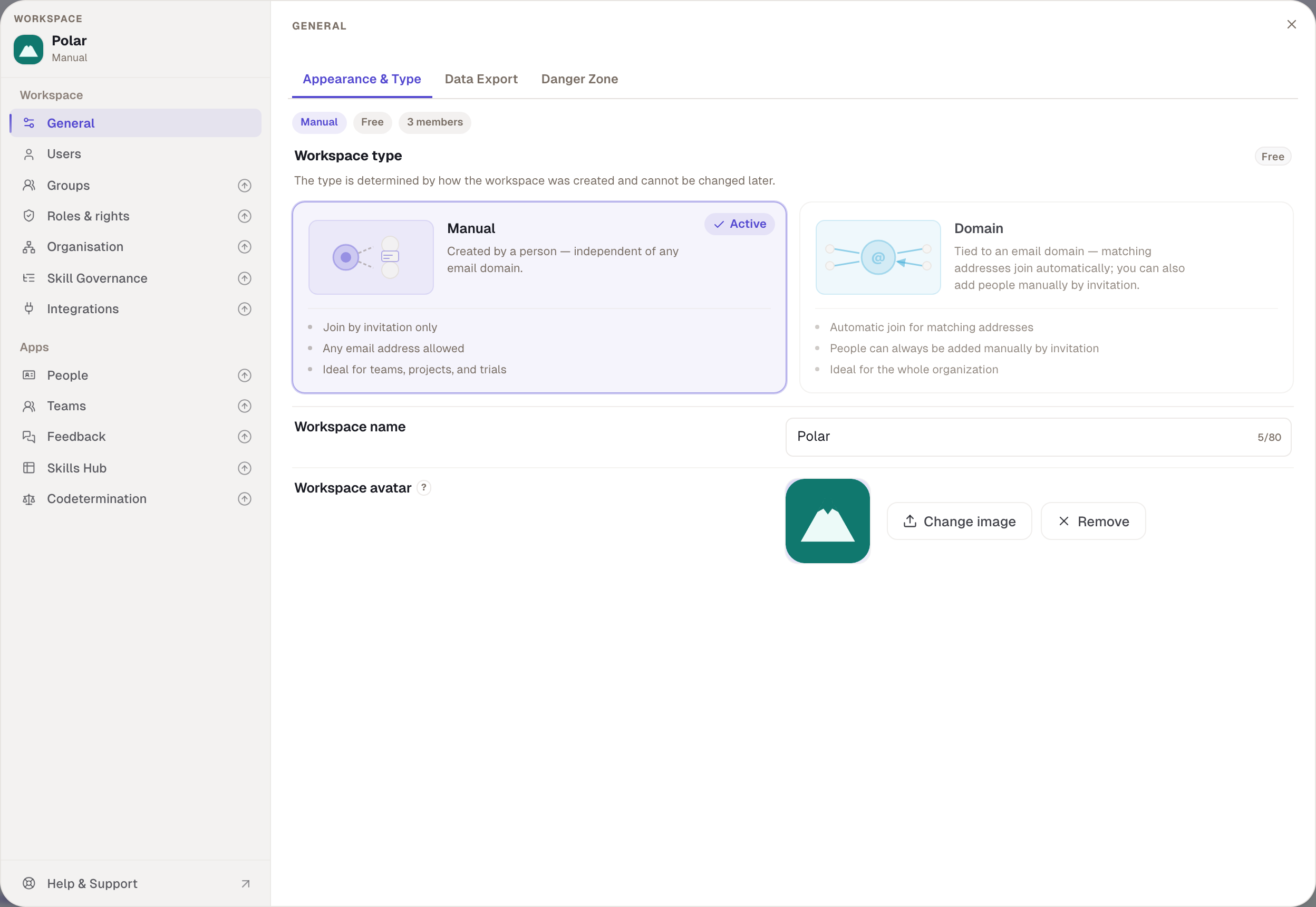
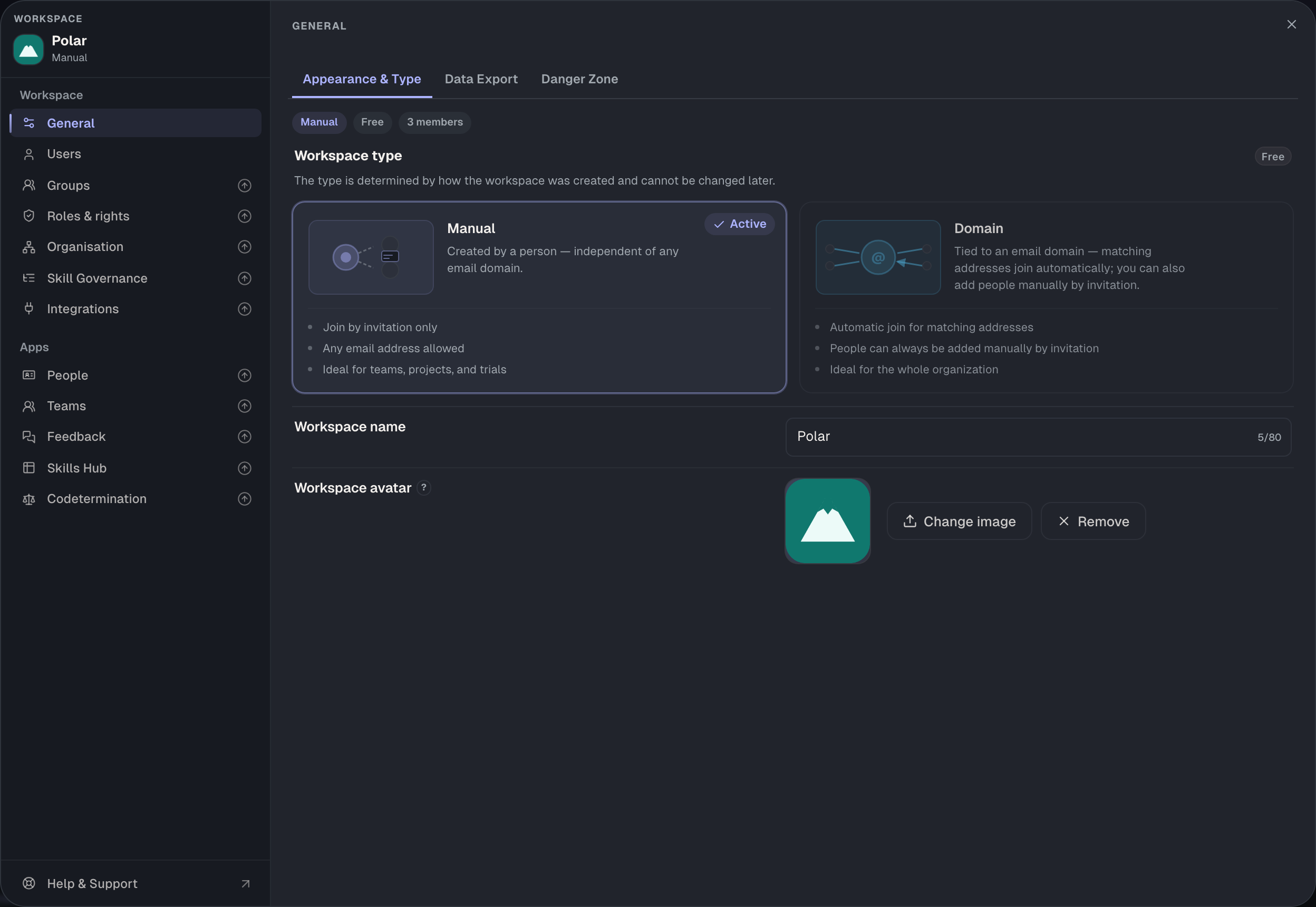
A workspace's kind follows from where it came from and can't be changed later. You see it in the settings at the top left under the name, and under General › Appearance & Type.
| Domain | Manual | |
|---|---|---|
| Created | by itself, when the first person signs in with a company address | when a person chooses New workspace |
| Tied to | an email domain, such as @nordwind.example | no domain; any address works |
| Who gets in | automatically every confirmed address of the domain, plus invitation, CSV and Entra ID | only people who are invited, imported or brought in through Entra ID |
| First admins | nobody, until Skillties names those responsible with the contract | the person who creates it |
| Own image | no, it shows initials | yes, under Workspace avatar |
| Join rule Open / Closed | yes | not needed; there is no automatic joining |
| Account rights for members | yes, see below | no |
| Deleting | not in the settings; it belongs to the organisation | under Danger Zone |
| Suits | the whole organisation | teams, projects and trials |
Your company's domain workspace
When someone signs in with a company address for the first time, Skillties creates that domain's workspace if it doesn't exist yet. Private addresses such as gmail.com or outlook.com don't count. From then on, everyone with that domain joins automatically when signing in, once their address is confirmed.
A new domain workspace has no admins yet. All members see the settings but can't change anything; a notice says that nobody manages it yet. Skillties names those responsible as soon as there is a contract.
The join rule
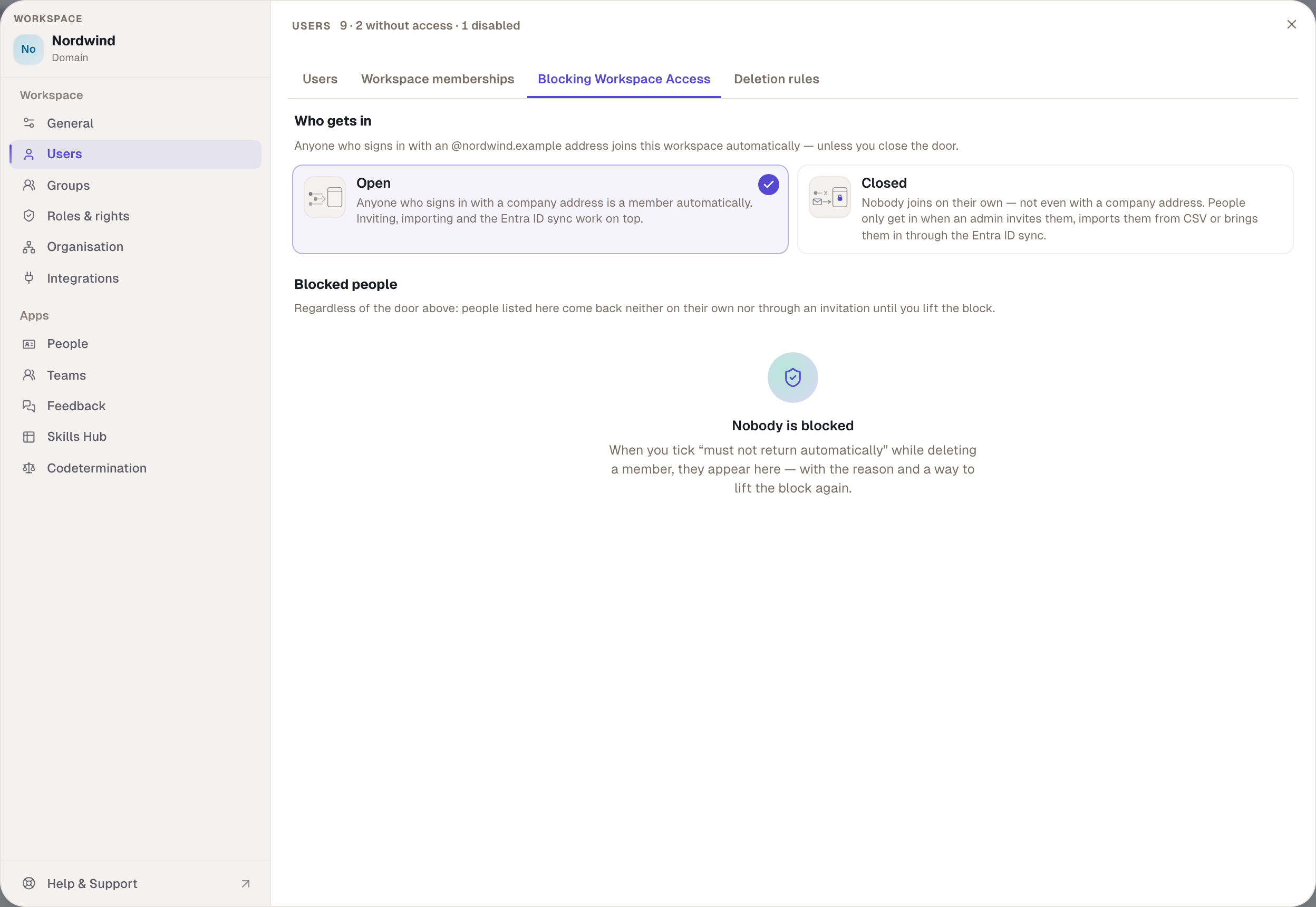
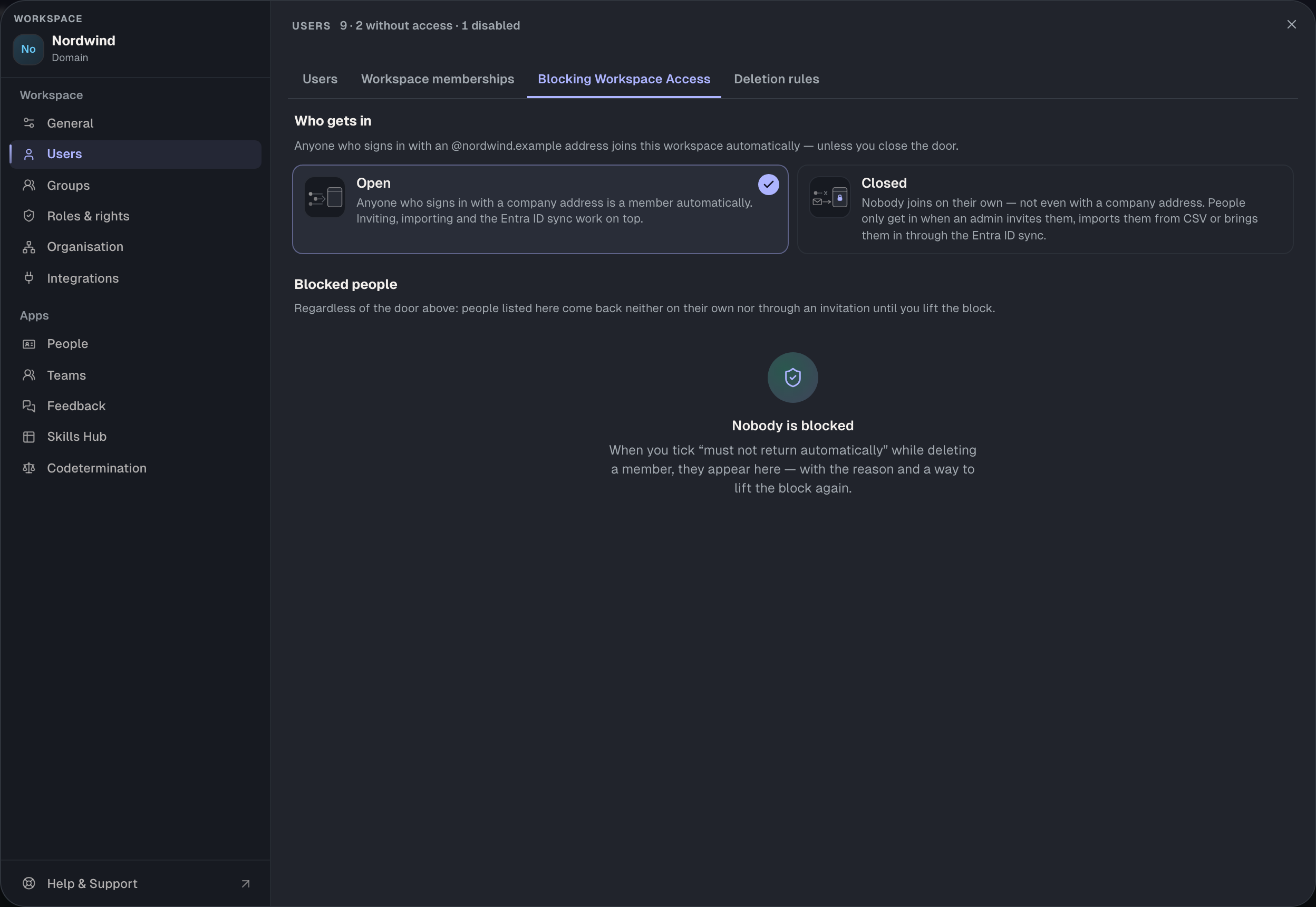
Under Users › Blocking Workspace Access, Who gets in sits at the top. You have two options:
- Open: anyone who signs in with a company address is a member automatically. Invitations, CSV and Entra ID work as well. This is the default.
- Closed: nobody joins on their own, not even with a company address. People only get in when an admin invites them, imports them or brings them in through Entra ID.
Anyone already a member stays one when you switch to Closed. Below, the blocked people list everyone who was marked “may not return automatically” when deleted. They don't come back on their own or by invitation until you lift the block.
Where your people are members elsewhere
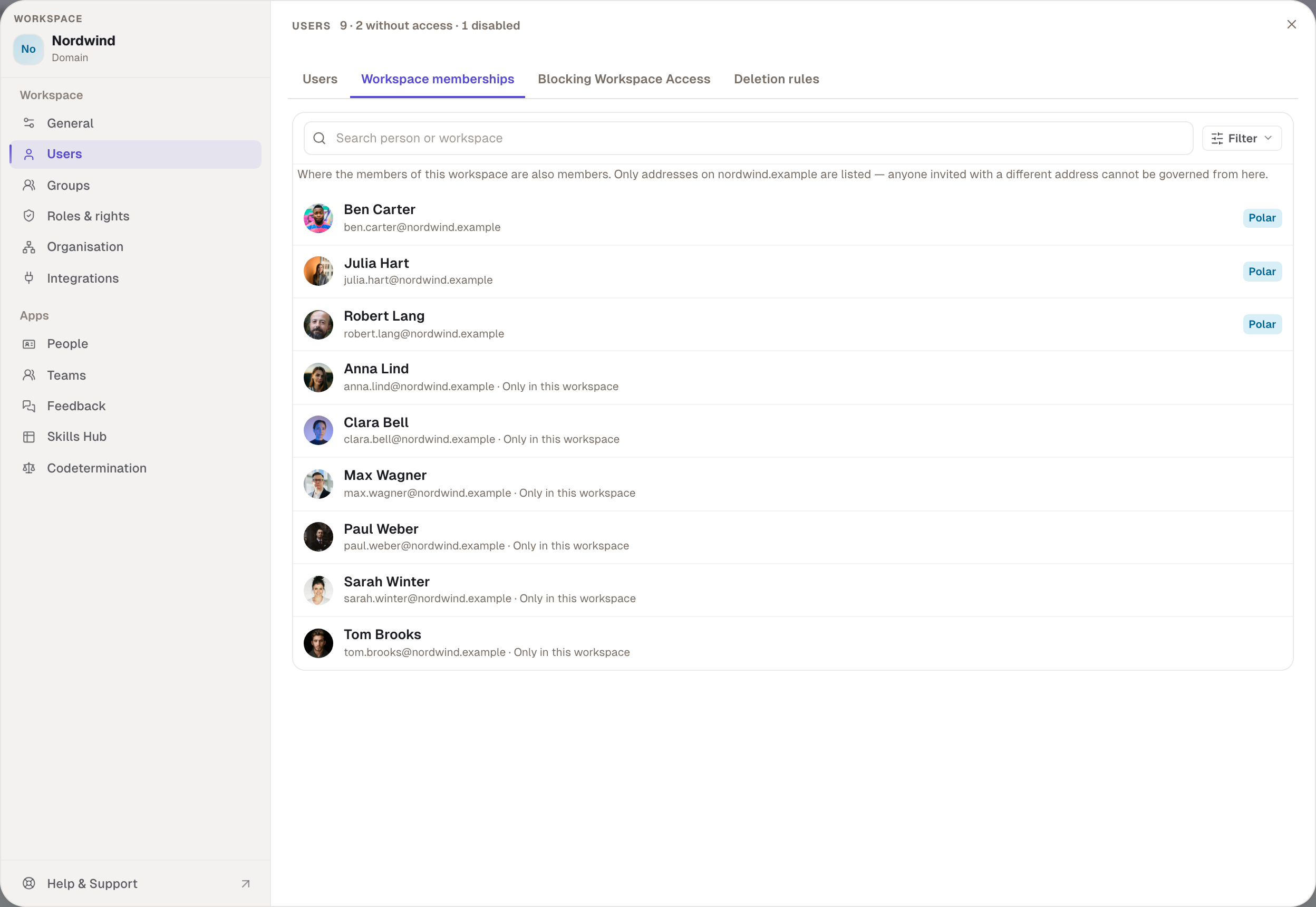
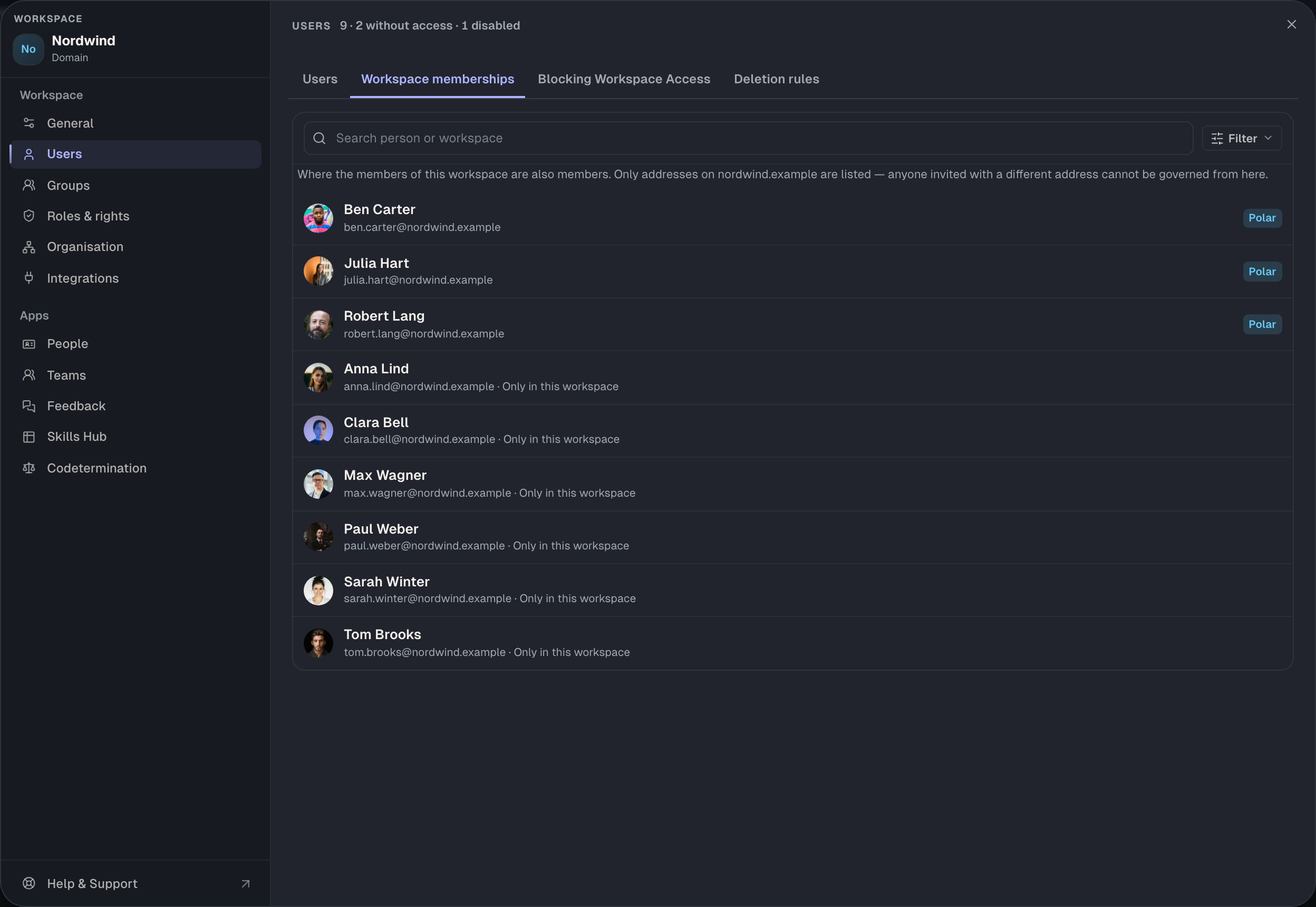
The Workspace memberships tab shows which other workspaces your members belong to. Only addresses of your domain are listed. People invited with another address can't be managed from here.
Account rights for your members
Only in the domain workspace do three rights apply that decide what your members may do outside it: Create a new workspace, Use the personal area and Accept invitations from other workspaces. They sit in every role under Own account. If a right is missing, New workspace disappears, for example, or an outside invitation shows “Joining is not enabled for your account”. The person who invited them isn't told why.
Create a manual workspace
- Open the switcher and choose New workspace.
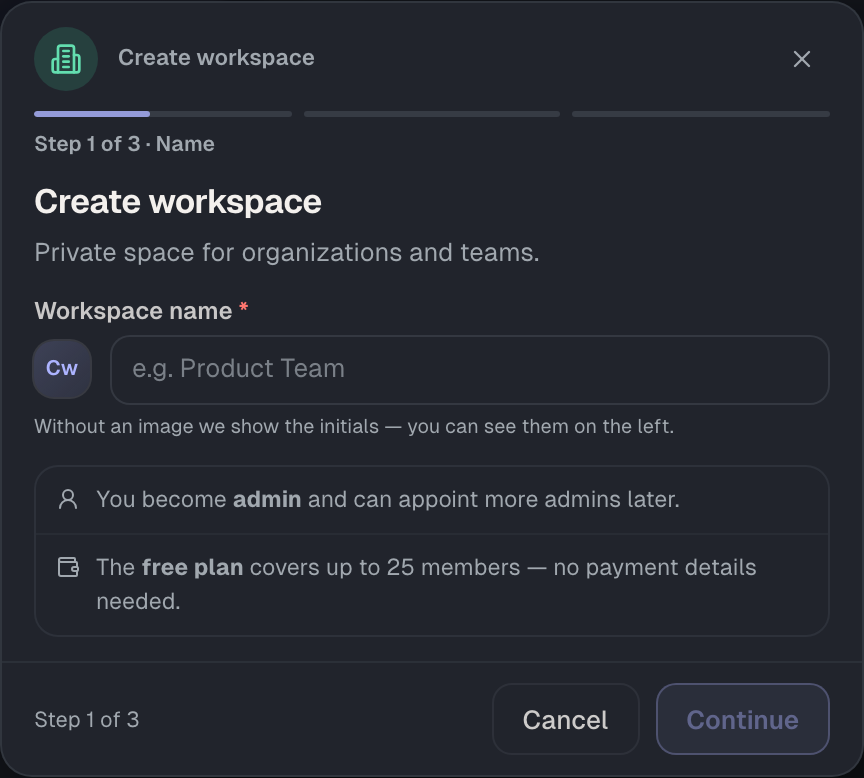
- Enter a name under Workspace name and choose Continue. The workspace now exists, and you're its admin.
- Upload an image or skip this step.
- Invite people or choose Later.
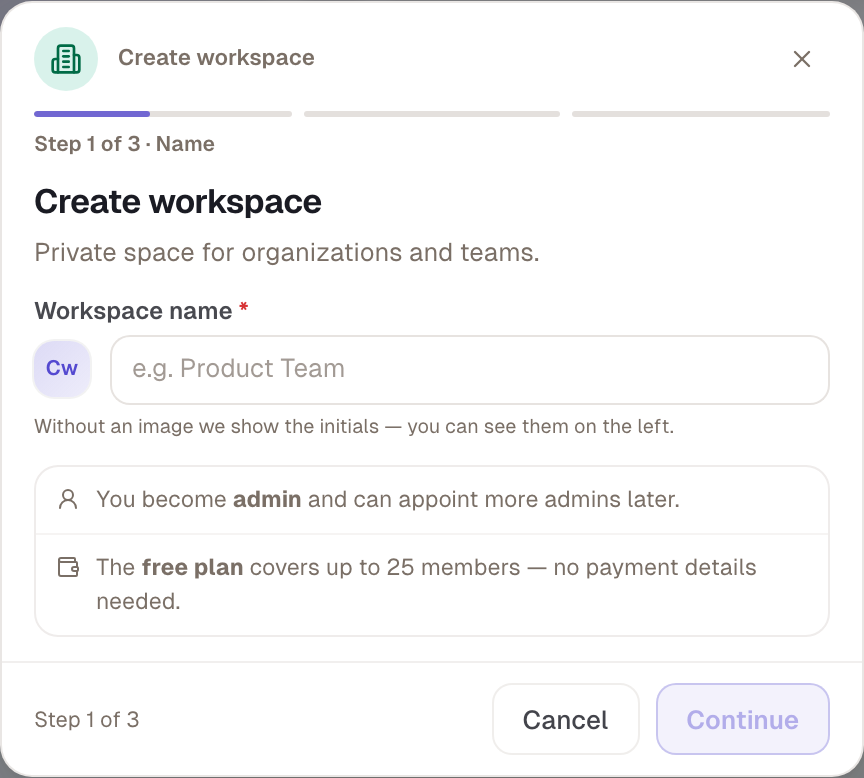
A new manual workspace starts on the Free plan. Whether you may create one is decided by the domain workspace of your company address, through the right Create a new workspace.
The personal area
Personal isn't a workspace but your own area outside all workspaces. What you create there belongs to you and stays when you leave a workspace. Content in the personal area is public. If your company doesn't allow the personal area, it is missing from the switcher.
Public, private and the active workspace
Every signed-in person sees public skills and profiles. Private content belongs to exactly one workspace and is only visible to its members, never outside it. Private content is available from the Business plan.
The plaque above the title shows where content comes from. On the left is its origin, a lock with the workspace for private content. On the right is how it is assigned to you, for example as your main profile in Nordwind.


The active workspace decides:
- which apps and settings you see in the sidebar,
- where new private content is created,
- whether a private item opens.
Search still covers all your workspaces. If you open a private item from another workspace, it says “Only visible in the … workspace” with a button to switch. Non-members see “You do not have access”. Every switch briefly shows a picture from the old to the new workspace. If you lose access to the active workspace, Skillties switches to Personal by itself.
Example
Nordwind is the domain workspace of @nordwind.example and runs on the Enterprise plan. Robert Lang is its admin. For a pilot project with two external consultants he also creates the manual workspace “Polar”. There he invites Julia and Ben from Nordwind and the two consultants with their own addresses. Polar stays on Free because it only needs People and public content. Nobody sees Nordwind's private profiles in Polar, not even Julia and Ben, as long as Polar is active. When Julia switches back to Nordwind, she sees her main profile “People manager” again. Under Users › Workspace memberships in Nordwind, Robert sees that Julia and Ben are also in Polar.
Checked with version 0.6.0 · 20 Oct 2026