Invite by email
WhereWorkspace settings › Users › Add userRightsettings.members
What an invitation does
Since September 2026, an invitation adds the person as a member right away. The email is only the way in. That has two consequences: you can put the person in groups, assign a profile and enter their manager before their first sign-in. And for each invitation you decide whether the person gets access at once or is only prepared.
| Setting | on | off |
|---|---|---|
| Grant access now | The person is active and can sign in. | The person sits under No access until you grant it. |
| Send invite email | The person gets an email with the sign-in link. | No email. You tell them yourself. Only shown while access is on. |
Two routes
The short route is the workspace switcher at the top of the sidebar: Invite members. You enter one or more addresses and choose Invite 3; the number follows your list. This route always grants access at once and always sends an email.
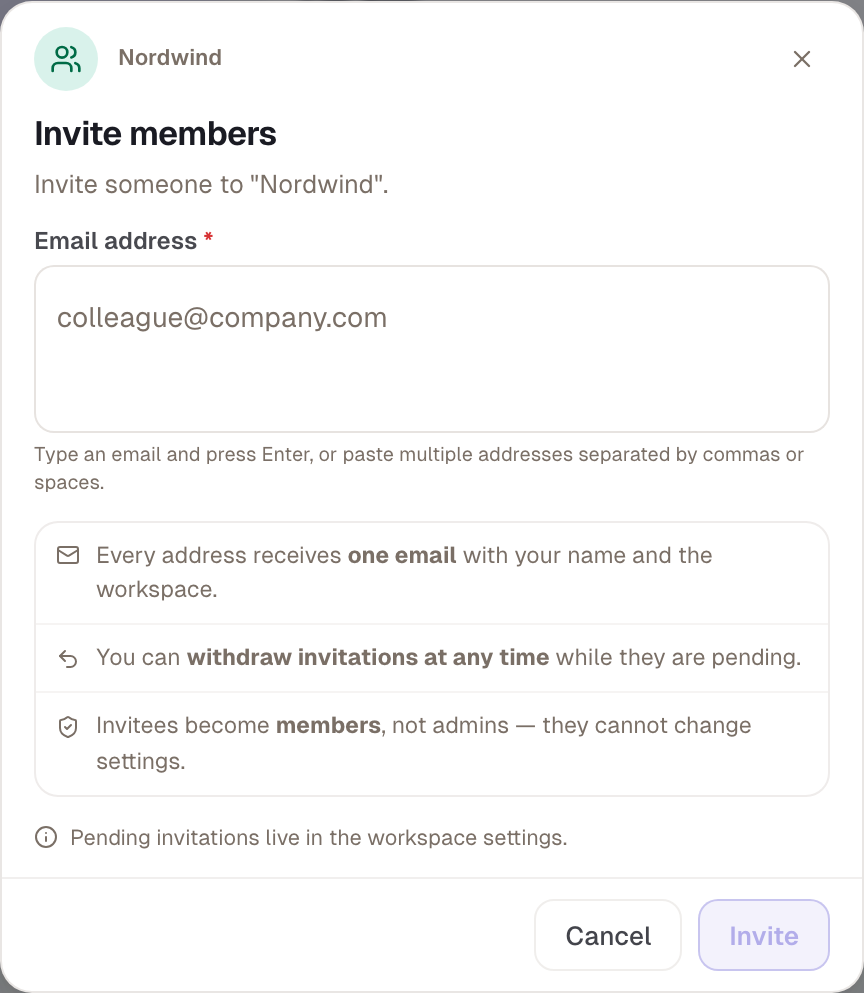
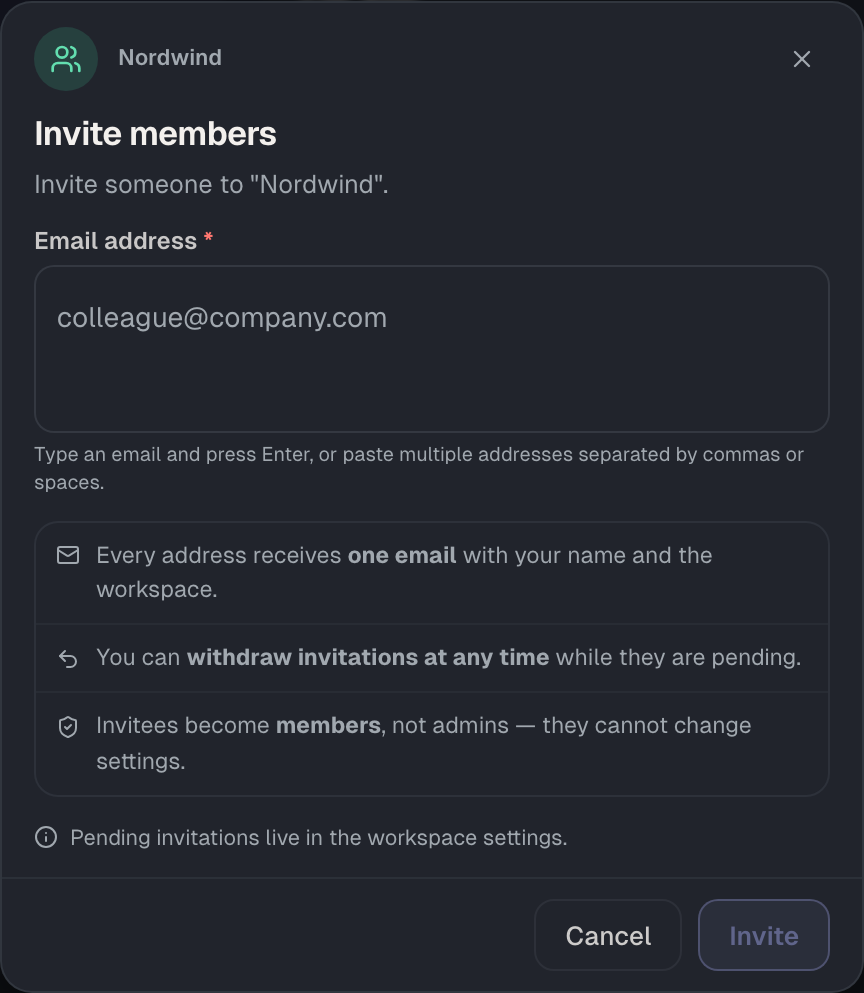
You have more control under Users with Add user. There are three tabs: By email, Import a list (CSV) and From Entra ID.
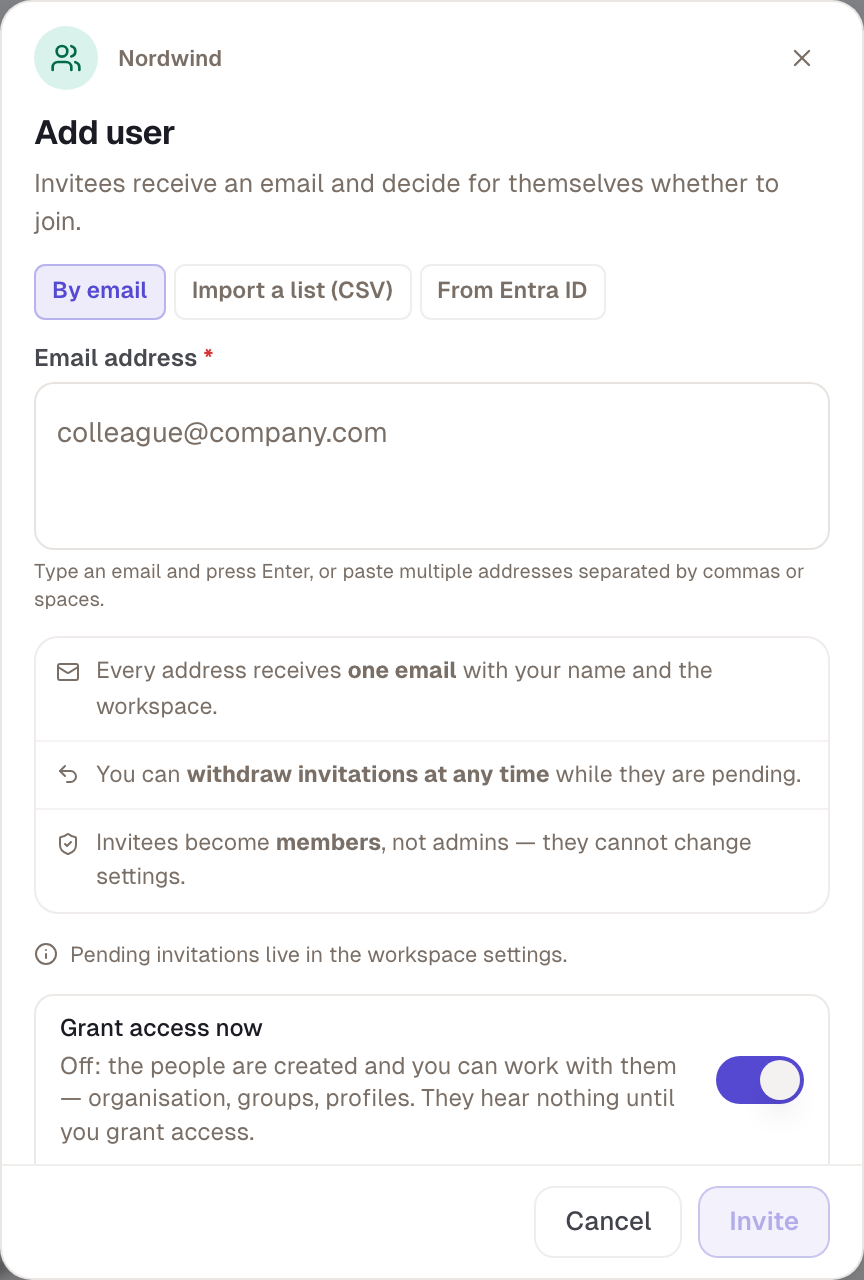
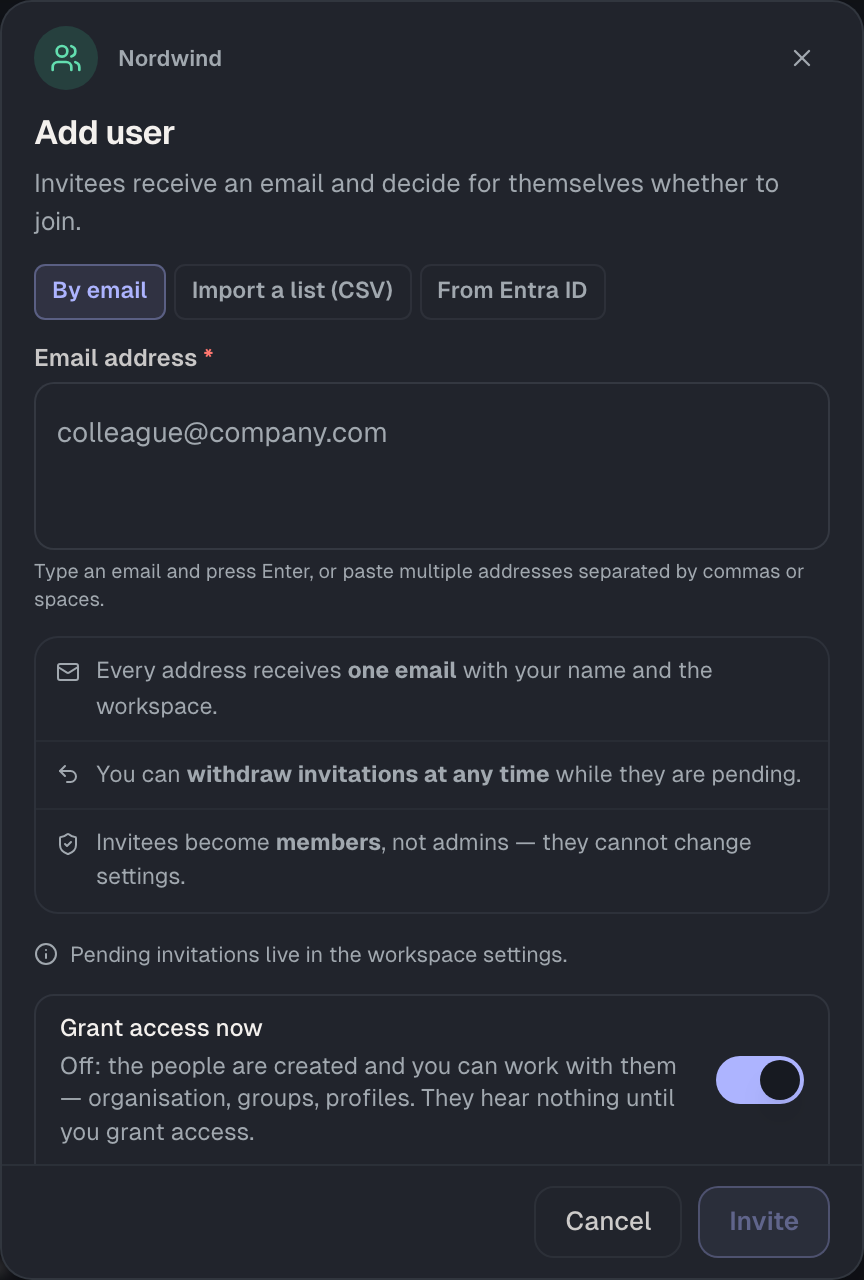
- Choose the By email tab.
- Enter the addresses. Enter or a comma separates them; you can also paste a list. An invalid address is marked red.
- Leave Grant access now on if people should start right away. Switch Send invite email off if you tell them yourself.
- Choose Invite 3. If access is off, the button says Prepare 3 people.
Addresses already in the workspace are skipped, with a note saying how many. While sending, it shows “Inviting … 2 of 3”, and at the end “Invites sent”.
What the invitee receives
The email names the workspace, your name and a sign-in link, and it states the date until which the invitation is valid. It comes in the language the person last used in Skillties, otherwise in English. The link leads to sign-in, not straight into the workspace. If the person already has an account, they also see the invitation as a notification in Skillties.
Invitees become members. They can't change settings until you give them a role.
See the status and help along
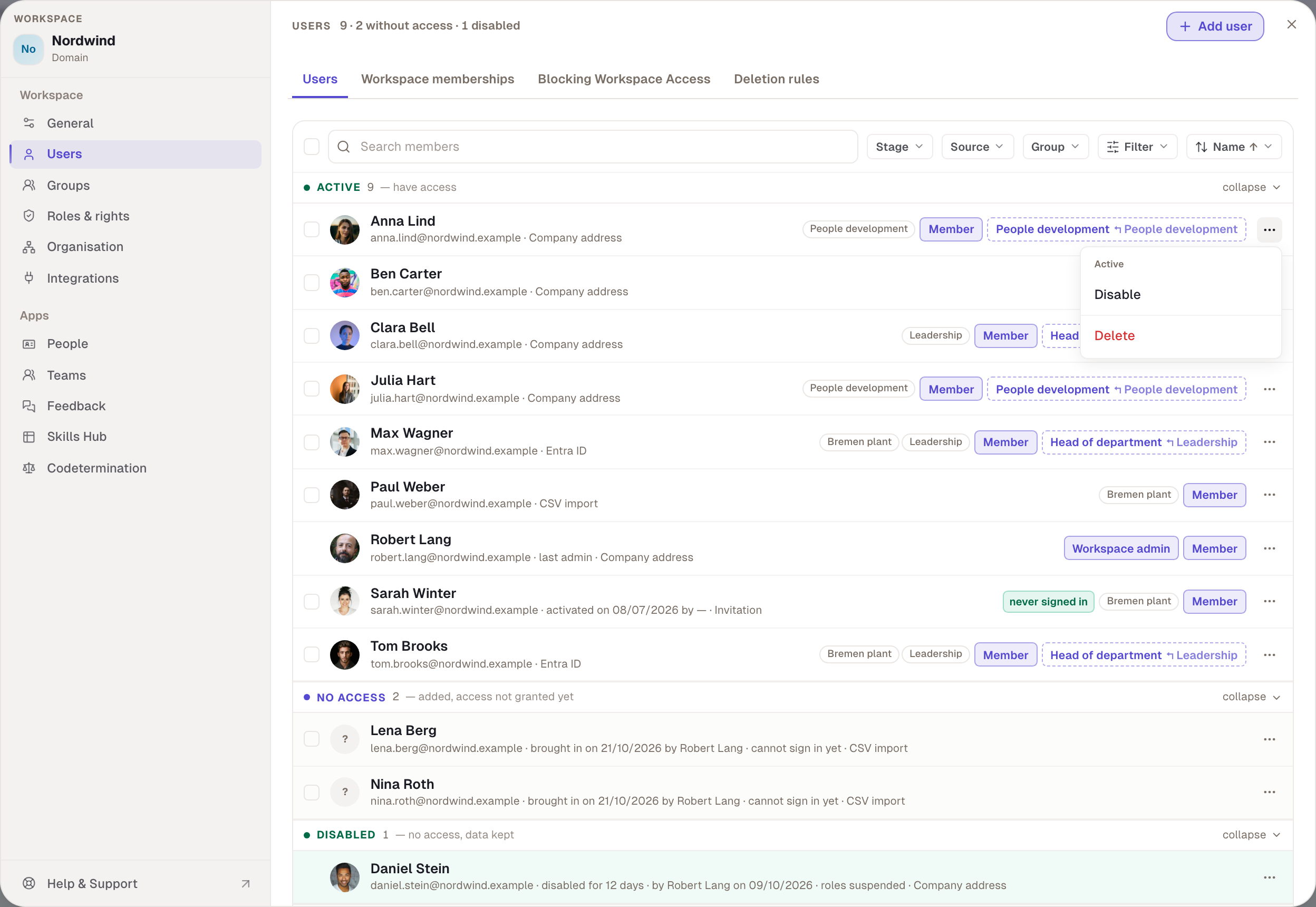
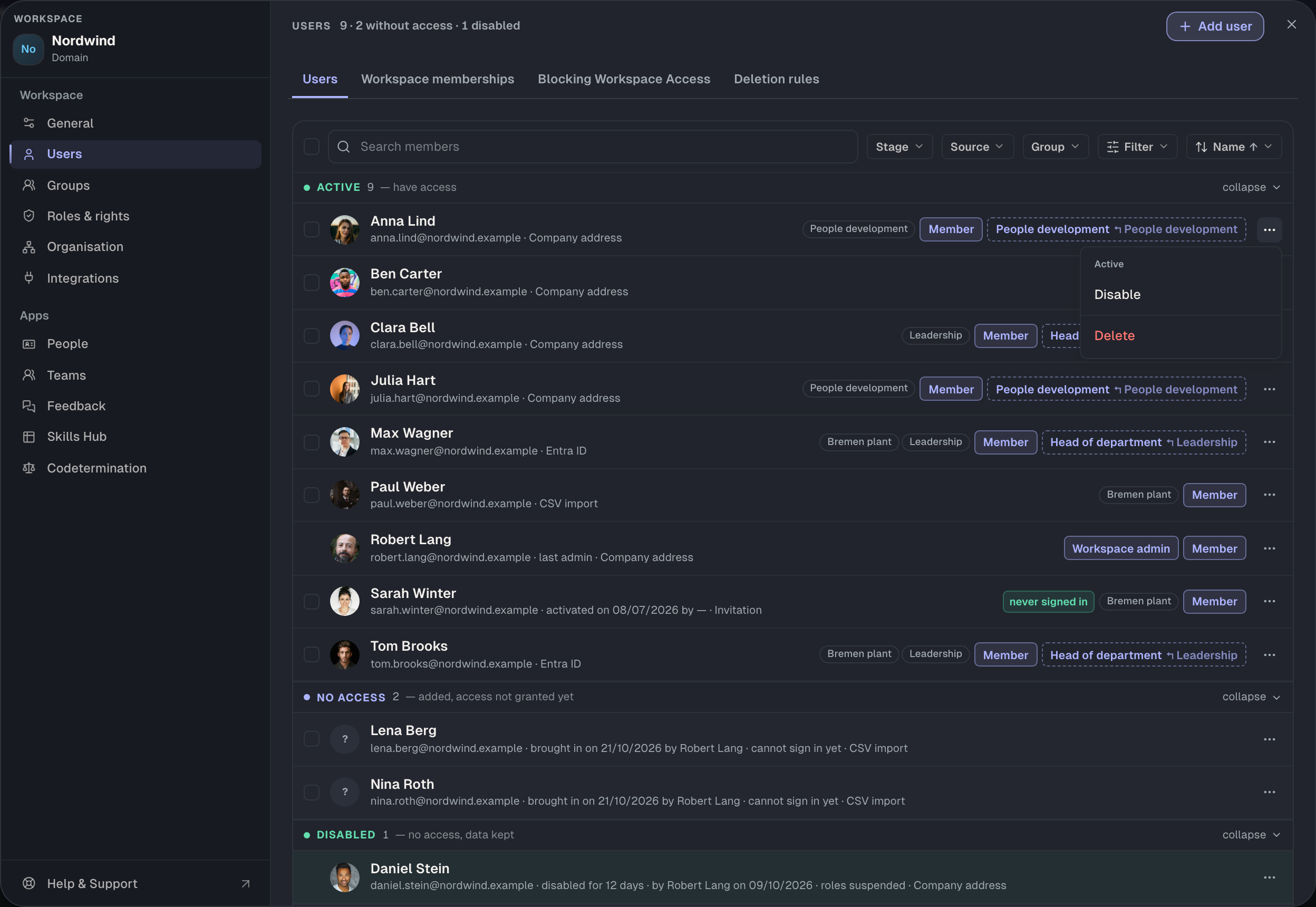
In the list under Users, the second line of each person shows the source, here Invitation, and for people who have never signed in, the email's status.
| Status | Meaning |
|---|---|
| Email queued, Sending email | still on its way |
| Email sent, Email delivered | arrived |
| Email bounced | The address accepts nothing. Check the address. |
| Email failed | Sending failed. Resend. |
| Email skipped | The person has unsubscribed from Skillties emails. Tell them yourself. |
Under ⋯ on the row, choose Resend as long as the person has never signed in. Discard takes a prepared person out again. If they have no other account and no other workspace, their account is deleted as well.
Limits
A workspace sends at most 20 invite emails in 24 hours, whichever admin triggers them. Once reached, it says “Invite limit reached (max. 20 per 24 hours)”. Preparing without email, the CSV import and the Entra sync don't count. A later access grant with email does count, because it also sends a sign-in link.
An invitation is valid for 28 days. After that the person can't accept it any more and you invite again. If a person is blocked because they were marked “may not return automatically” when deleted, their invitation is refused until you lift the block under Blocking Workspace Access.
Example
Sarah Winter joins as an external with an address outside the company domain. Robert invites her under Users › Add user, leaves Grant access now on and switches Send invite email off because he sends her the link personally. Sarah appears under Active at once with the badge “never signed in” and the source Invitation. Robert puts her in the “Bremen plant” group before she signs in for the first time.
Checked with version 0.6.0 · 20 Oct 2026