Quick Start
HR · Skill ownersBusiness10 min
Create and assign a Skills Profile
ResultYour own profile with targets is in use.
You needBusiness plan · the rights directory.hub and content.createProfilePrivate · for other people directory.editMainProfile
A Skills Profile says which skills a role needs and at which level. As soon as people carry it as their main profile, they see their match and you see the gaps.
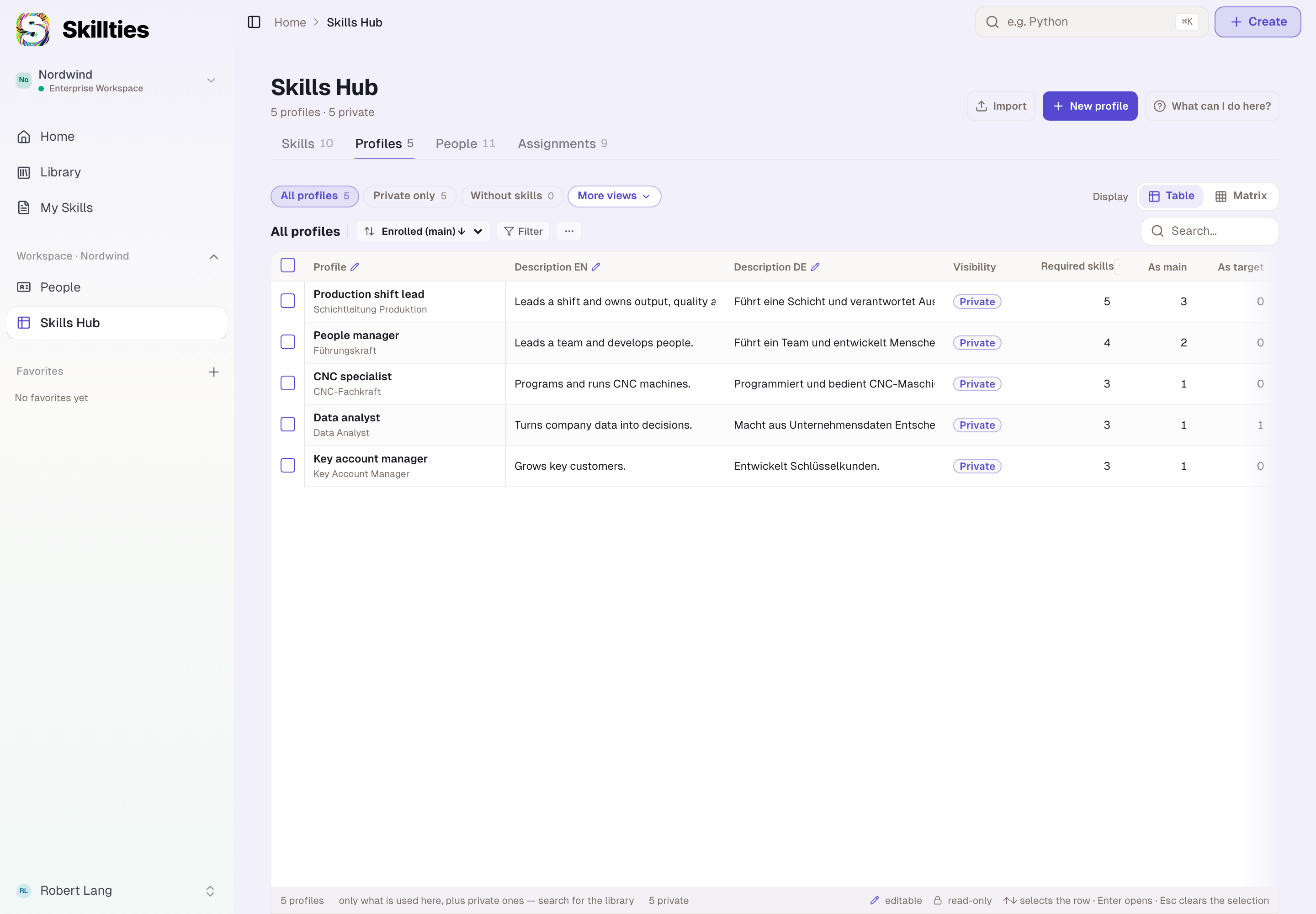
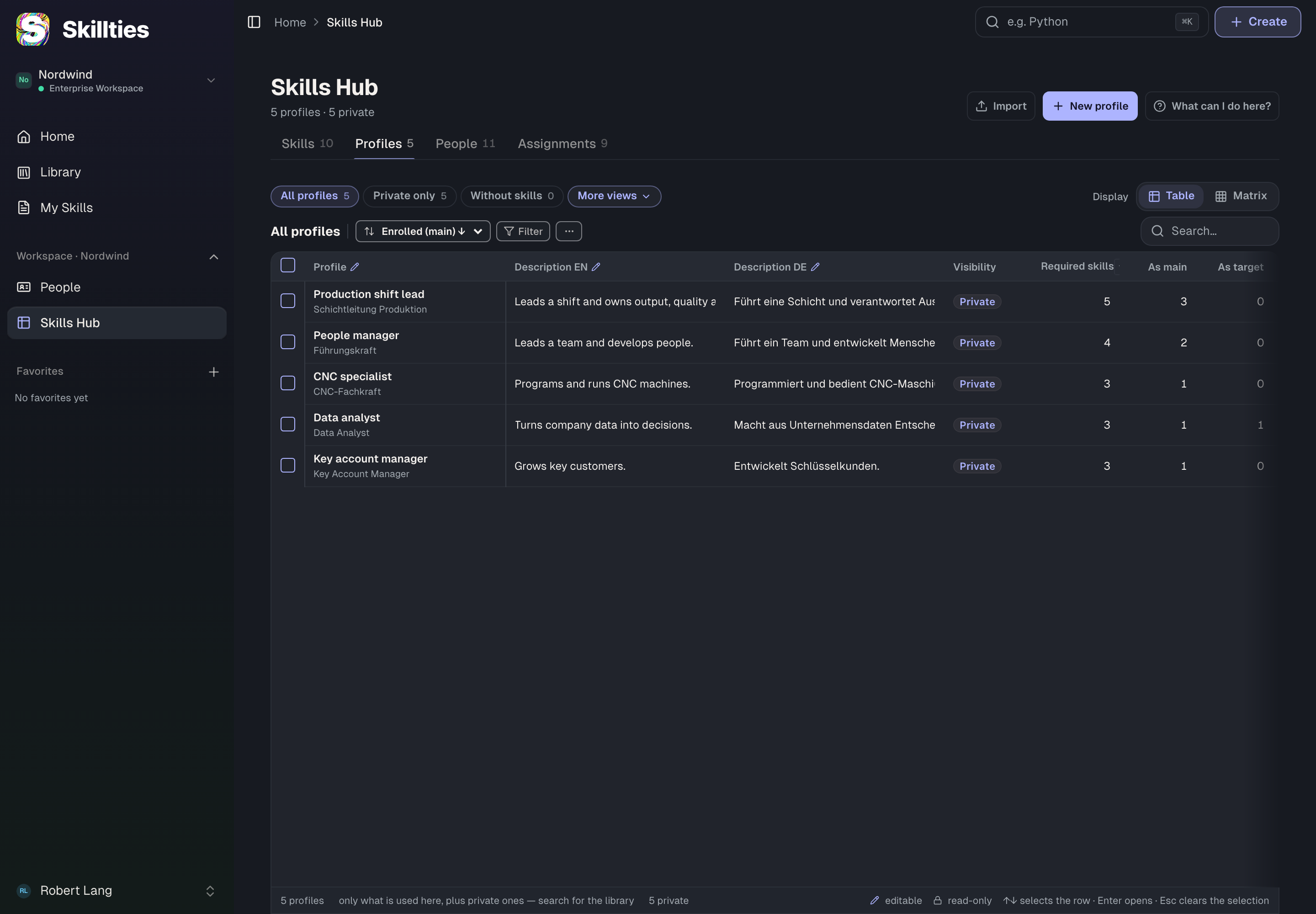
- Open the Skills Hub. In the sidebar, choose Skills Hub and the Profiles tab.
- Create the profile. Choose New profile, enter the Profile name and choose Create. The profile starts out private in your workspace, and you are its owner.
- Open the detail page. In the profile's row, choose Open detail page.
- Skills and targets. Choose Add Skills. For each skill, set the Profile requirement from 1 to 5 and choose Add … skills.
- Assign people. Back in the Skills Hub, choose the People tab. In the Main profile column, choose Pick profile for a person, search for the profile and confirm with Enter.
- Hand over ownership. If someone else should maintain the profile, choose the Owner cell in the Profiles tab and search for the person. They get a request and have to accept.
TipA template is quicker. Open a profile in the Library and choose Copy and create new in the ⋯ menu. Skills and targets come along.
Checked with version 0.6.0 · 20 Oct 2026