Quick Start
Adminall plans10 min
Set up a workspace in 10 minutes
ResultYour team is invited and can rate its skills.
You needAdmin role in the workspace · your team's email addresses
This works on every plan, including Free. You reach all settings from the workspace switcher at the top left of the sidebar.
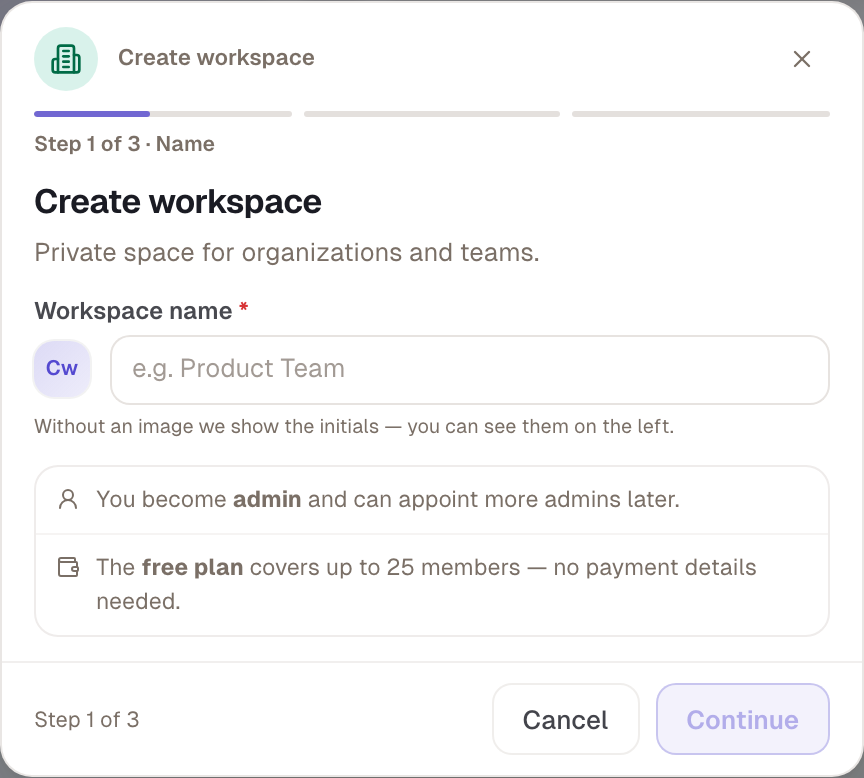
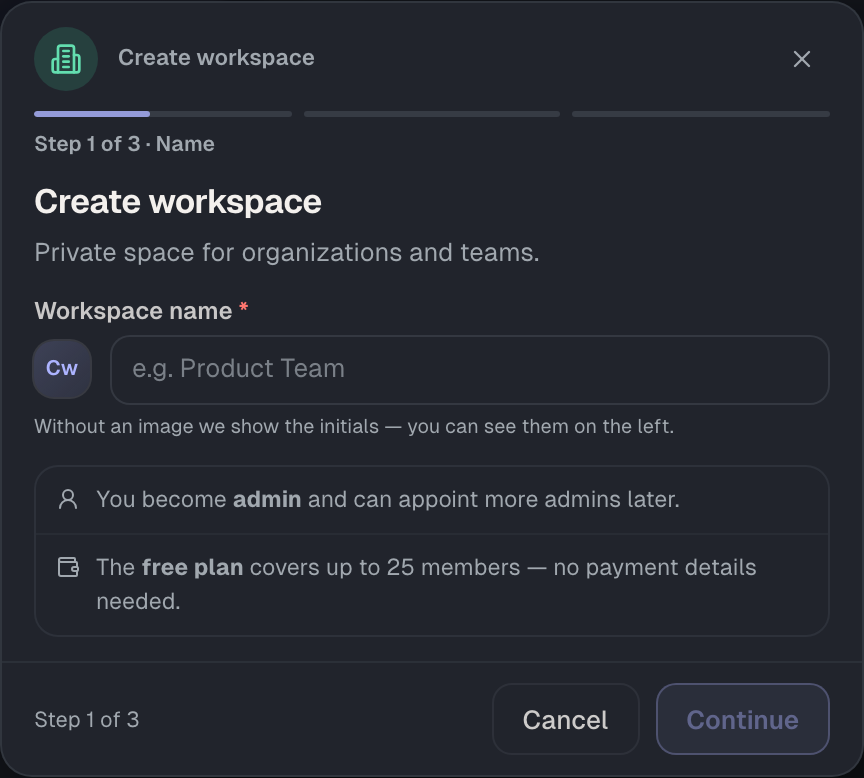
- Open the settings. In the workspace switcher, choose Workspace settings.
- Name and image. Under General › Appearance & Type, enter the Workspace name and upload a Workspace avatar. Choose Save.
- Invite. Open Users and choose Add user. On the By email tab, enter the addresses and choose, for example, Invite 3. The number follows your list.
- Check the deletion rules. Under Users › Deletion rules you see who takes over skills and profiles when someone leaves. The default is to the admin.
- Start yourself. Assign yourself a Skills Profile and rate your first skills. That way you see what your team is about to experience.
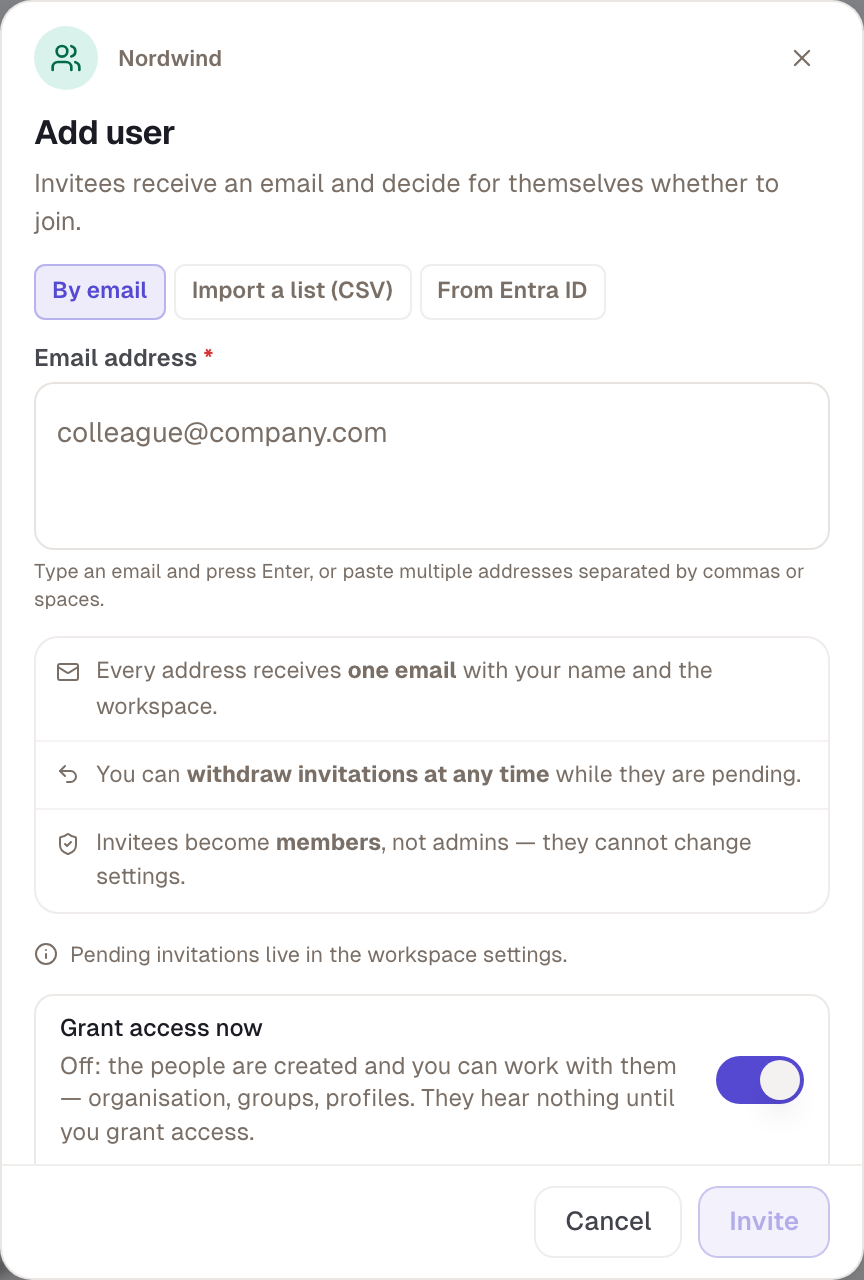
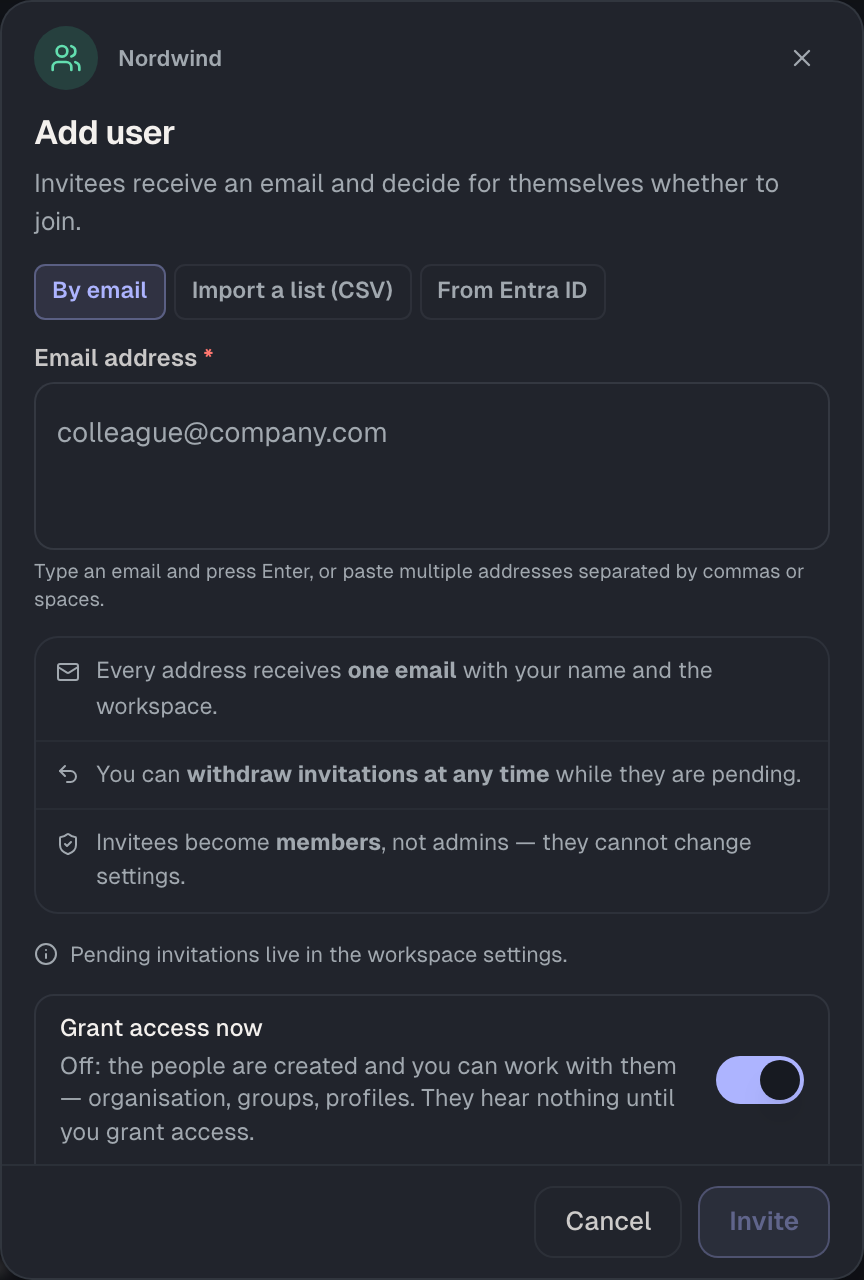
Good to knowWith Import a list (CSV) you add many people at once. There, Grant access now and Send invite email start switched off: the people are prepared and don't get an email yet.
Checked with version 0.6.0 · 20 Oct 2026