Quick Start
AdminBusiness15 min
Roles, groups and Entra ID
ResultPeople come from Entra ID, rights come from groups.
You needBusiness plan · the rights settings.identity, settings.groups and settings.roles · someone who can grant admin consent in Microsoft Entra
With Entra ID, your IT maintains who is in the workspace. You don't give rights to individual people but to groups. Whoever is in a group gets its roles.
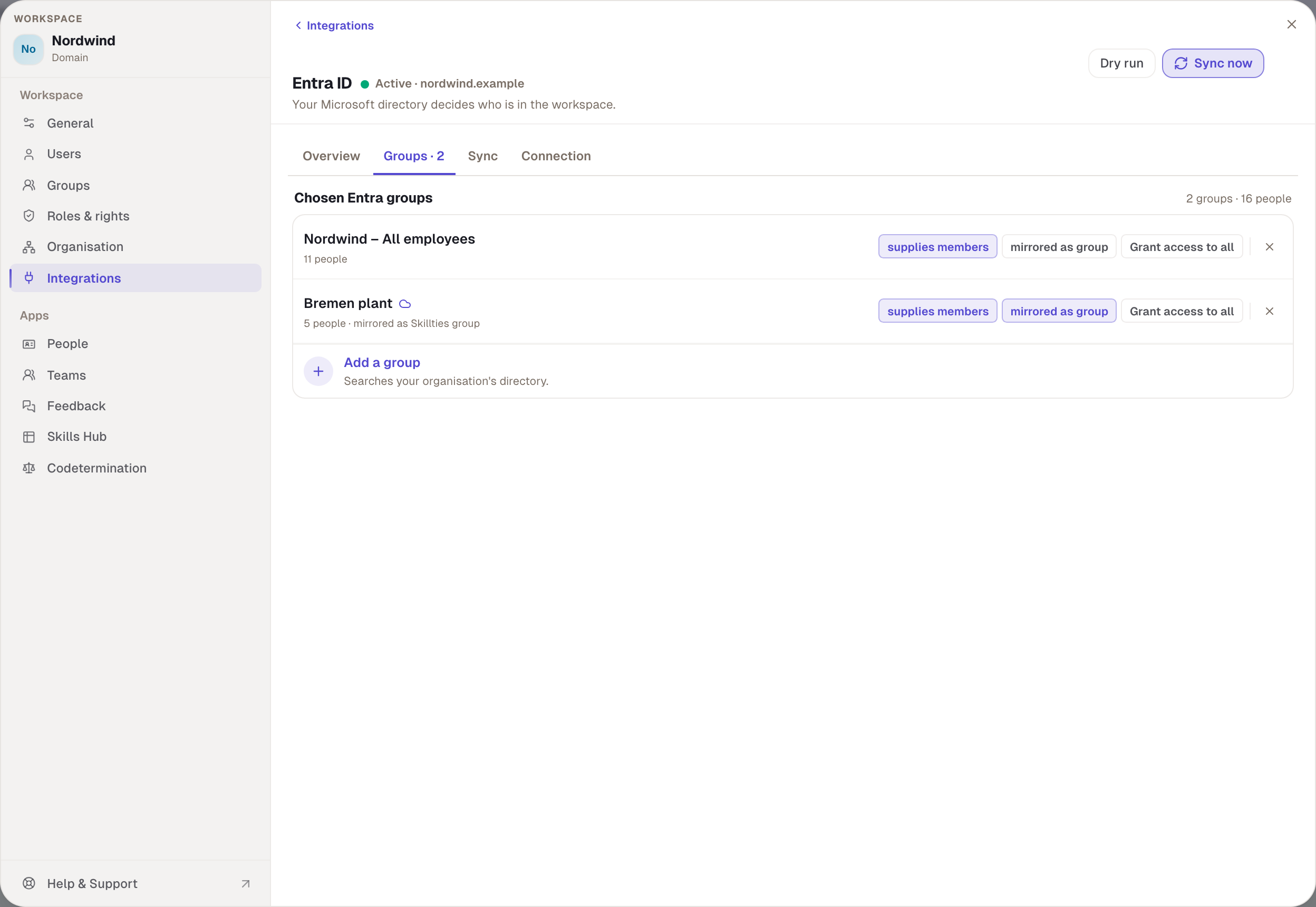
- Connect Entra ID. In Workspace settings › Integrations, choose Connect on Microsoft Entra ID. If you aren't signed in with Entra, it says Sign in with Entra ID.
- Grant consent. Under Who grants the consent?, choose I do or Someone from our IT. For IT, choose Create link and pass it on. Once consent is granted, choose Check.
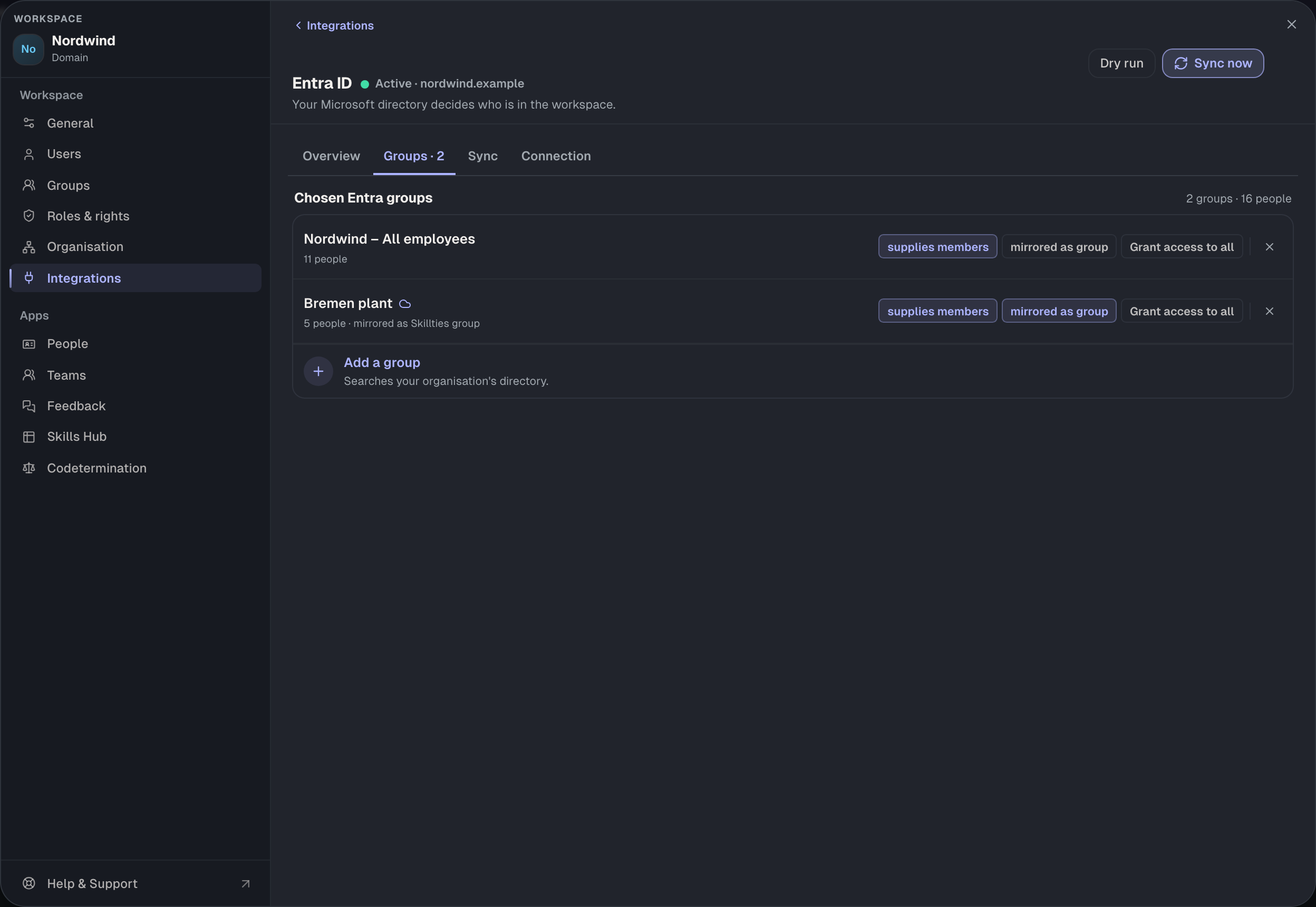
- Choose the member source. Choose Add a group and the Entra groups whose people should join the workspace.
- Dry run and finish. Leave New people arrive as on prepared — no access, set When switching to Free and choose Finish setup.
- Attach roles to groups. Under Groups, choose Group and From Entra group. Open the group, tick a role under Roles of this group and confirm with Attach role.
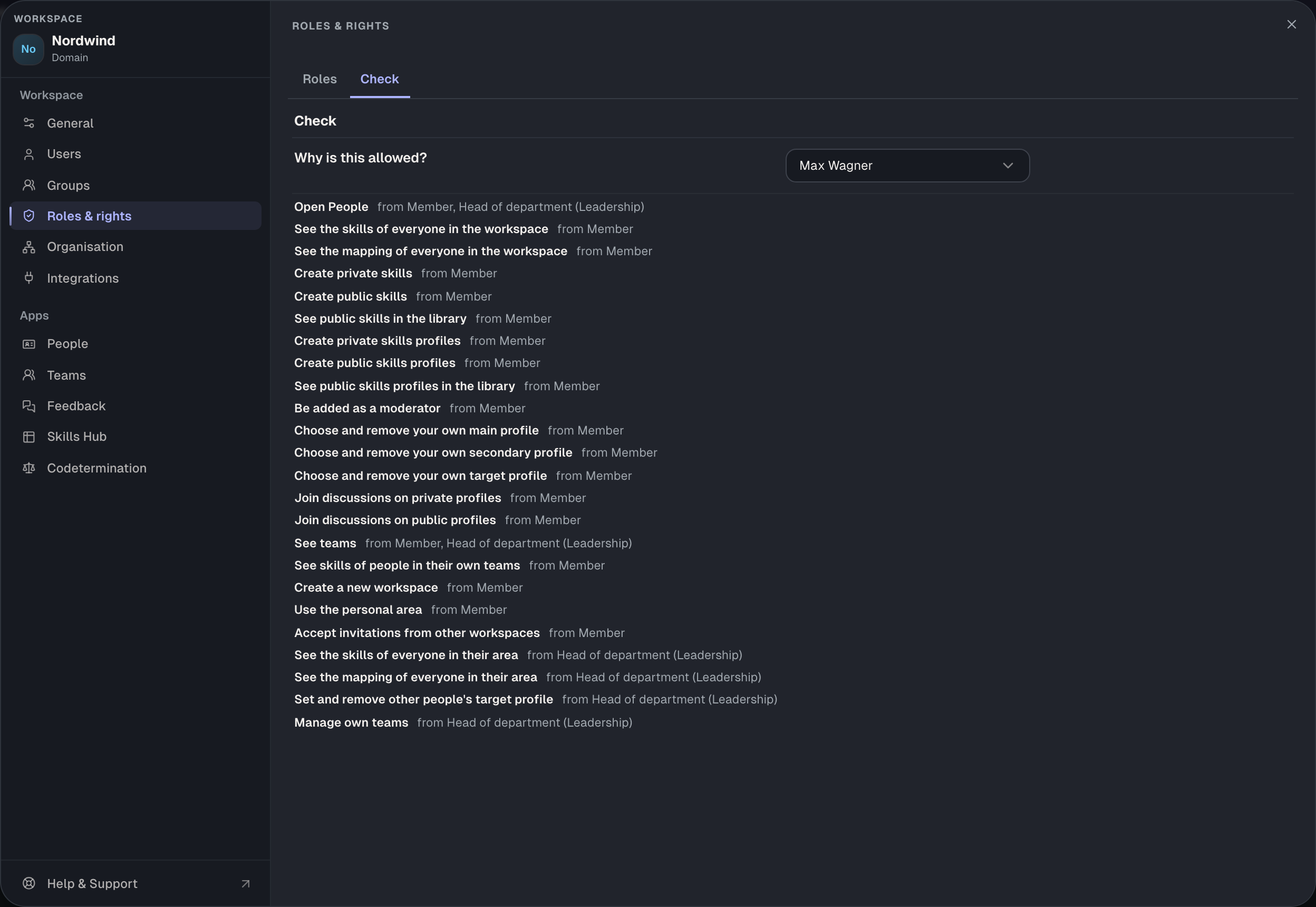
- Check rights. Under Roles & rights › Check, choose a person. You see every right and the role and group it comes from.
- Grant access. In the Entra view under Groups, choose Grant access to all on a group, then With email or Without email.
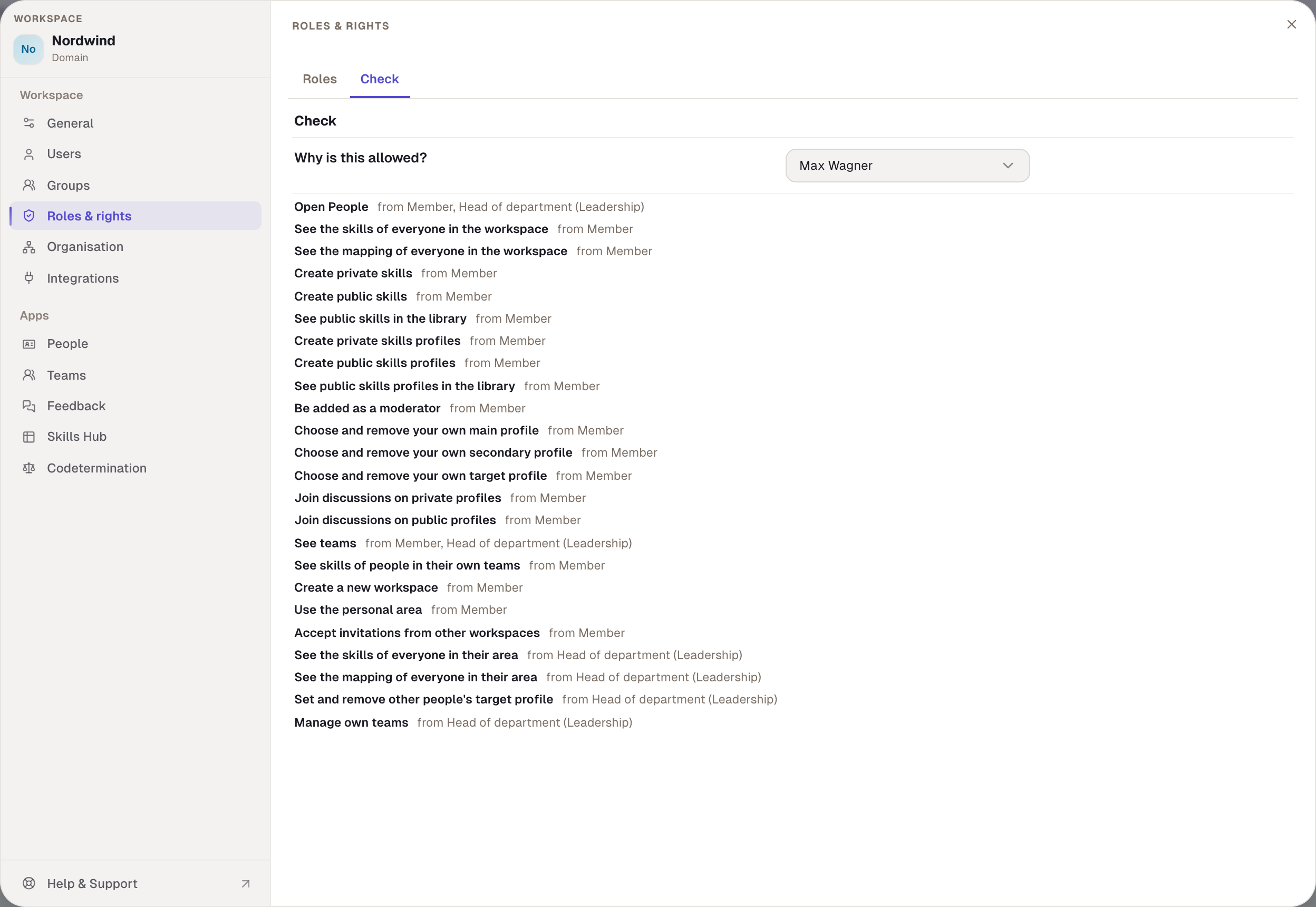
Good to knowThe Check in step two only shows whether Microsoft's consent has arrived. Who holds which right you see under Roles & rights › Check.
Checked with version 0.6.0 · 20 Oct 2026