Quick Start
Works councilEnterprise10 min
Set up co-determination
ResultDefined changes need the body's approval.
You needEnterprise plan · the right settings.codetermination
Codetermination is off until someone switches it on. From then on, the body decides on the changes you define here. A few rights already need approval when you switch it on, such as changing roles.
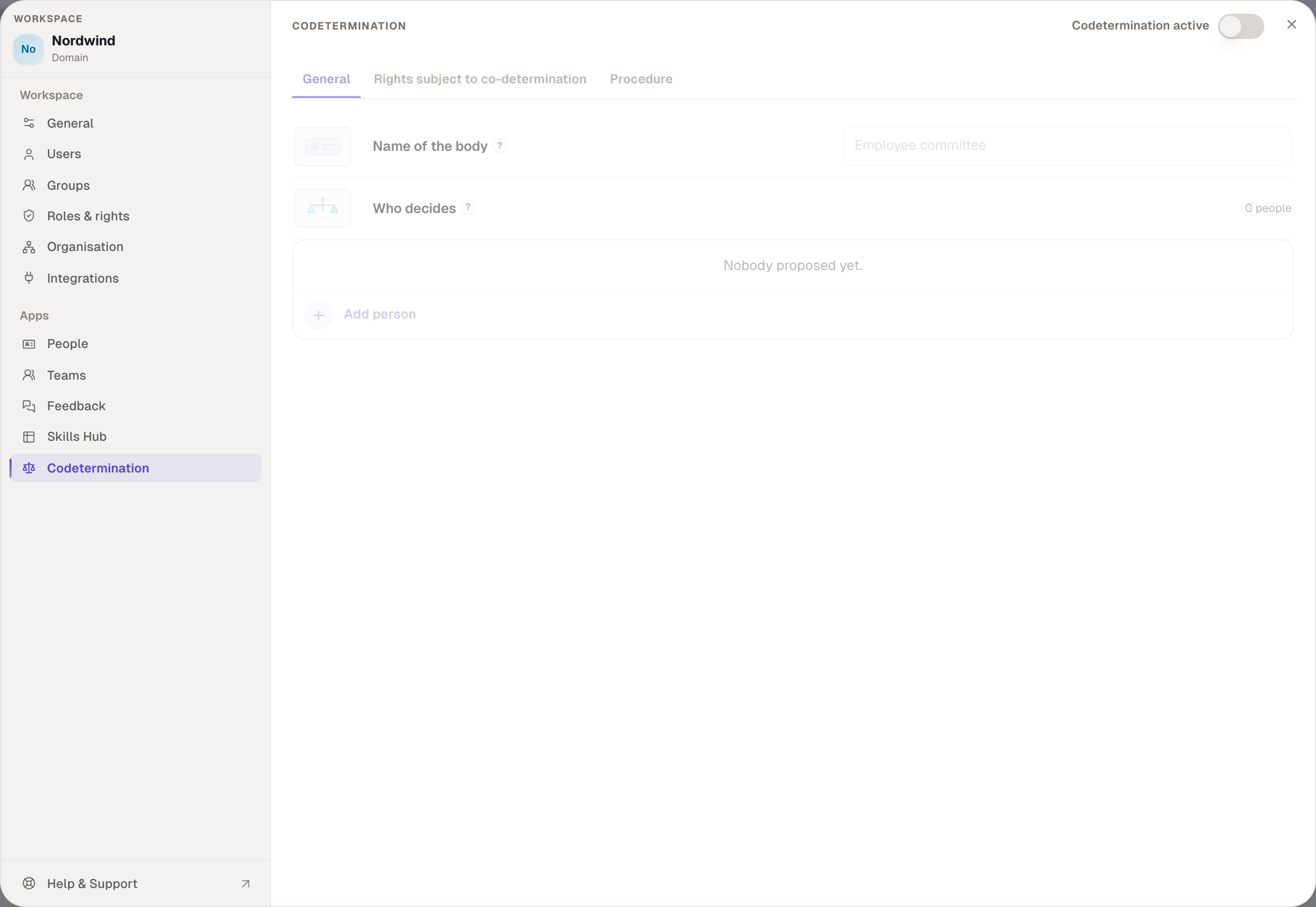

- Switch it on. In Workspace settings › Codetermination, switch on Codetermination active. This gives you a seat on the body with the right to approve.
- Name the body. Under General, enter the Name of the body, for example “Works council”.
- Add members. Under Who decides, choose Add person. For each person, set Can decide or Read only.
- Define what needs approval. Under Rights subject to co-determination, tick rights. Under Deletion concept, choose nothing, log or request for each rule.
- Procedure. Under Procedure, set the Deadline for a reply and how many votes Approval by needs. The defaults are 14 days and one vote.
- Confirm seats. Proposed members are confirmed in the Codetermination app under Members with Add to the body.
- See the first request. In the Codetermination app, Requests lists all open requests. There you choose Approve, Reject or Ask a question.
Good to knowMaking a rule stricter applies at once. Loosening a rule becomes a request itself, and so does switching codetermination off.
Checked with version 0.6.0 · 20 Oct 2026