Import a list (CSV)
WhereWorkspace settings › Users › Add user › Import a list (CSV)Rightsettings.members
When CSV is the right route
CSV fits when you add more than a handful of people and have no connection to Entra ID, or when people should be in the system before their first day. Every person from the file is created as a member in the Prepared state: you can assign profiles, set groups and maintain the reporting line before anyone hears about it. With Entra ID you don't need CSV; the sync takes care of it.
The file
On the Import a list (CSV) tab, first choose Download the template (CSV). The template is called skillties-personen-vorlage.csv, is separated by semicolons and contains two sample rows. It has five columns:
| Column in the template | Required | Effect |
|---|---|---|
| yes | creates the person or finds their existing account | |
| vorname, nachname | no | fills in first and last name if still empty |
| vorgesetzter_email | no | the manager's email address; sets the assignment under Organisation |
| personalnummer | no | fills in the employee ID if still empty |
The header may also be in English or spelled differently. Skillties recognises “Email”, “First name”, “Manager” and similar spellings, regardless of case or umlauts. A column “Name” on its own counts as the last name. All other columns are ignored and named in the preview. Department, job title, groups and roles can't be imported.
Columns may be separated by semicolon, comma or tab; Skillties detects the separator itself. The file must have a header row.
Import
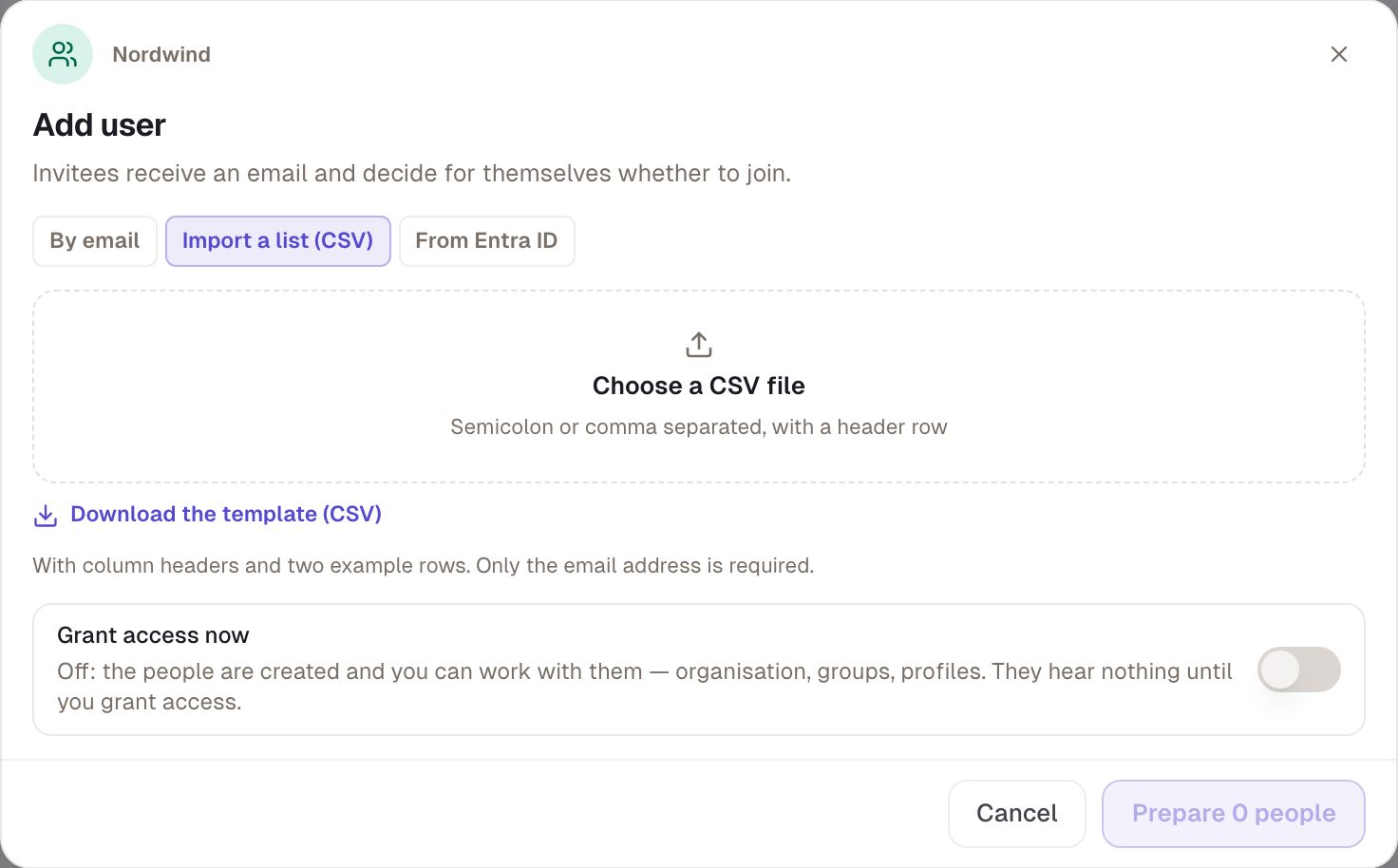
- Choose Choose a CSV file and the file.
- Check the Preview. The numbers at the top say how many people will be invited, how many are already here, how many are duplicates and how many are faulty. Every row carries its line number and its status.
- Grant access now and Send invite email start off here. Leave them off if you want to prepare people first.
- Choose Prepare 3 people; the number follows the file. With access on, the button says Invite 3.
Skillties adds the people one after another and shows “Inviting … 2 of 3”. If a row fails, the message at the end names the affected addresses.
What the preview says
| Status | Meaning |
|---|---|
| invite | new, will be created |
| already here | active, prepared, disabled or invited; will be skipped |
| duplicate | the address appears earlier in the file; only the first one counts |
| waiting | the manager appears further down in the same file and is still to come |
| error | no or invalid email address; the row is skipped |
If the email column is missing entirely, Skillties rejects the file.
What happens to known people
Anyone already active, prepared or disabled is skipped, even if the name or employee ID differs in the file. Anyone who was deleted comes back with a fresh start. If the person already has a Skillties account elsewhere, from another workspace for example, that account is used, and name and employee ID stay as they are. Only empty fields are filled.
The manager from the column is entered under Organisation right away, as a manual entry. If a manager is already set, it stays. If a row refers to itself or to an invalid address, the person is created without a manager.
Grant access
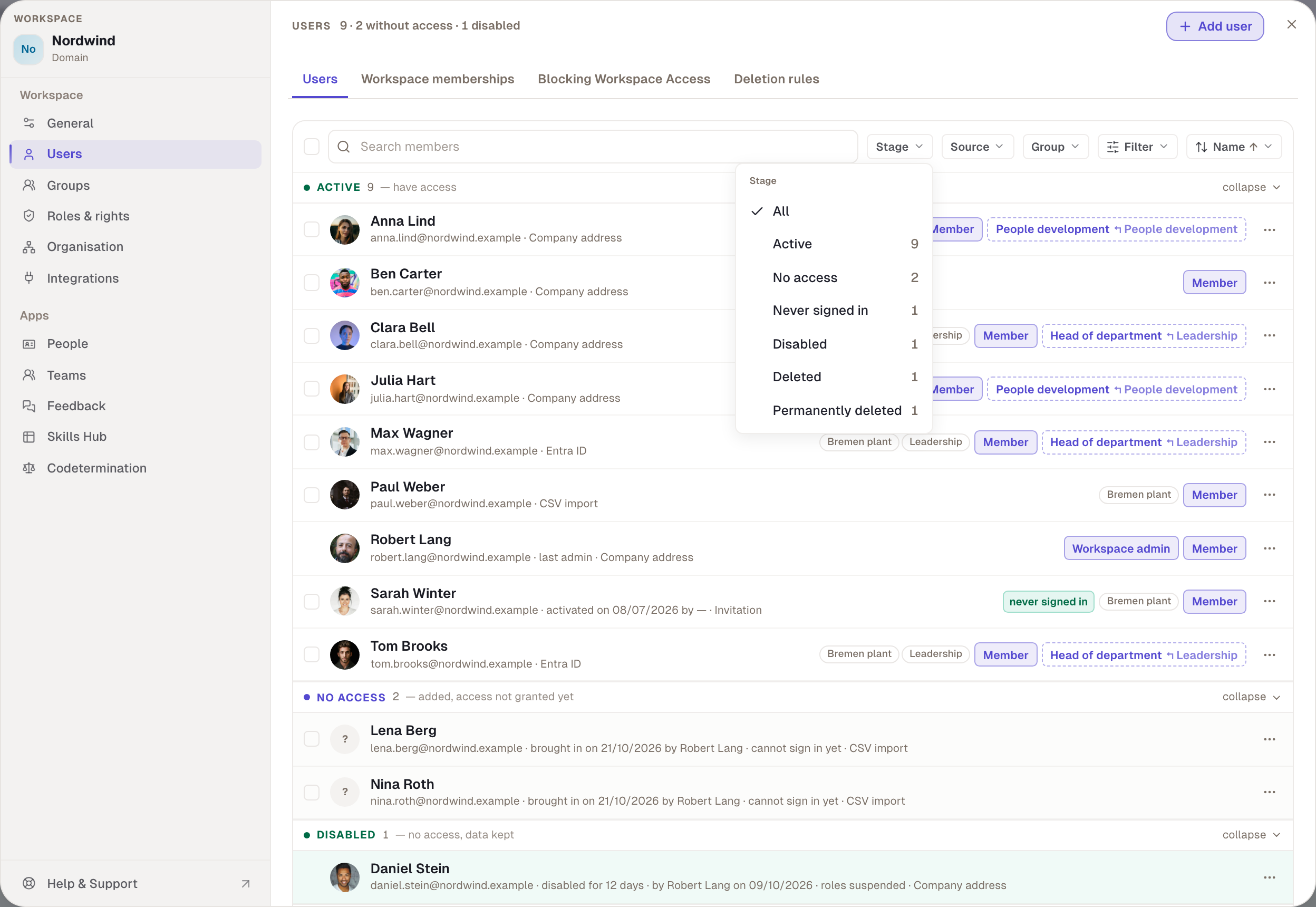
Prepared people don't see the workspace. You grant access under Users, one by one via ⋯ with Grant access with email or Grant access without email, or several at once: filter Stage › No access, select all, Grant access to 3. With email, every person gets a sign-in link. That counts towards the invitation limit of 20 emails in 24 hours.
Example
Nordwind hires two people for production. Robert enters both in the template, with Tom Brooks as their manager, and imports the file. Both sit under No access, with Tom as manager under Organisation. Robert assigns them the “CNC specialist” profile and puts them in the “Bremen plant” group. On their first working day he grants both access with email. They sign in, see their main profile right away and start rating.
Checked with version 0.6.0 · 20 Oct 2026