Entra ID
WhereWorkspace settings › Integrations › Microsoft Entra IDRightsettings.identity
What Entra ID does in Skillties
Without Entra, you maintain members by hand: by invitation, CSV or the company address. With Entra, your directory takes over. Whoever is in a chosen Entra group becomes a member. Whoever is disabled or deleted there loses access in Skillties too. Your IT manages membership in one place, and Skillties follows.
Skillties requests only a few details and never writes back. Passwords, accounts and groups in Entra stay untouched. Whatever someone enters by hand in Skillties is not overwritten by the sync.
The integration sits under Integrations as the Microsoft Entra ID card. Once set up, it says “Connected to” and your domain, and Open leads to the four tabs Overview, Groups, Sync and Connection.


What you need first
| Requirement | Why |
|---|---|
| Business or Enterprise plan | Entra ID is not part of Free. On Free you invite by email or CSV. |
The right settings.identity | It opens Integrations. Admins always have it. |
| Someone with admin consent in Microsoft Entra | Only this person may approve Skillties once. Workspace admins don't need that role afterwards. |
For groups with roles: settings.groups and settings.roles | You attach roles to the mirrored groups in Skillties. |
Microsoft shows the app “Skillties Verzeichnis-Sync” with two read permissions: read full user profiles and read group memberships. Microsoft calls them “User.Read.All” and “GroupMember.Read.All”. The permission is broader than needed because Microsoft offers nothing narrower for managers and account status. Until publisher verification, Microsoft shows “unverified”. That is normal and doesn't affect the consent.
Set up in four steps
The first time, a wizard guides you through setup. At the top it shows “Step 1 of 4” and the step's name.
- Prepare. You read what Skillties reads and what it doesn't, and under Who grants the consent? choose I do or Someone from our IT.
- Consent. With I do, choose Connect to Entra ID and approve at Microsoft. With Someone from our IT, choose Create link, then Copy, and pass the link on. Once consent is granted, choose Check.
- Member source. With Add a group you search your organisation's directory and pick the Entra groups whose people should become members.
- Dry run. You decide how new people arrive and choose When switching to Free. Without that choice you can't continue. Finish setup runs the dry run and switches the sync on.
The consent link is valid for 7 days, can be redeemed once and needs no Skillties account. Revoke makes it invalid; Create a new link issues a new one. As soon as IT has approved, every workspace admin gets a notification.
What the person with the link sees afterwards:
| Page | Meaning | What to do |
|---|---|---|
| Consent granted | Skillties may read the directory. | Continue in Skillties with Check. |
| Consent cancelled | Consent wasn't given at Microsoft. The link stays valid. | Open the link again and approve. |
| Link no longer valid | expired, redeemed or revoked | Create a new link in Skillties. |
| Consent not effective yet | Microsoft approved, access is still missing. | Wait a few minutes, then Check. |
| Permissions missing | The app may not read the directory. | Check the app registration at Microsoft. |
The overview
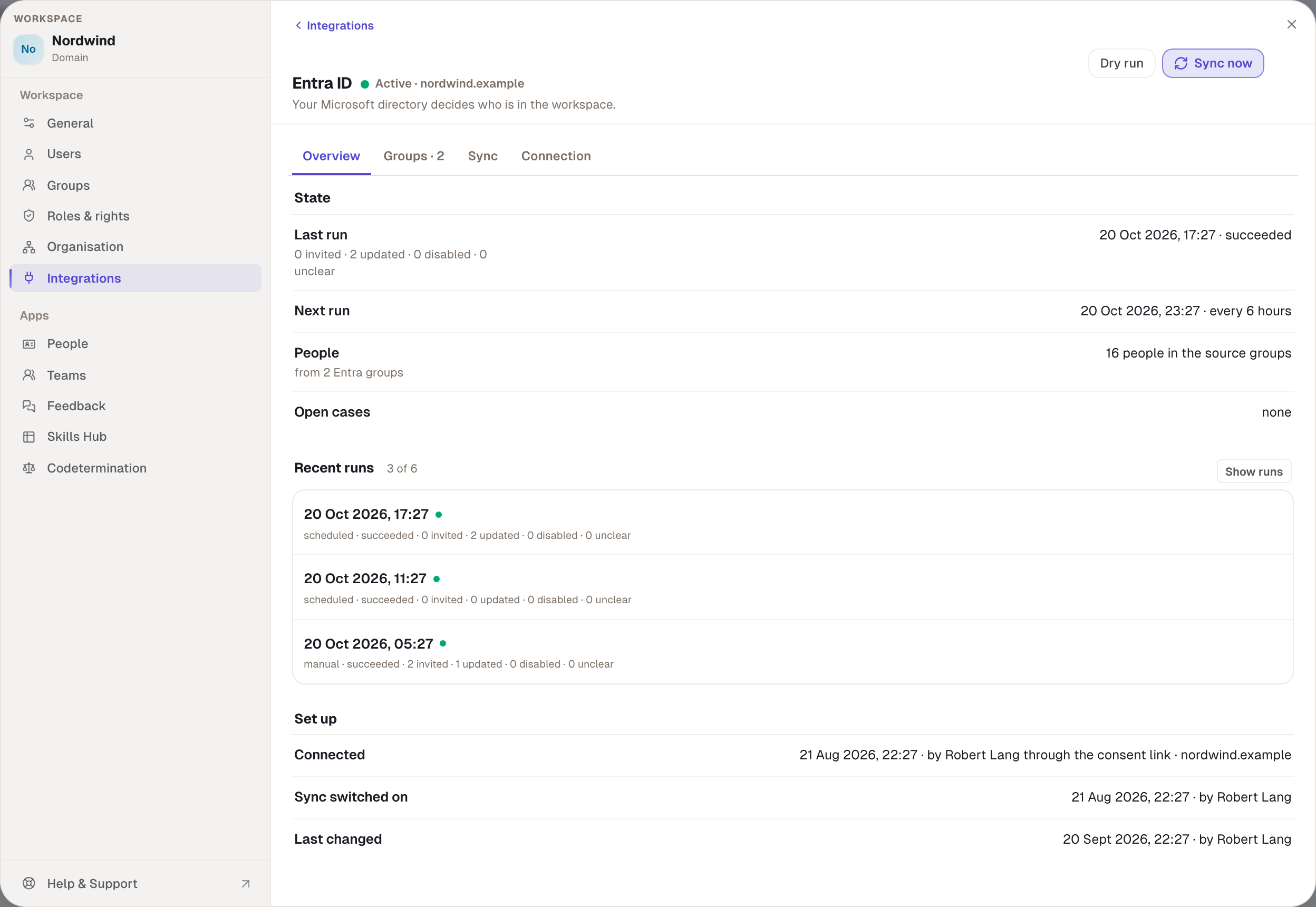
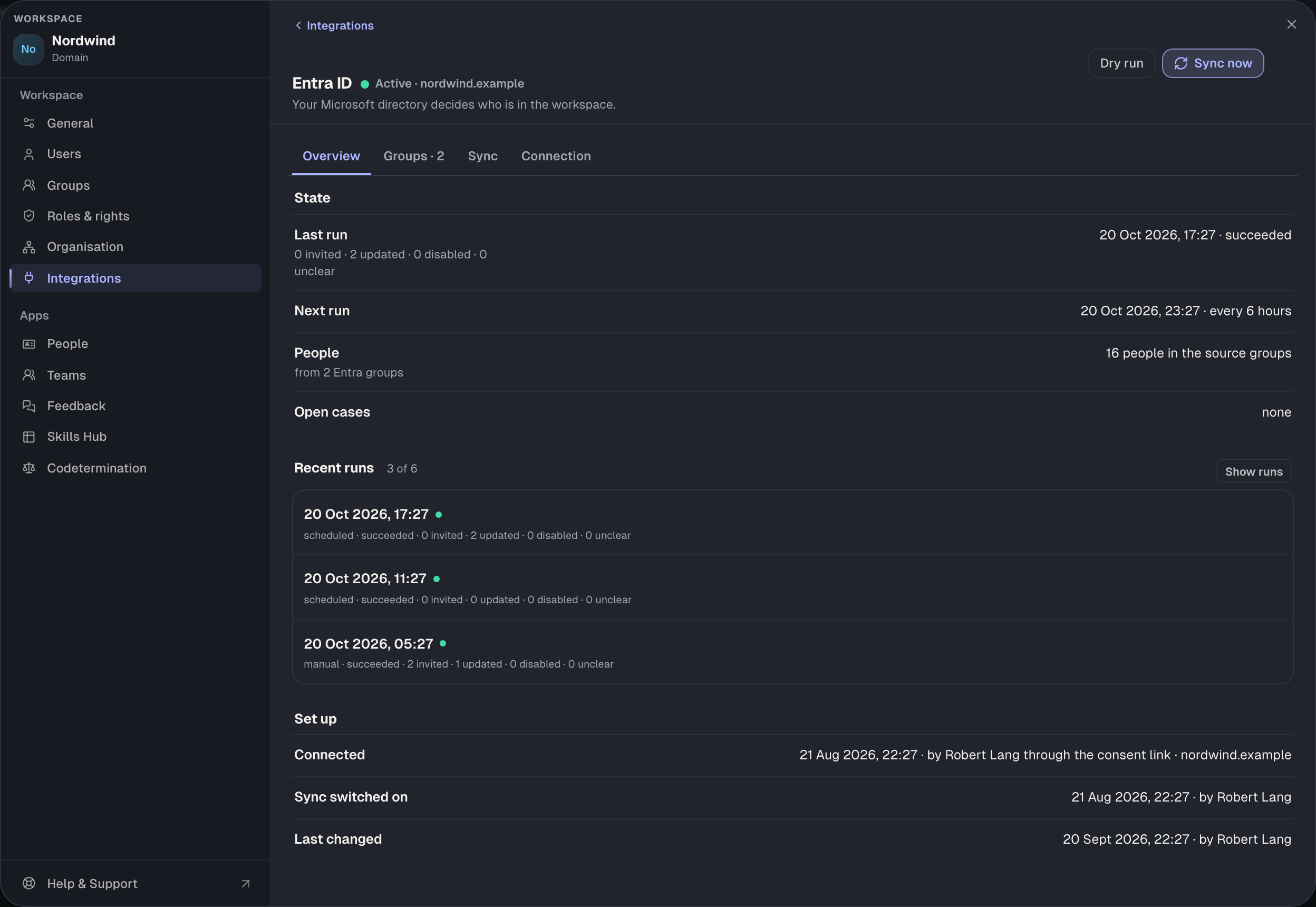
The Overview shows whether the sync is running and what it did last. Next to the title is the state; on the right the Dry run and Sync now buttons.
| State next to the title | Meaning |
|---|---|
| Active | connected, the sync runs on schedule |
| Sync off | connected, but Sync active is switched off. Nothing changes. |
| Interrupted | Consent at Microsoft is missing or was withdrawn. |
| Awaiting approval | A change is with codetermination; until then the previous setup applies. |
| Not connected | There is no consent yet. |
Under State you find the Last run with its numbers, the Next run, the number of People in the source groups and the Open cases. An open case is a person the sync can't match reliably. Recent runs lists the latest runs, Show runs all of them. Set up shows when and by whom the connection and the sync were switched on.
Groups: who becomes a member
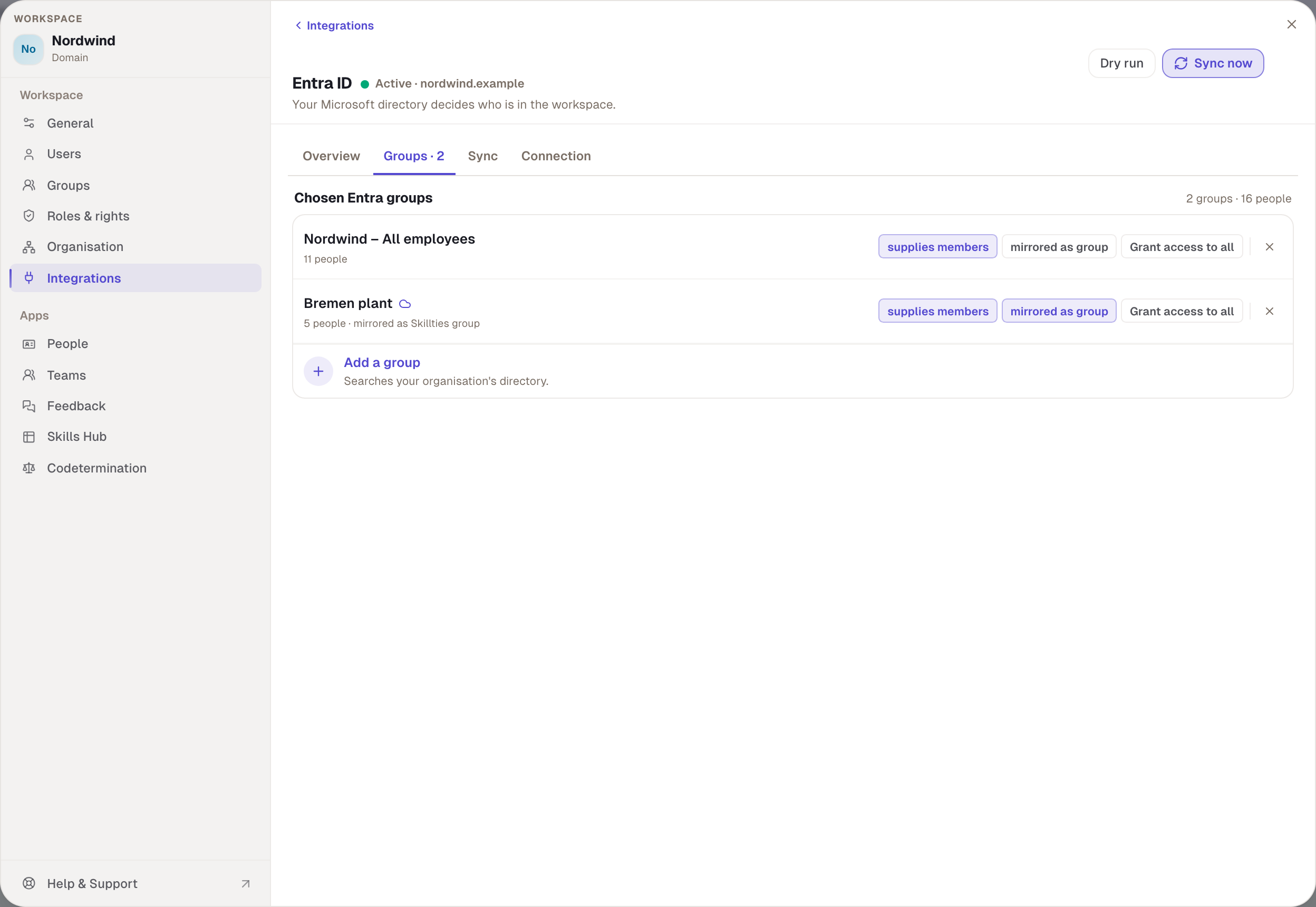
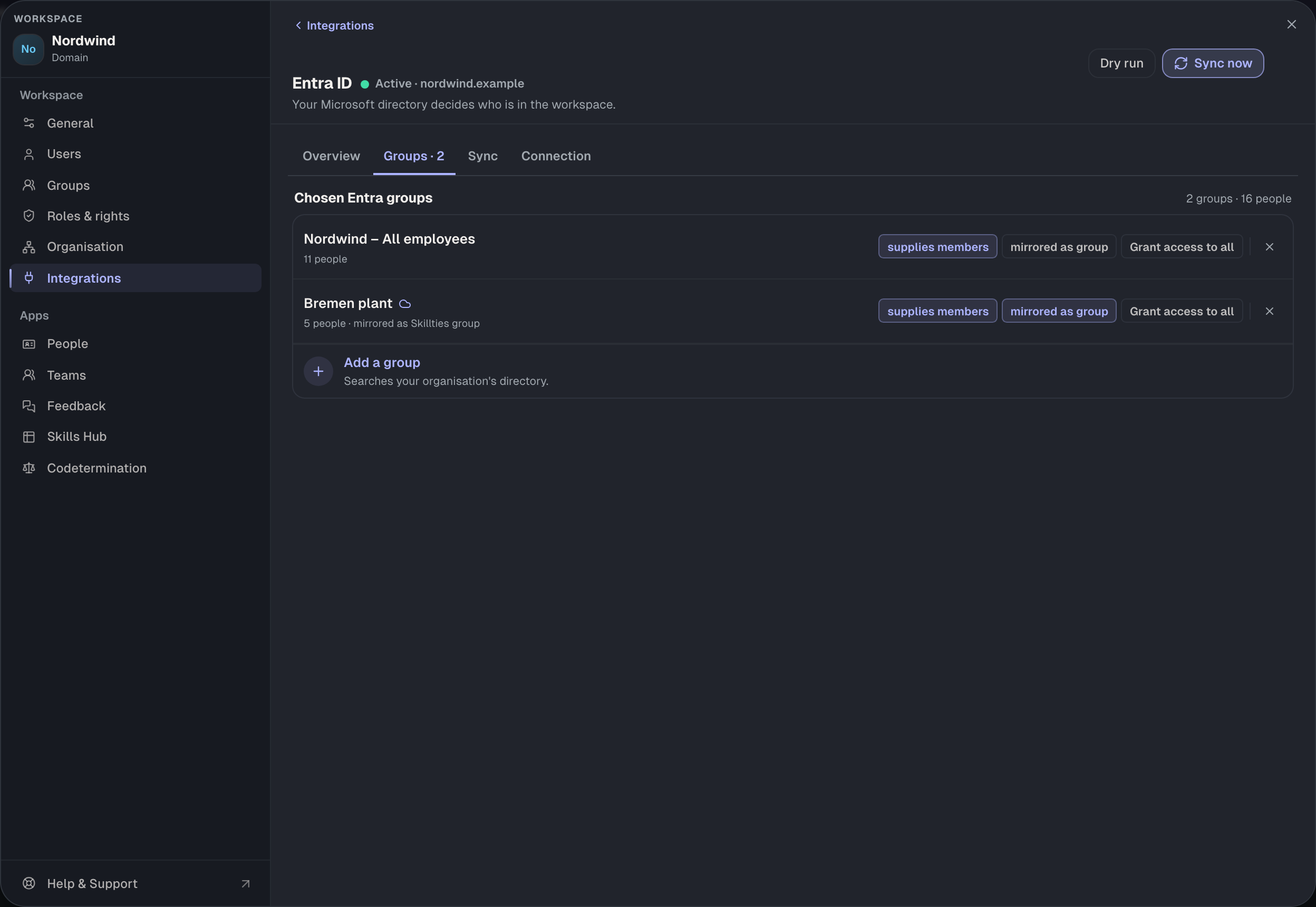
The Groups tab lists the chosen Entra groups. Each group has two switches you set separately.
| Switch | Effect |
|---|---|
| supplies members | Whoever is in this Entra group becomes a member of the workspace. |
| mirrored as group | There is a Skillties group of the same name whose members the sync maintains. You attach roles to it. |
Both switches may be on. mirrored as group without supplies members is allowed too: the group then only fills with people who are members anyway, such as a department within the workforce. If both are off, the entry disappears. Nested groups count.
Grant access to all gives every prepared person from a group access at once, With email or Without email. The cross takes a group out of the sync. If a group no longer exists in Entra, the next run removes it. A mirrored Skillties group then remains as a manual group.
Mirrored groups in Skillties
A mirrored group appears under Groups with the Entra ID badge. Its members come from the directory. You give the group roles as with any other group, under Roles of this group.
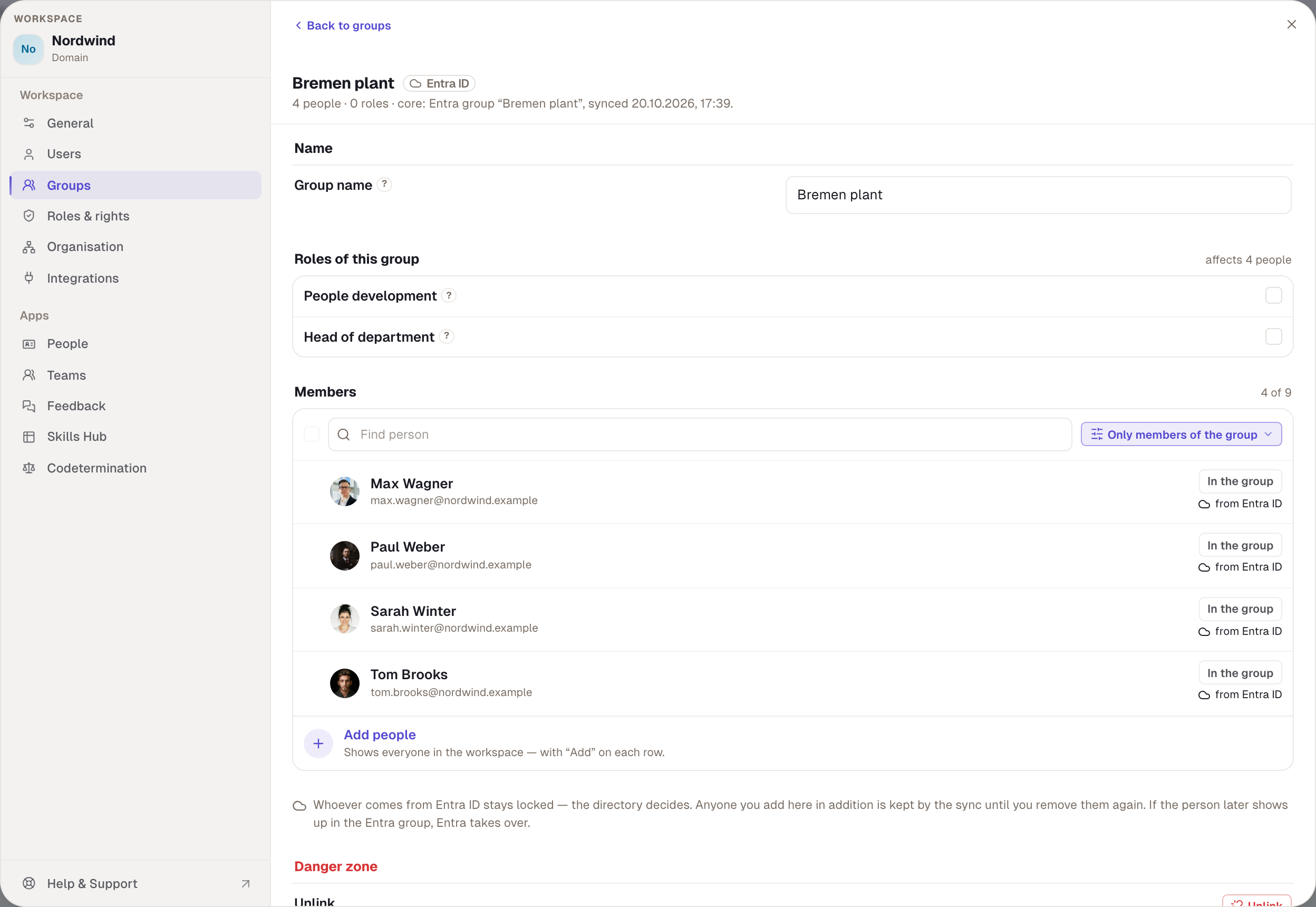
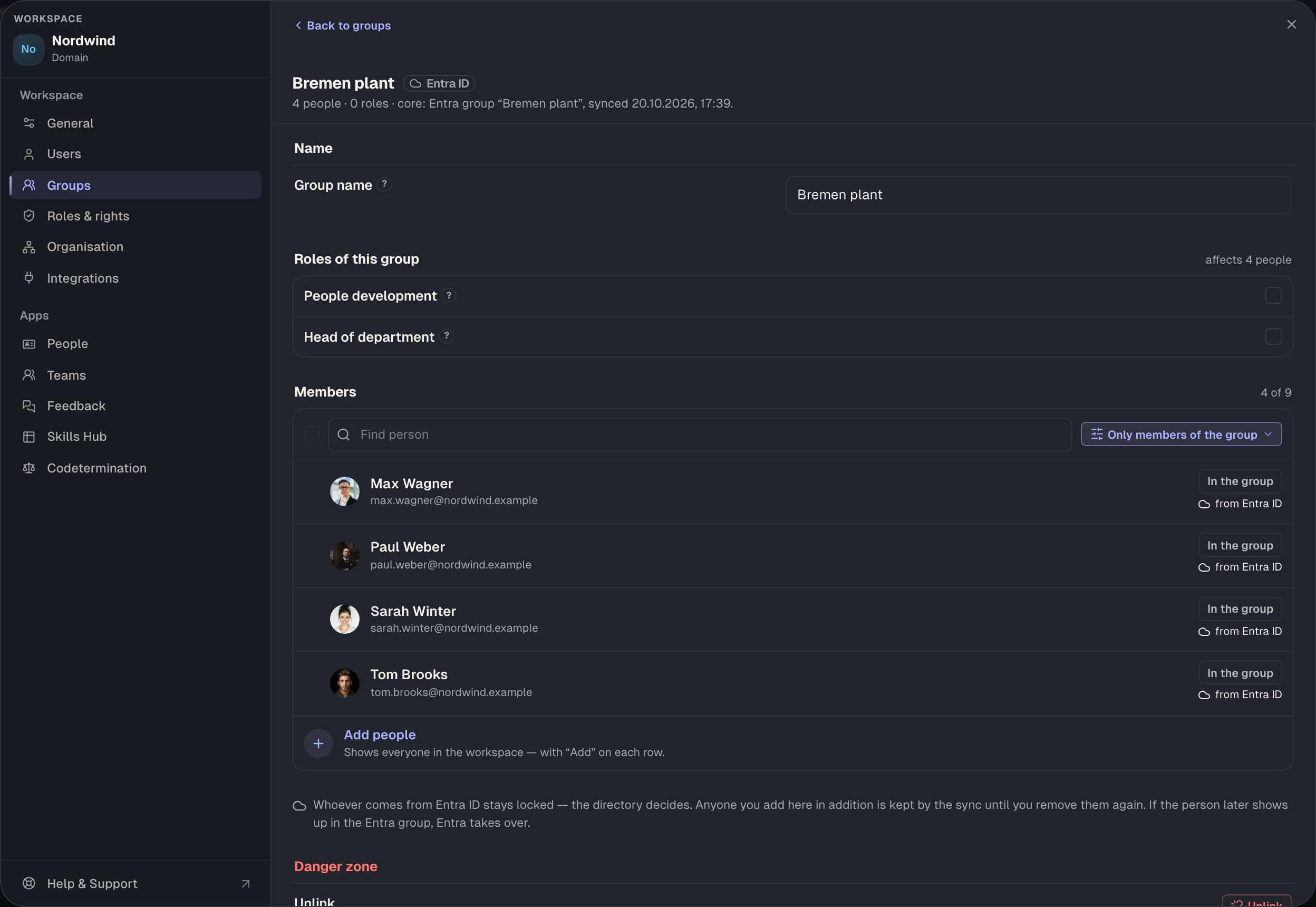
People from Entra are locked in the member list, because the directory decides. You can add people by hand as well. The sync leaves them until you remove them. If such a person later appears in the Entra group, Entra takes over. Unlink under Danger zone turns the mirrored group into a manual group.
Sync: when and how
On the Sync tab you set how often the directory is read and with what consequences. Every setting has a ? with an explanation.
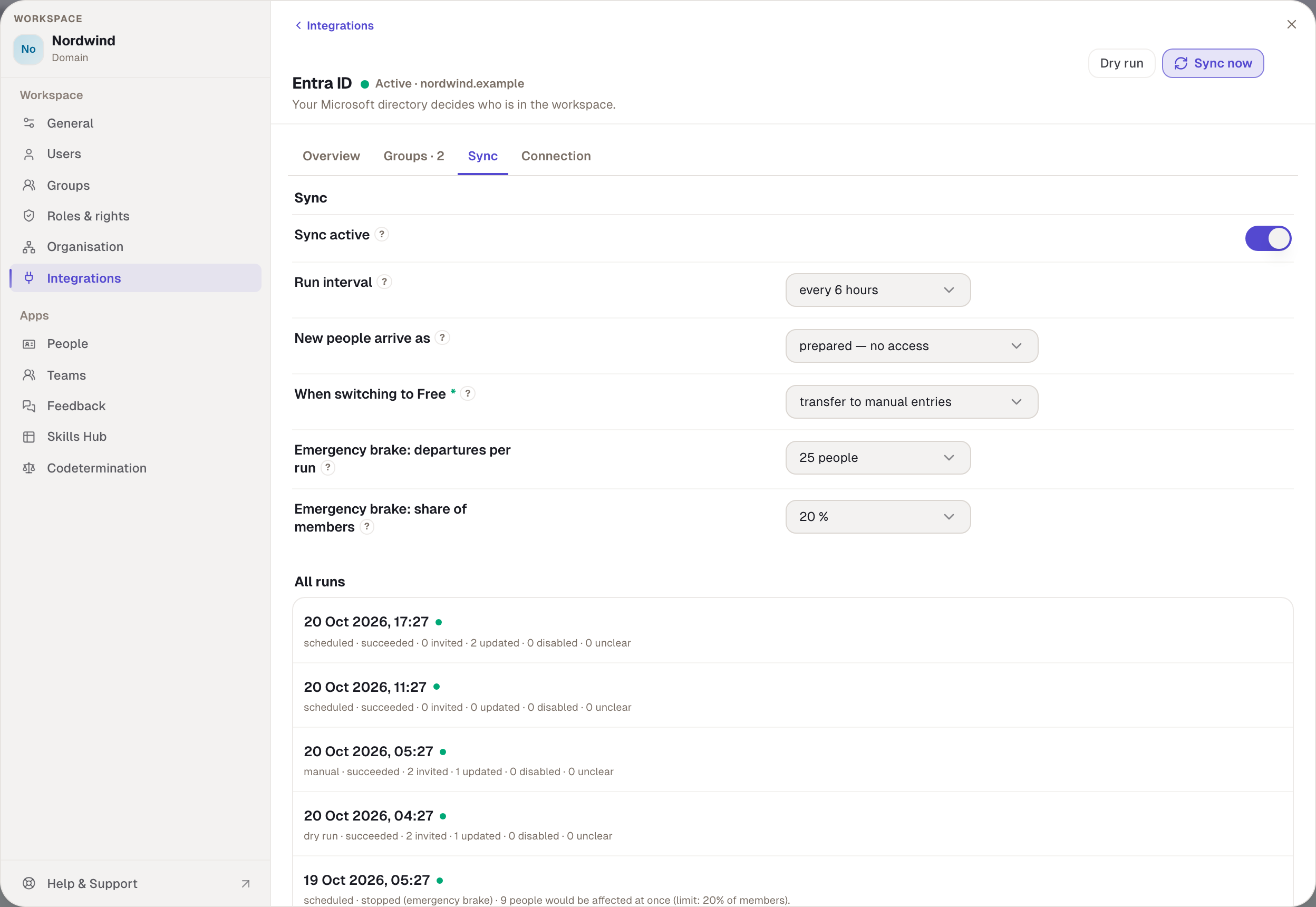
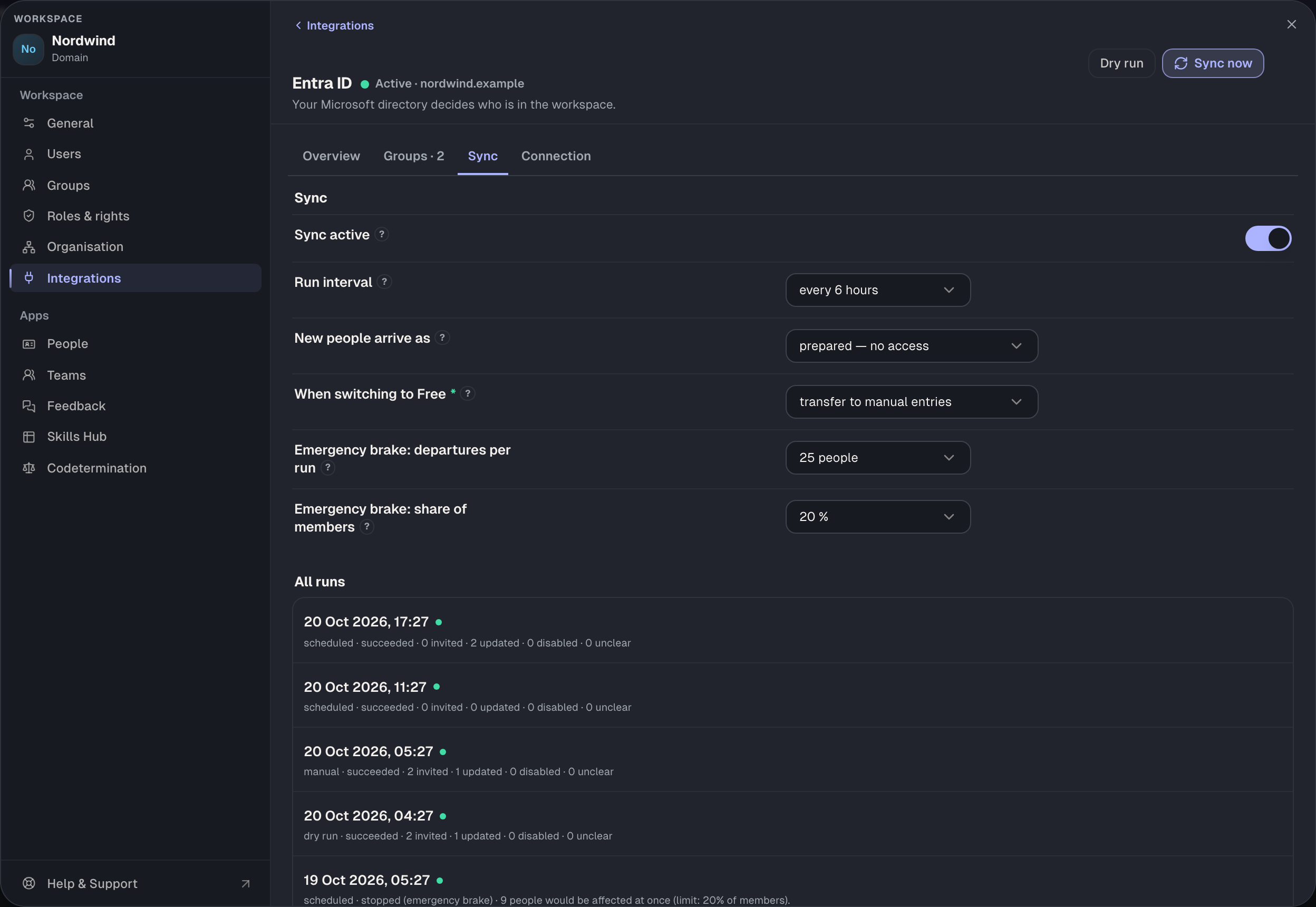
| Setting | Options | Default | Effect |
|---|---|---|---|
| Sync active | on, off | on after setup | Off: nothing runs, nothing changes. |
| Run interval | every hour, every 6 hours, every 24 hours | every 6 hours | In between, Sync now helps. |
| New people arrive as | prepared — no access, active — with email, active — without email | prepared — no access | Prepared means: in the system and assignable, but no sign-in until you grant access. |
| When switching to Free | transfer to manual entries, remove | must be chosen | Transfer: people stay active members without a link to Entra. Remove: their memberships are deleted. |
| Emergency brake: departures per run | number of people | 25 people | If that many would be disabled or deleted at once, the run stops. |
| Emergency brake: share of members | share | 20% | The same as a share; it applies in small workspaces. |
Dry run shows what the next sync would do: who would be prepared, updated, disabled or deleted, and which cases are unclear. Nothing changes yet. Sync now runs a real sync at once.
All runs lists every run with time, trigger and result. The trigger is scheduled, manual or dry run. The result is succeeded, stopped (emergency brake) or failed.
Connection and fields read
The Connection tab shows which directory Skillties is connected to and which details it reads.
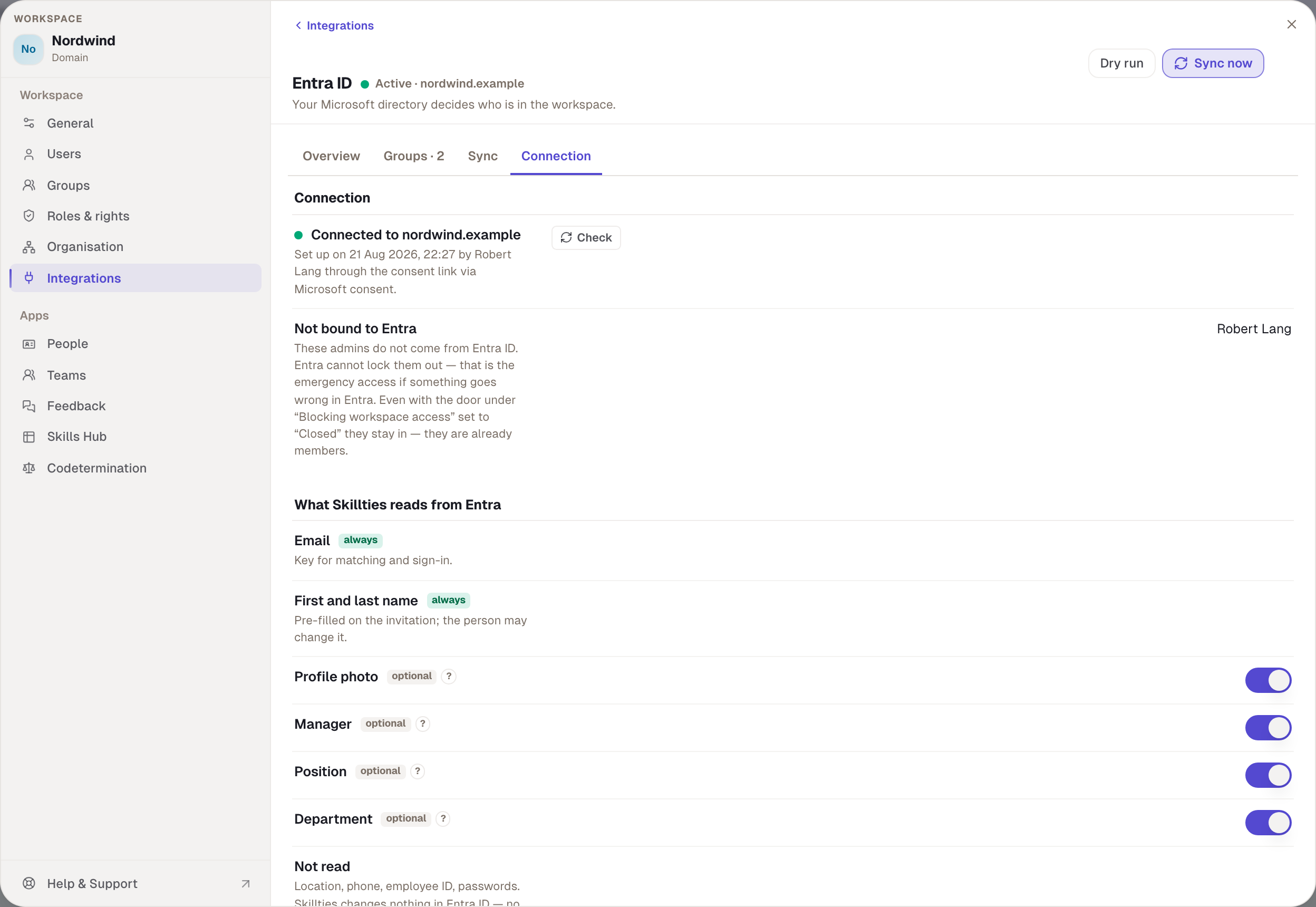
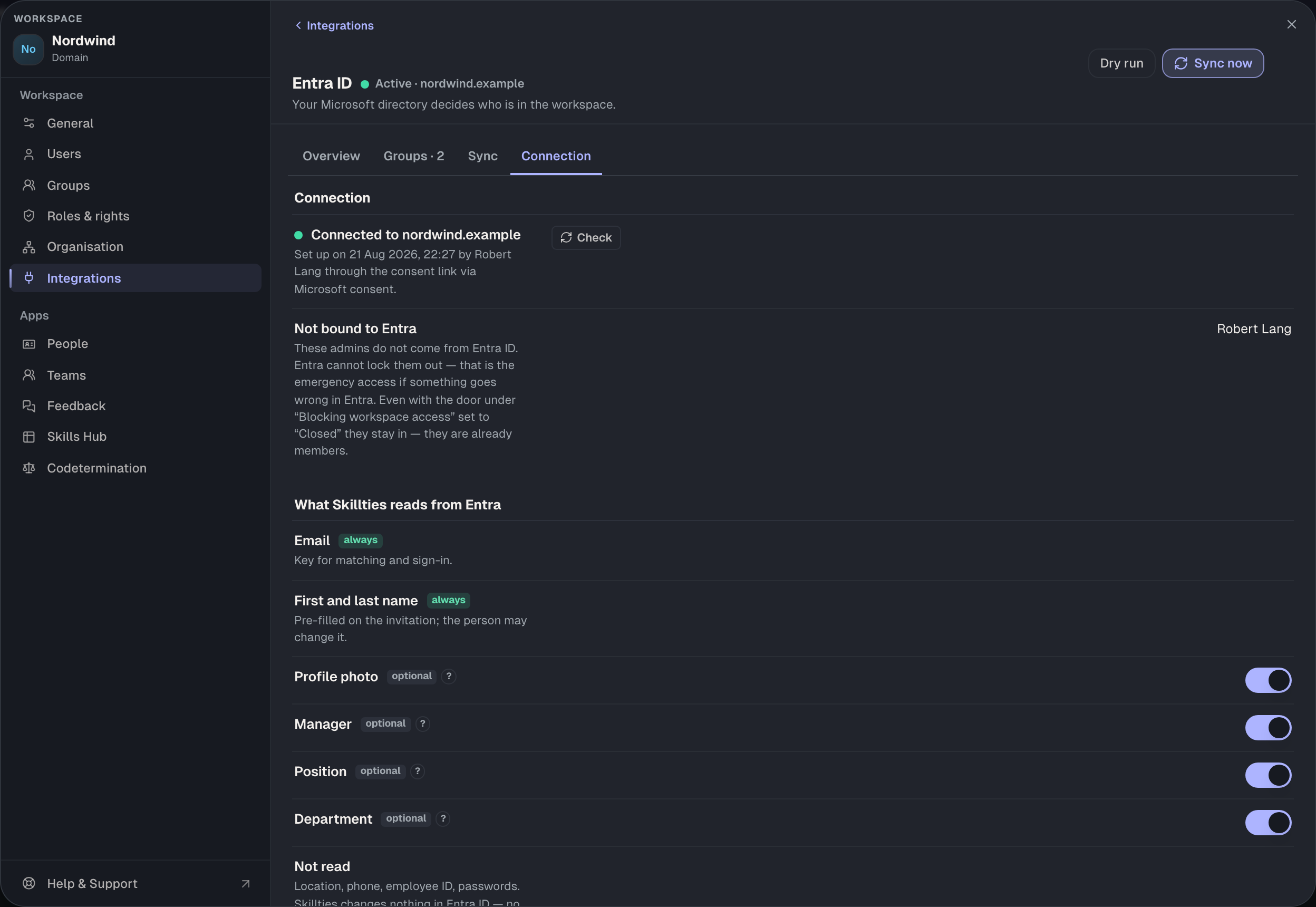
Check tests whether consent at Microsoft still applies. Not bound to Entra names admins who don't come from Entra. Entra can't lock them out. That is the emergency access in case something goes wrong in Entra. Make sure there is at least one such admin.
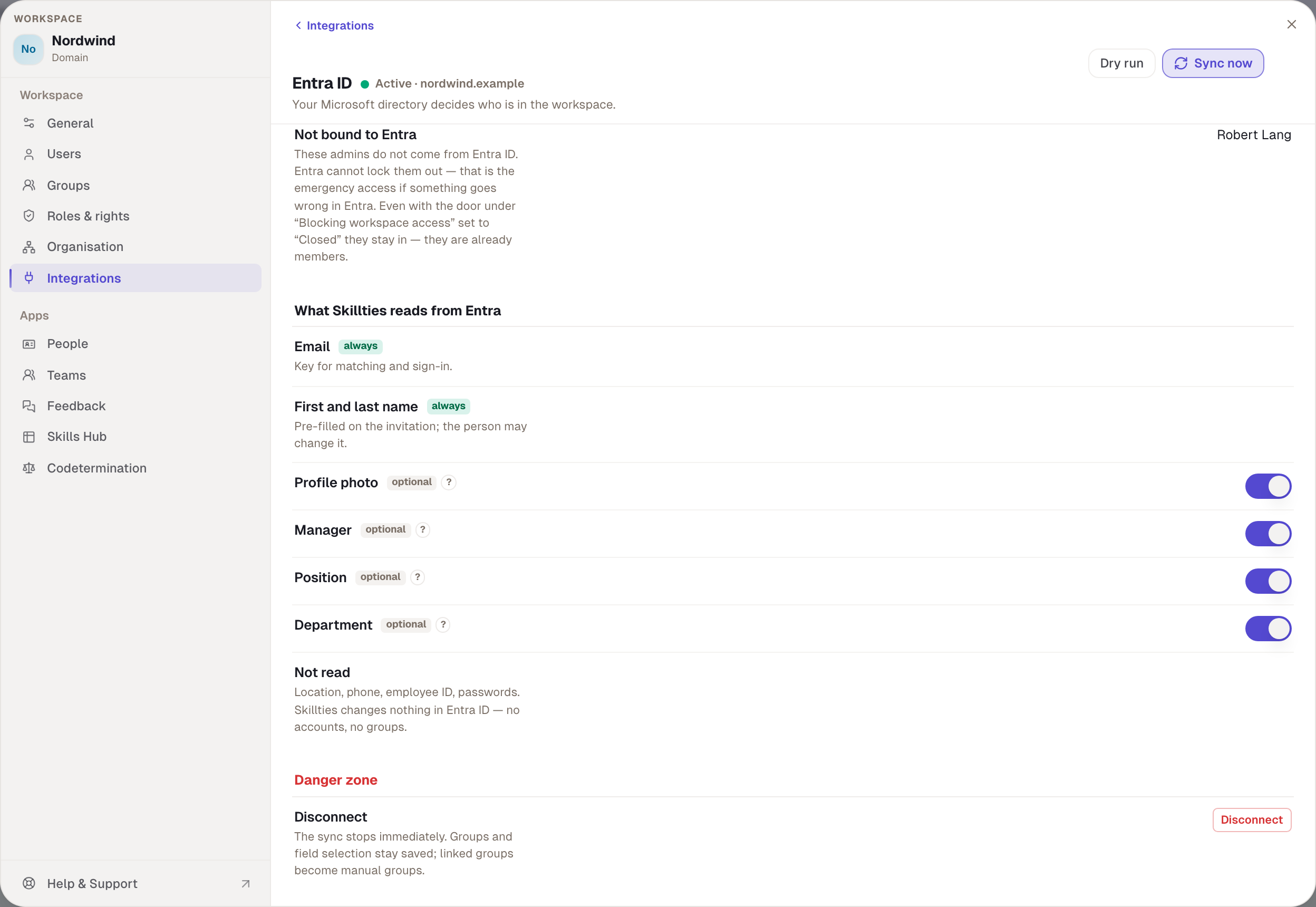
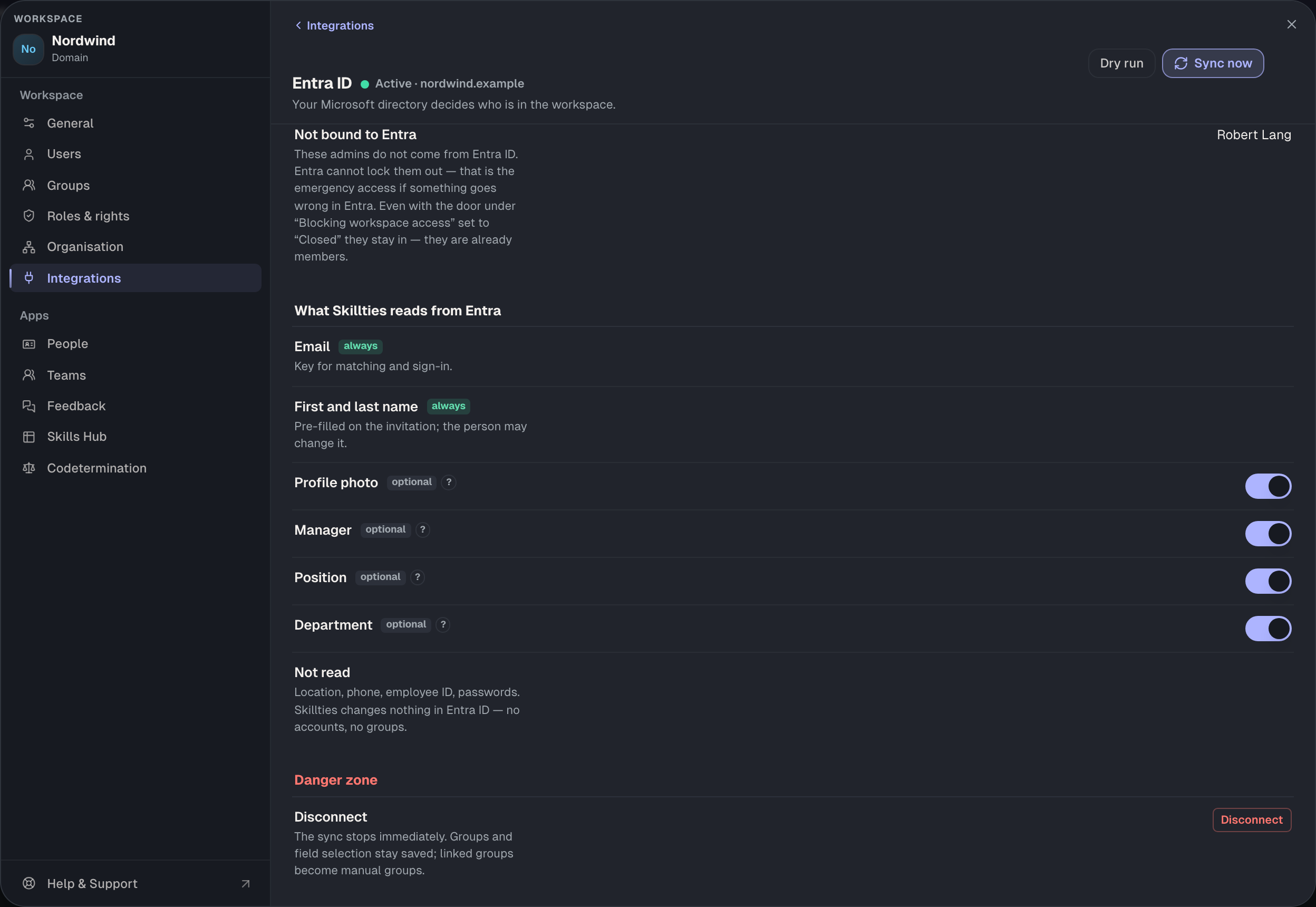
| Field | Read | Used for | If it's missing |
|---|---|---|---|
| always | key for sync and sign-in | The person becomes an unclear case. | |
| First and last name | always | name in Skillties; the person may change it | – |
| Profile picture | optional, on | faces instead of initials | Initials. A picture someone uploaded is never overwritten. |
| Manager | optional, on | organisation and rights for managers | The person stays an open case under Organisation. Manual entries come first. |
| Job title | optional, on | title under the name | The main profile shows instead. |
| Department | optional, on | profile card and directory | no loss of function |
Skillties never reads location, phone, employee ID or passwords. Whatever is switched off isn't requested at all.
Disconnect under Danger zone stops the sync at once. Groups and field choices stay saved; mirrored groups become manual groups. Consent again restores an interrupted connection.
Entra decides on membership
For everyone linked to Entra or brought in by the sync, the state in Entra applies:
| In Entra | In Skillties |
|---|---|
| Account disabled | membership Disabled. Roles pause, data stays. |
| Removed from the source groups or deleted | disabled at once. Deleted after 30 days without return. |
| Permanently deleted | The Skillties account is deleted. |
| Re-enabled or restored | Active again, if the sync made the change |
| Prepared person no longer in the groups | discarded at once, without 30 days |
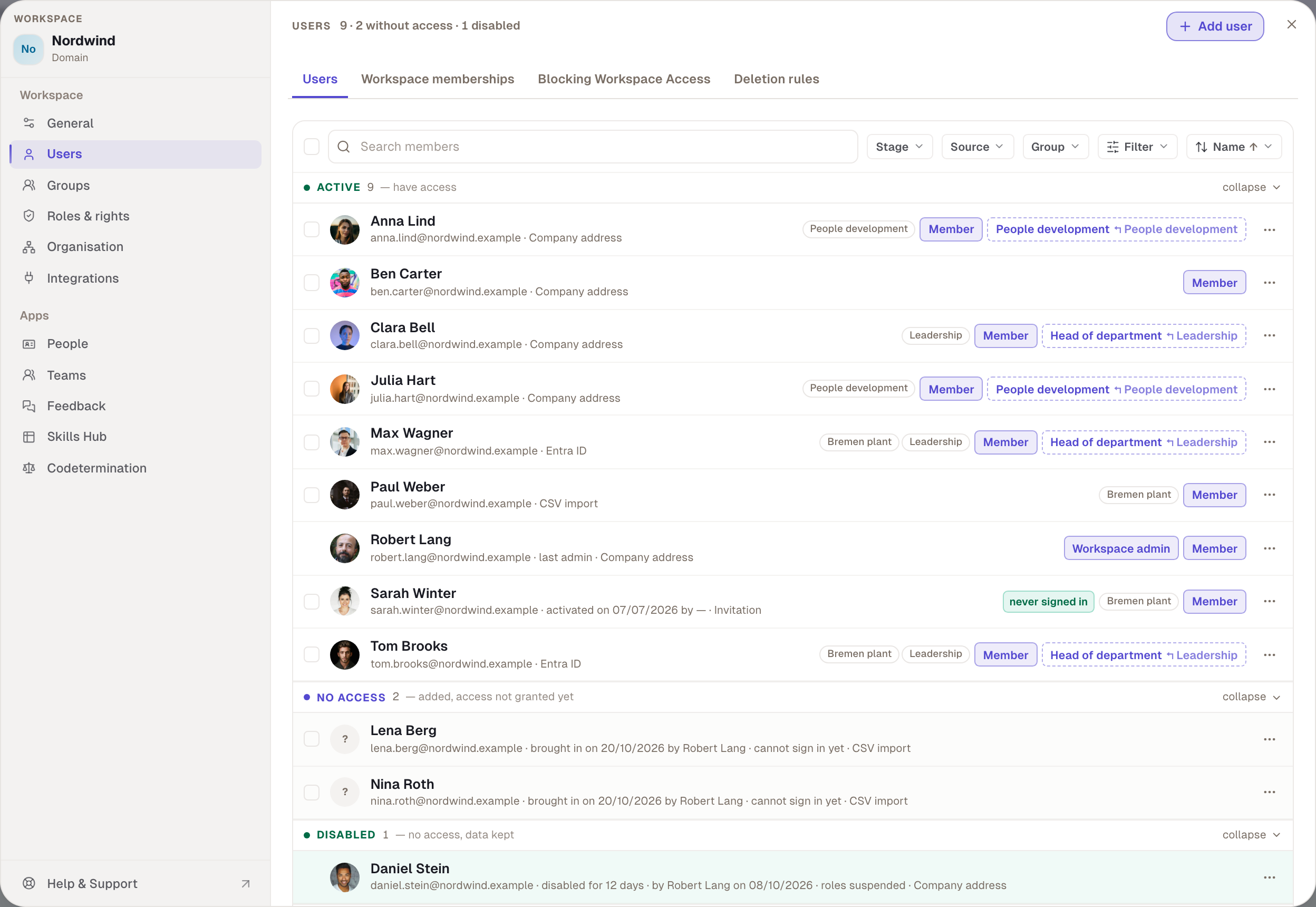
People who were never linked to Entra, such as invited guests, are not touched. Anyone who is a member through Entra can't leave the workspace themselves. In the list under Users, the source Entra ID shows who comes from the directory.
Codetermination and switching to Free
If codetermination is on and the rule “Set up or change the Entra sync” is set to request, the button reads Submit for approval. The body then reviews the configuration as a whole. Until the decision, the previous setup applies and the title shows Awaiting approval.
If the workspace switches to Free, the sync ends and an open consent link is revoked. What happens to the people you set under When switching to Free. If nothing is chosen, they are transferred.
When something goes wrong
| Message | Cause | Fix |
|---|---|---|
| Interrupted | Consent at Microsoft is missing or was withdrawn. | Consent again |
| Permissions missing | “User.Read.All” or “GroupMember.Read.All” is missing. | Check the app registration at Microsoft |
| no email address in the directory | The person has no address in Entra. | Add the address in Entra |
| email already belongs to another directory account | Two Entra accounts use the same address. | Clean up in Entra, then sync again |
| stopped (emergency brake) | Too many departures at once | Check in Entra, then Sync now |
Example
Nordwind connects Entra ID through the consent link, because Robert himself may not grant admin consent. IT redeems the link, Robert gets the notification and chooses Check. As member source he picks “Nordwind – All employees” and additionally “Bremen plant” as a mirrored group. The dry run shows eleven people, two of them new. After Finish setup, the two sit under No access until Robert chooses Grant access to all on the group. Three weeks later Daniel Stein leaves the company. IT disables his account in Entra, and at the next run he appears under Disabled in Skillties. If IT deletes the account, his membership is deleted 30 days later and the deletion rules hand over his content.
Checked with version 0.6.0 · 20 Oct 2026