The user list
WhereWorkspace settings › UsersRightsettings.members
Read the list
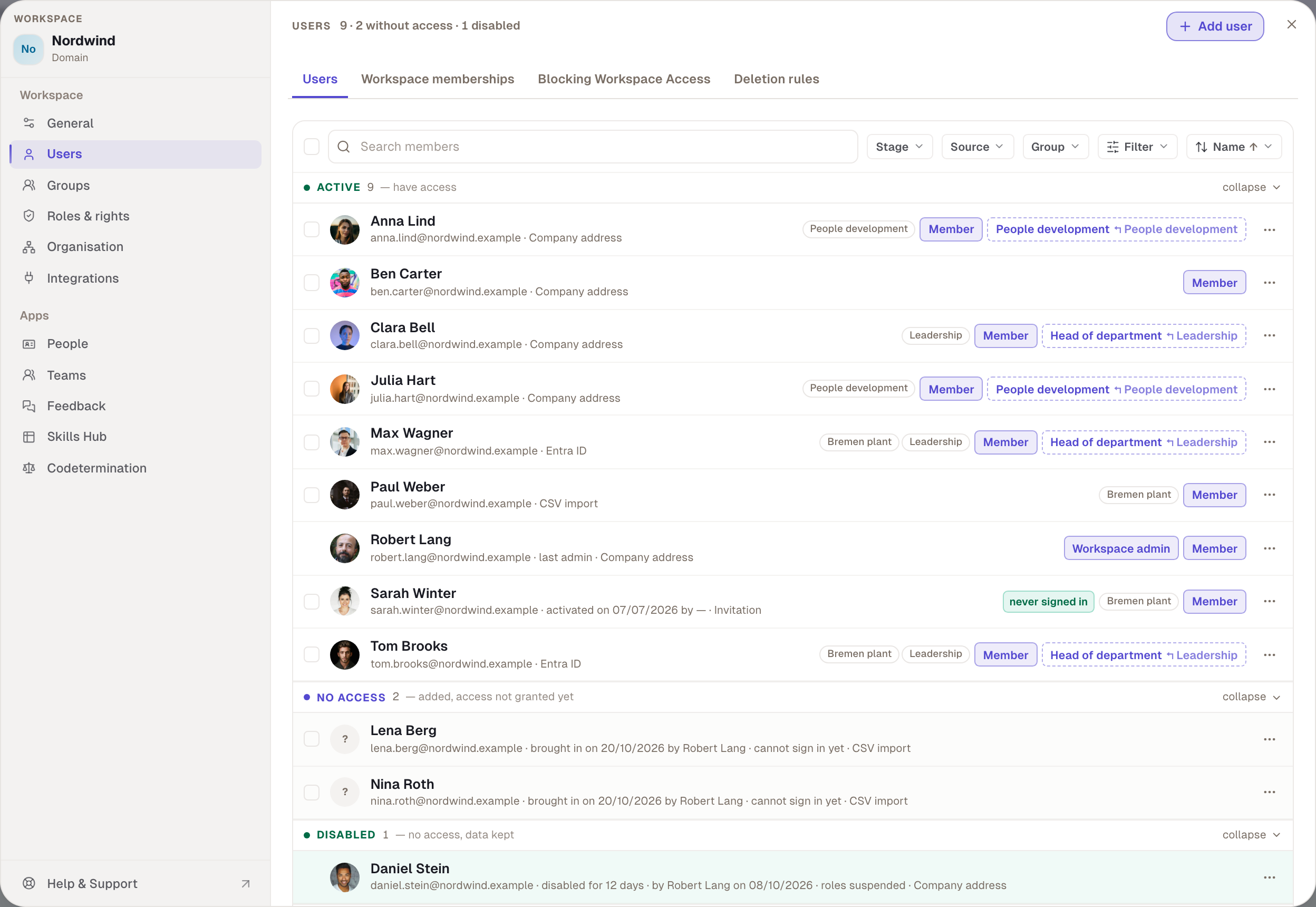
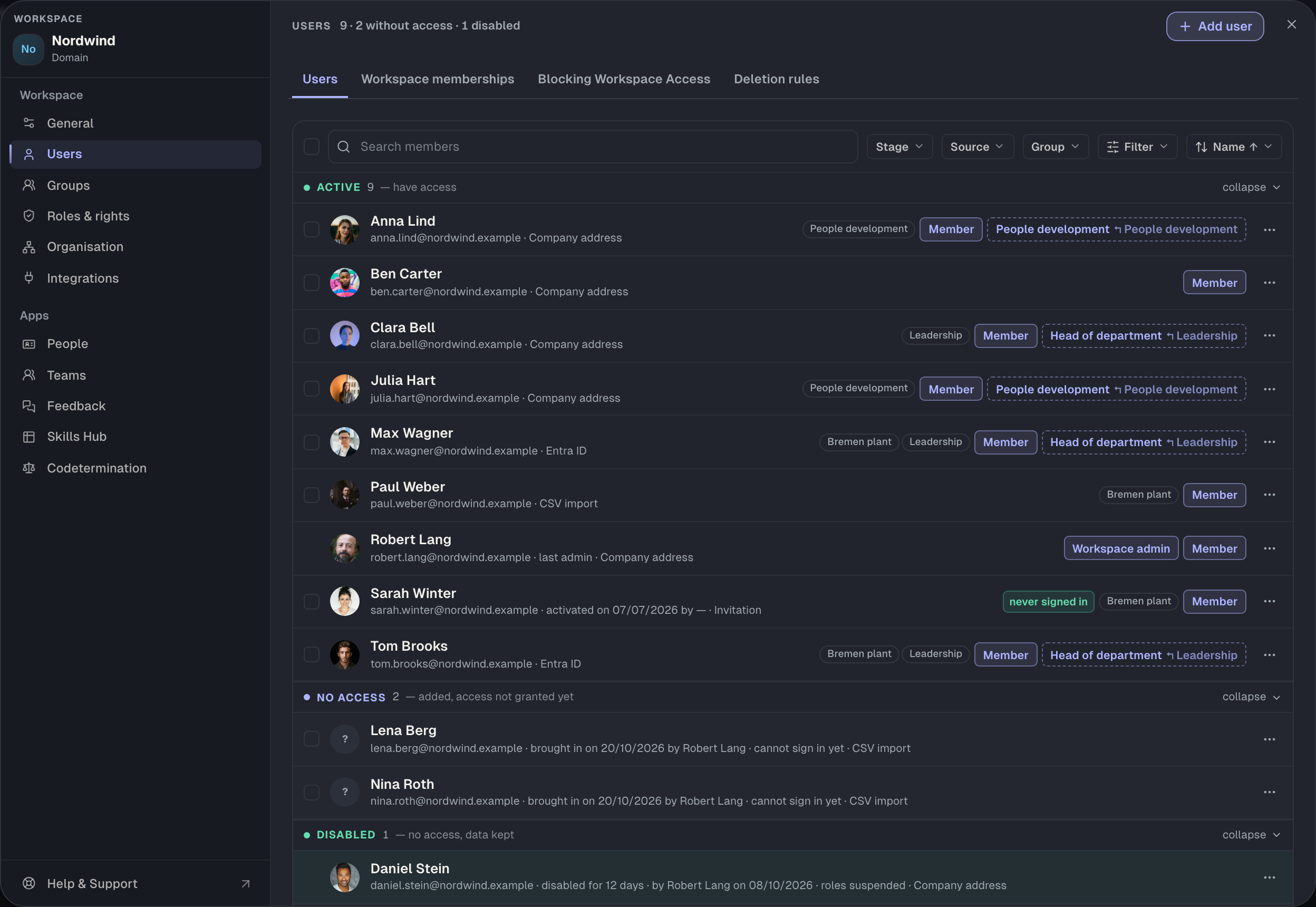
The total sits at the top: “9 · 2 without access · 1 disabled”. Below are the tabs Users, Workspace memberships (domain workspaces only), Blocking Workspace Access and Deletion rules. The list itself is grouped by stage; Deleted and Permanently deleted are collapsed until you open them.
Each row shows:
| Element | What it means |
|---|---|
| photo or letters | the person's picture; prepared people show a question mark |
| second line | email address, what happened last and who did it, finally the source |
| source | Company address, Invitation, CSV import or Entra ID |
| grey badges | the person's groups |
| purple badges | Member, Workspace admin and further roles; a role from a group names the group behind it |
| green badge | “never signed in”: access granted, but no sign-in yet |
| “last admin” | this person can be neither disabled nor deleted |
The stages
| Stage | Meaning | Actions behind ⋯ |
|---|---|---|
| Active | has access | Disable, Delete; for people who never signed in, Resend or Send email |
| No access | added, access not granted yet | Grant access with email, Grant access without email, Discard |
| Invited | invitation of the old kind, no account yet | Resend, Revoke |
| Disabled | no access, data kept, no deadline | Enable, Delete |
| Deleted | restorable until the deadline, six months by default | Restore, Permanently delete |
| Permanently deleted | only name and period remain | none |
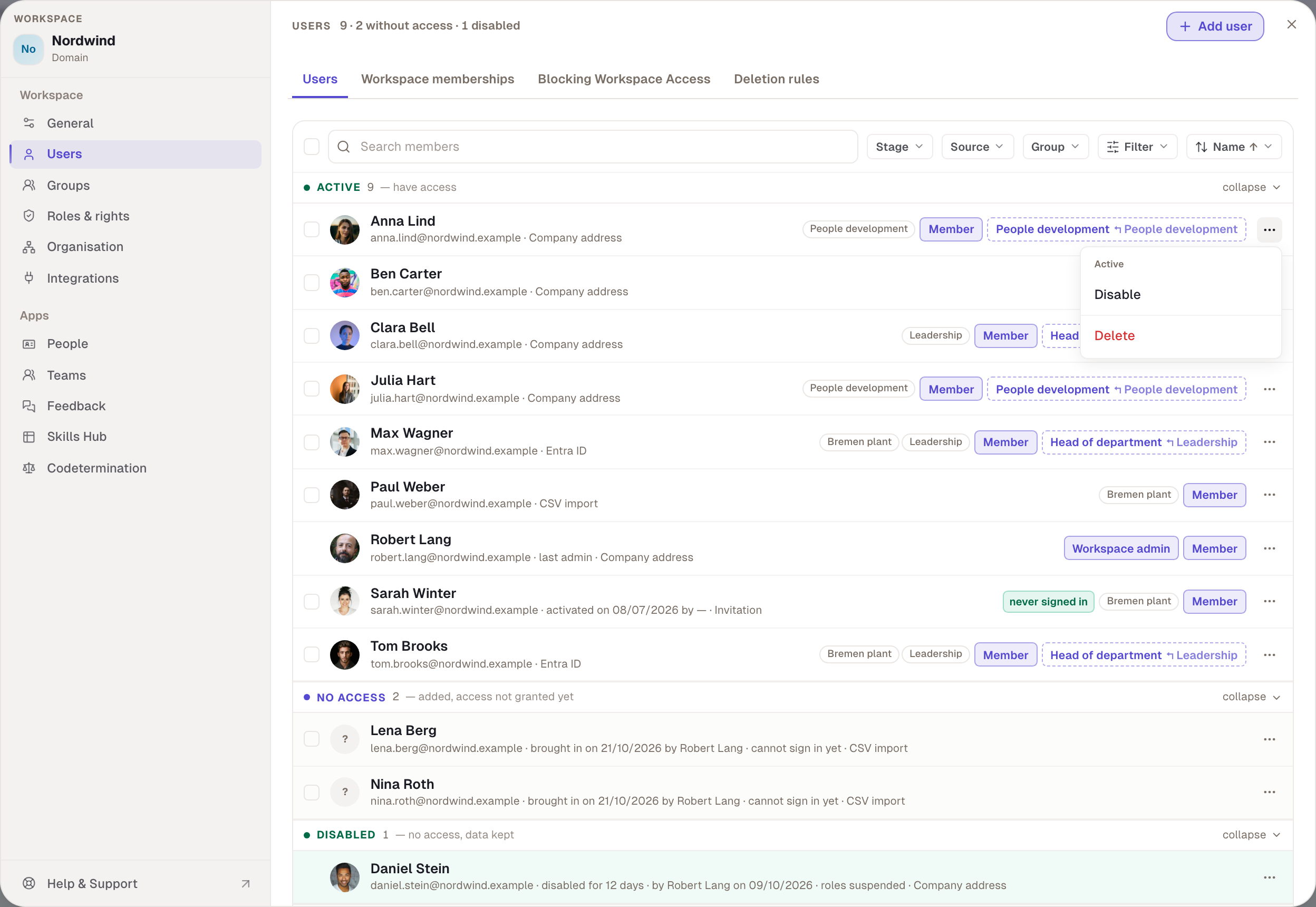
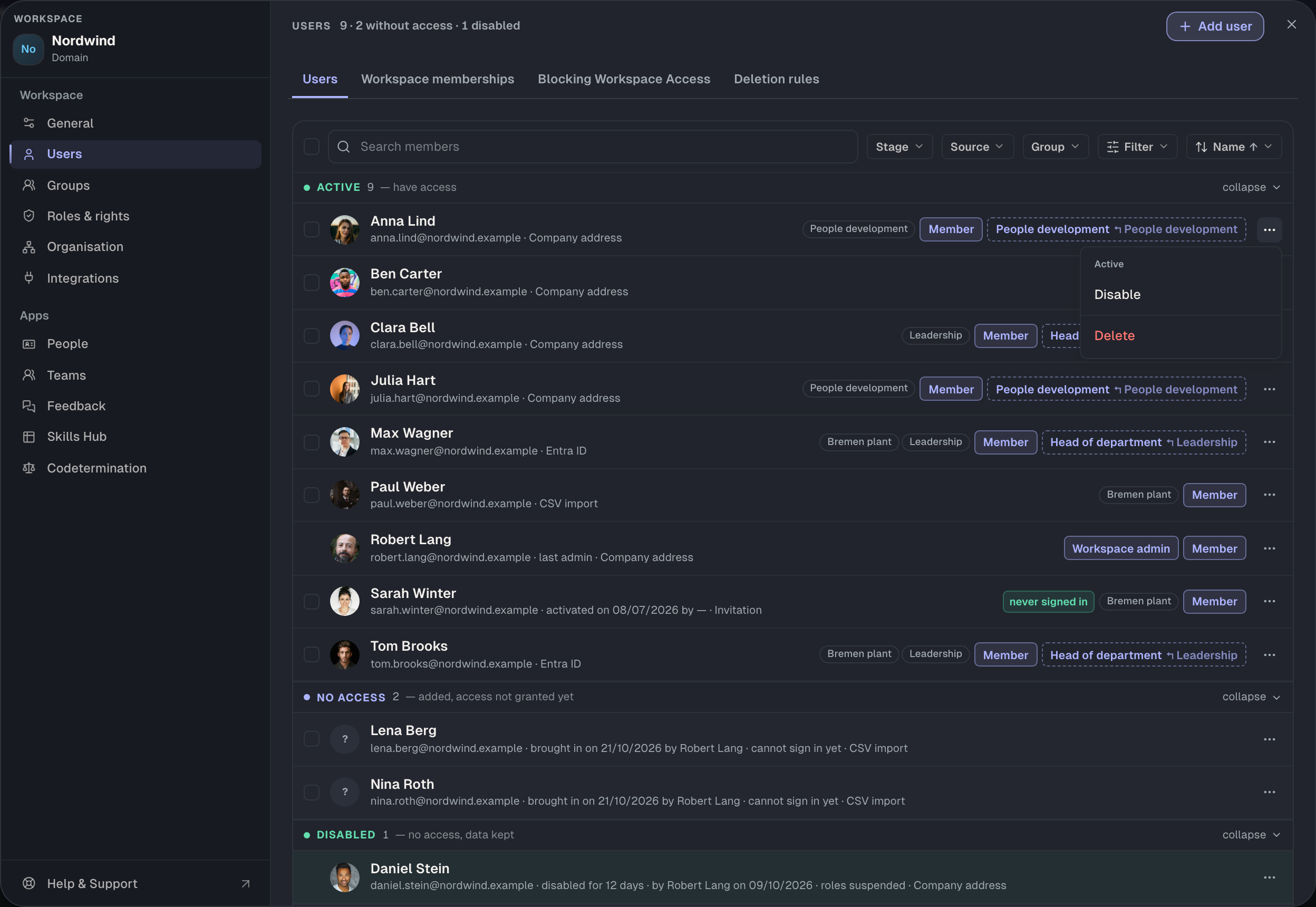
Disable removes access and pauses roles but leaves everything in place, with no deadline. Delete opens the handover dialog and sets the deadline after which the person is permanently deleted. Restore brings the person back, but not their roles, groups and teams. You assign those again. With Entra ID, the way back belongs to whoever set the state: what Entra disabled, only Entra brings back.
Filter
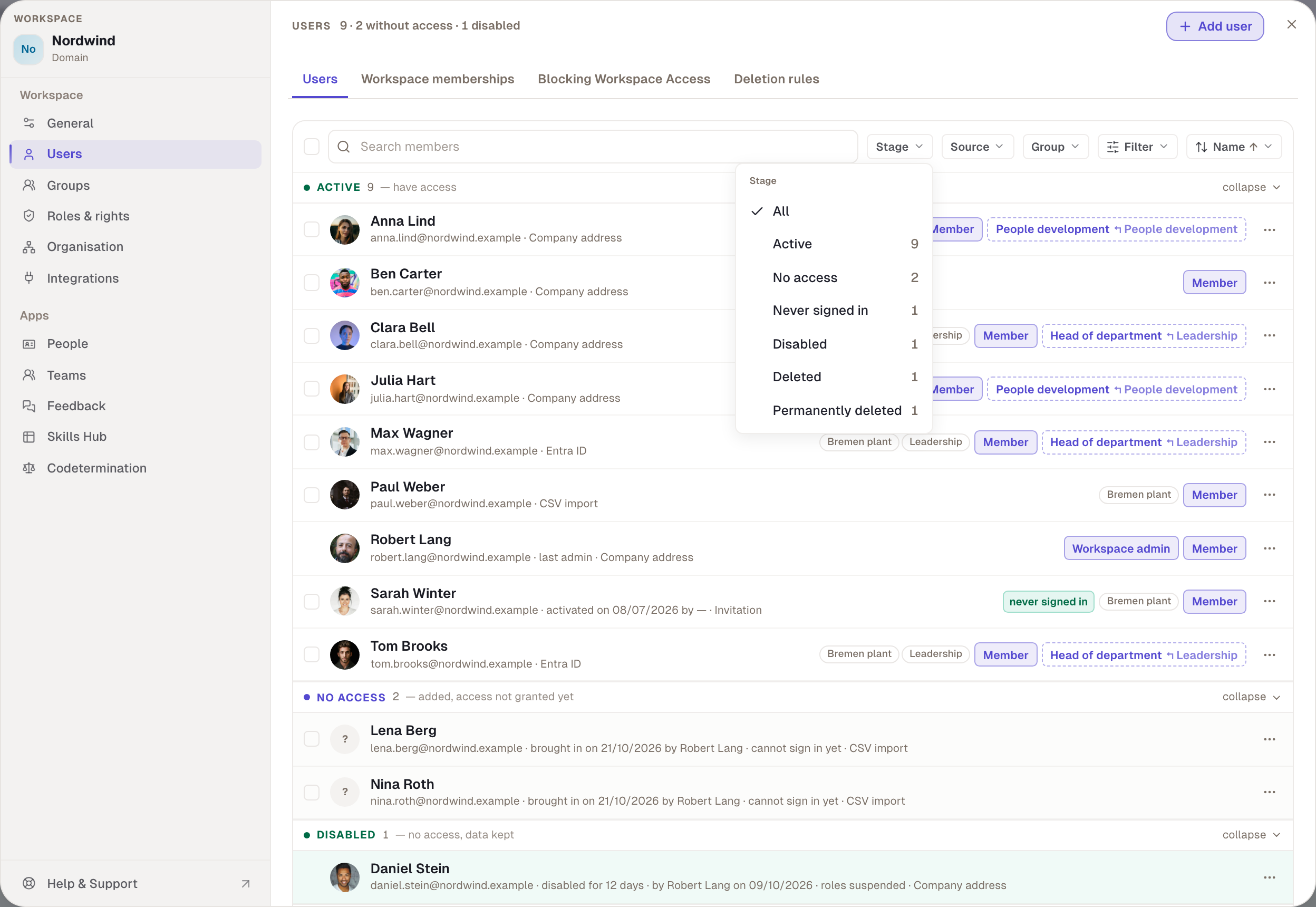
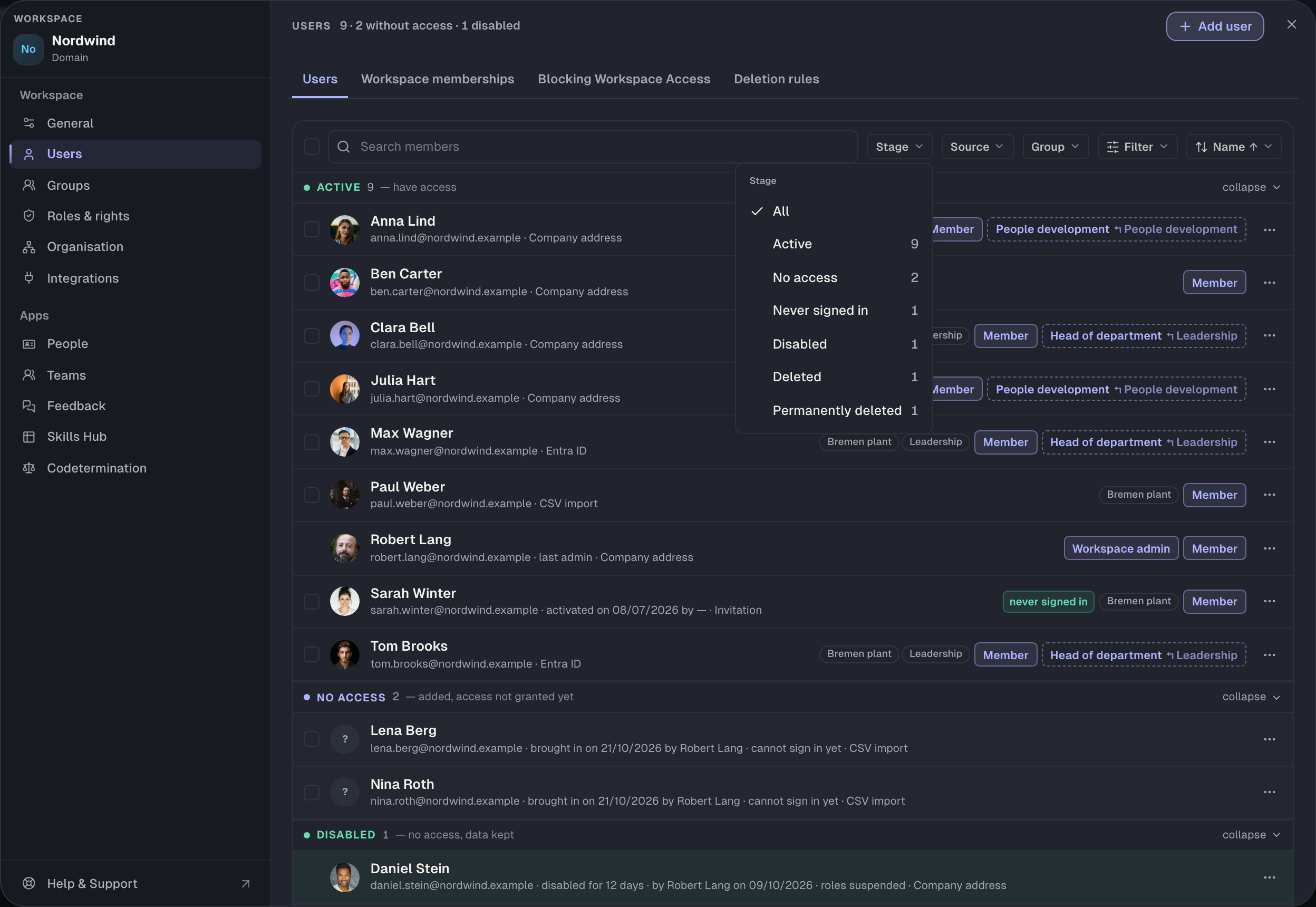
Three menus and a button sit above the list:
| Filter | Values |
|---|---|
| Stage | Active, No access, Invited, Disabled, Deleted, Permanently deleted, plus Never signed in |
| Source | Company address, Invitation, CSV import, Entra ID |
| Group | every group in the workspace |
| Filter | department and roles, as far as someone holds them |
One value per menu applies; filters from different menus apply together. The filter is part of the address, such as ?members=status:prepared. Copy the address and a colleague gets the same filtered list.
Under Sort, order by Name, Access, Brought in on, Last sign-in or Department, ascending or descending. Search finds names, addresses, groups and roles. The list shows 50 rows and loads more with Show … more.
Several at once
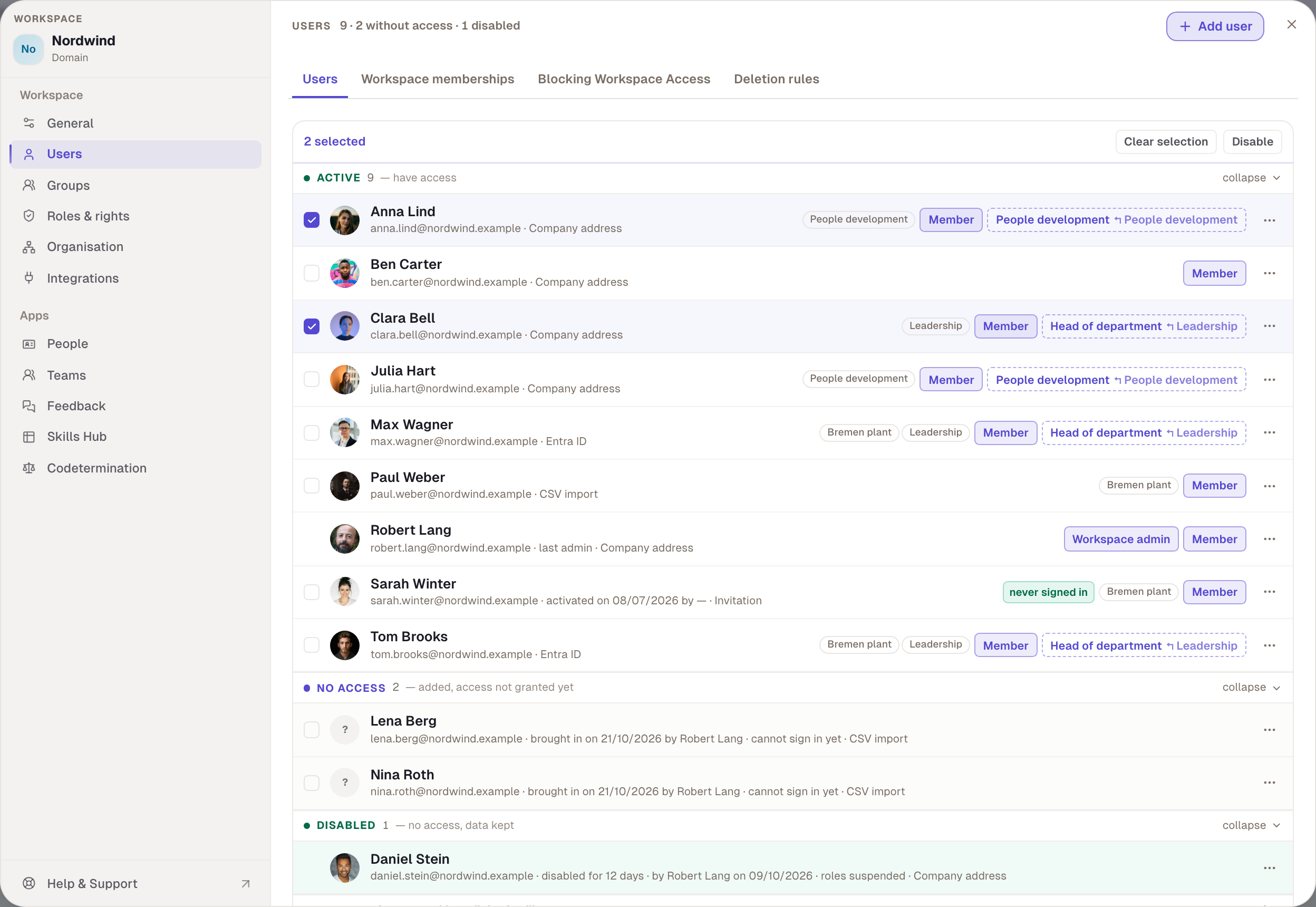
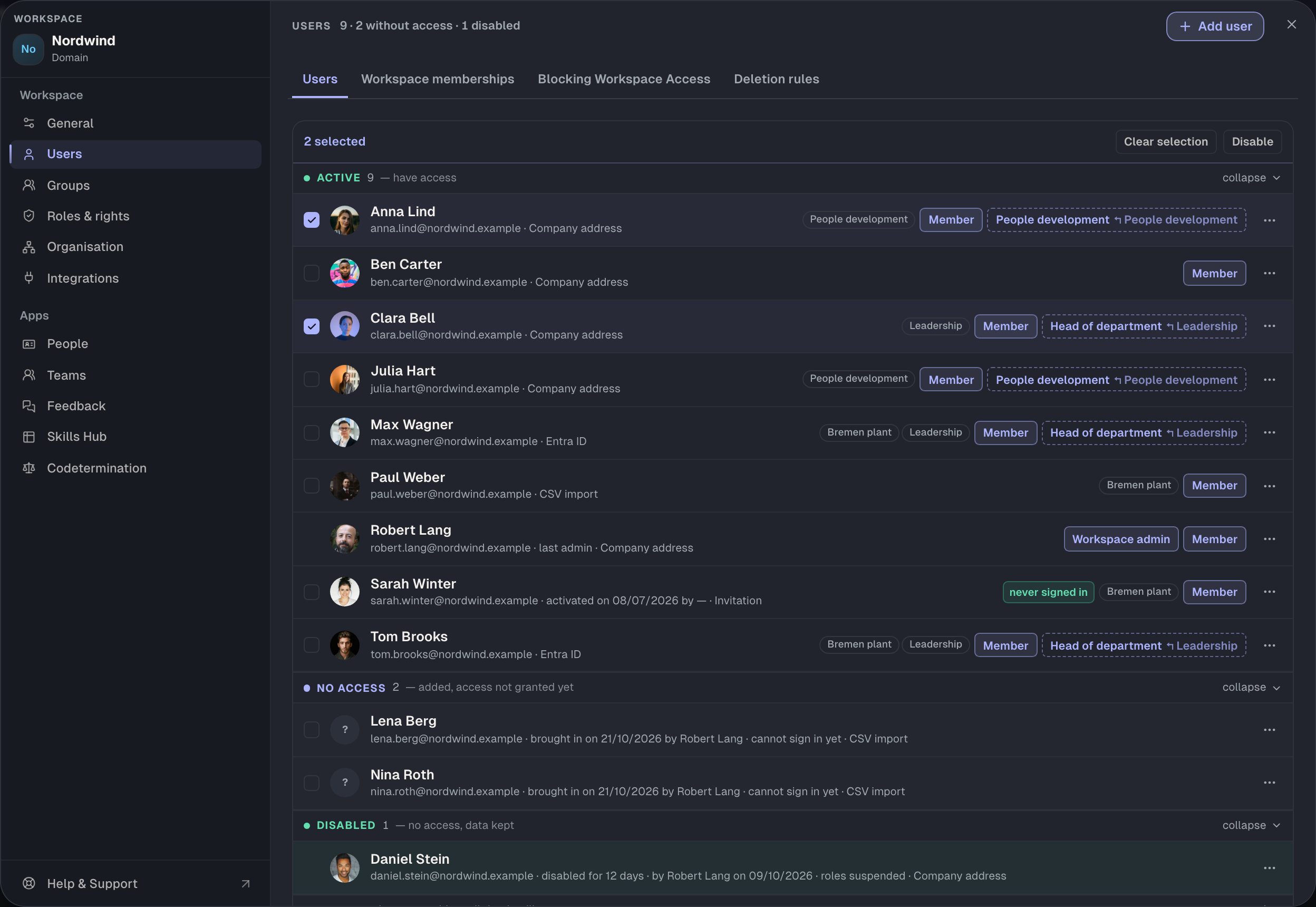
Select people with the boxes on the left. Select all visible selects everything the filter currently shows. Two actions are then available:
- Grant access to 3 for prepared people, with the Send email box ticked by default. The confirmation reads Grant access to 3 people.
- Disable for active people, with the confirmation Disable 3 people.
Deleting several at once isn't possible, because every deletion needs a handover.
The other tabs
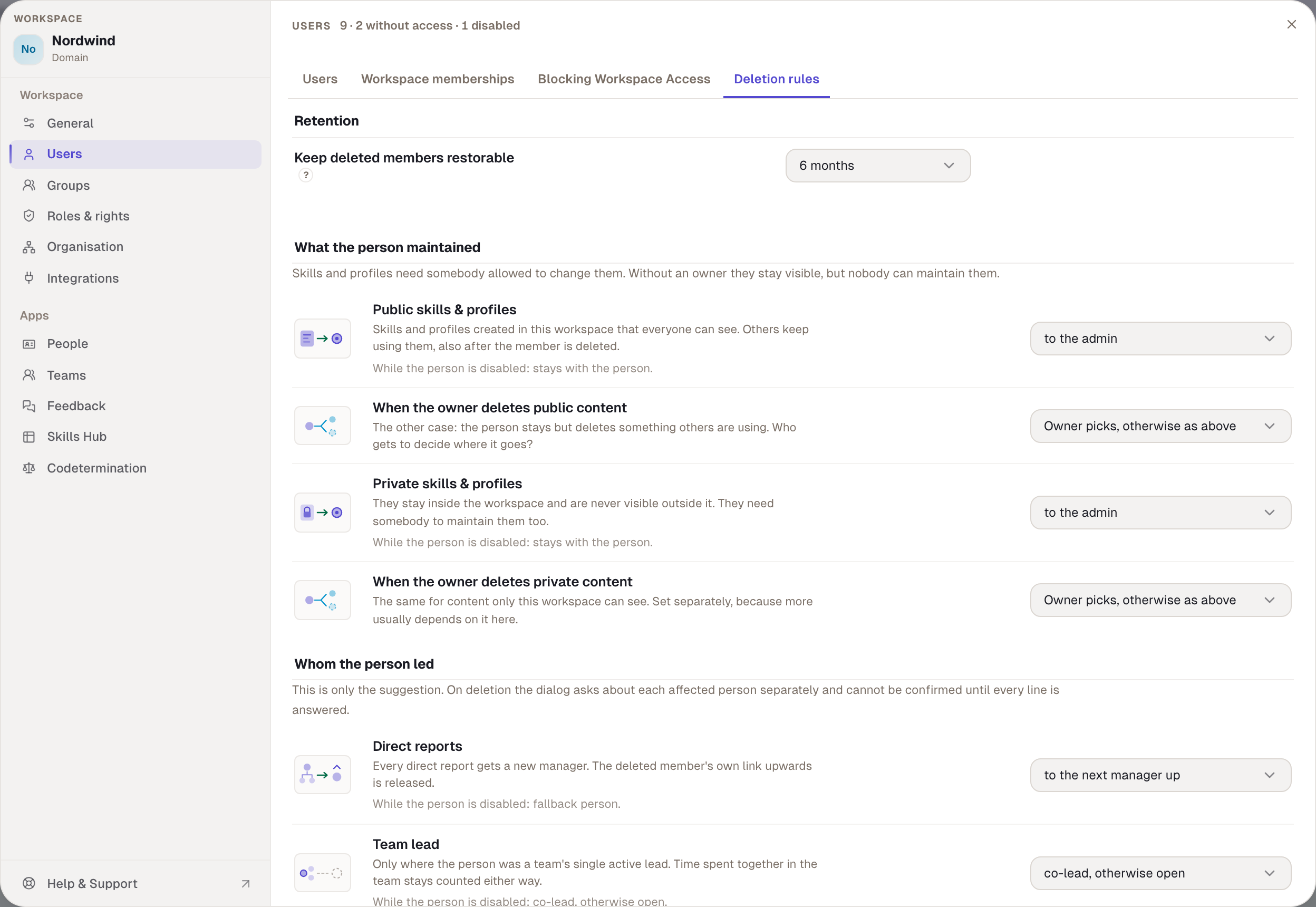
Blocking Workspace Access carries the join rule Open or Closed at the top and the blocked people below. Deletion rules sets who takes over content when someone is deleted and how long deleted people stay restorable. Workspace memberships shows where your members are members elsewhere.
The People app is something else
The People app in the sidebar is the directory for all members. It shows profiles, skills, manager and department, but no email addresses as text. Contact goes through the Email button in the profile card. Which details appear there you set under Workspace settings › People. The list under Users is only visible to people with settings.members.
Checked with version 0.6.0 · 20 Oct 2026