Rights: people and reach
WhereWorkspace settings › Roles & rights › Role › Rights › PeopleRightsettings.roles
Reading the matrix


The rows are See skills and See mapping, the columns Direct reports, Their area and Everyone. Per row you choose one level, not three ticks: the wider level includes the narrower. Technically these are six individual rights, and if a person gets two levels from two roles, the wider one applies. Levels never reach further than skills: whoever may not see a person's skills does not see their mapping either, whatever the second row says.
The editor does not warn about it, but “Direct reports” and “Their area” need an assignment under Organisation. Without one, the level reaches nobody but the person themselves.
Open People
directory.view. Opens the People app with the list of all members, their names, photos and contact channels, and the “In the workspace” tab on skill and profile pages. Search only finds people with this right.
- Without the right. The menu entry is missing. Whoever calls the address directly reads “You do not have access”. The Skills Hub is closed too, because every Hub view checks this right first.
- Only works if. The People app is switched on in the settings. If it is off, the menu entry is missing despite the right, and the page says the feature is not available.
- Default. Member, People development, Admin. A workspace can untick it on Member; then there is no directory for the workforce any more.
- Codetermination. Recommended, not in the preselection.
See skills: three reaches
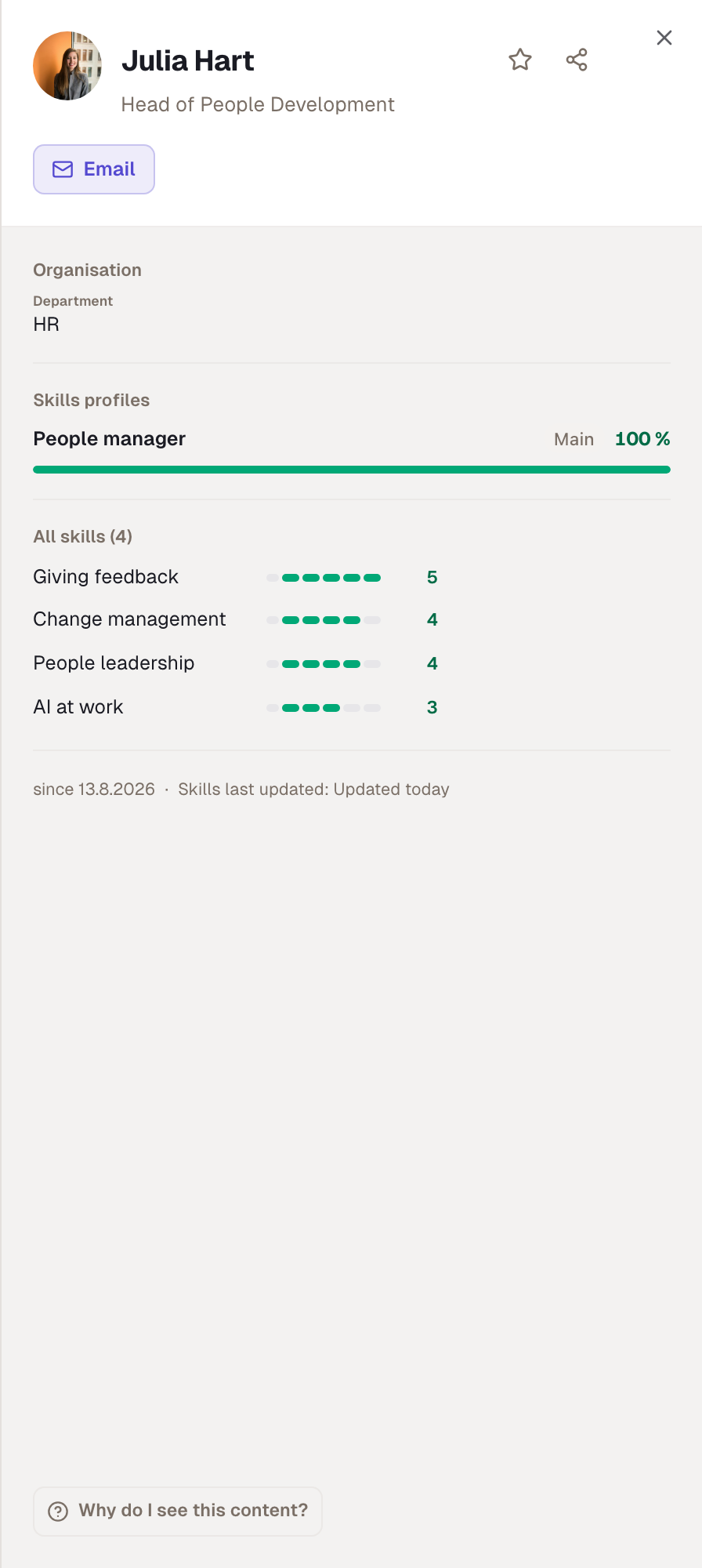
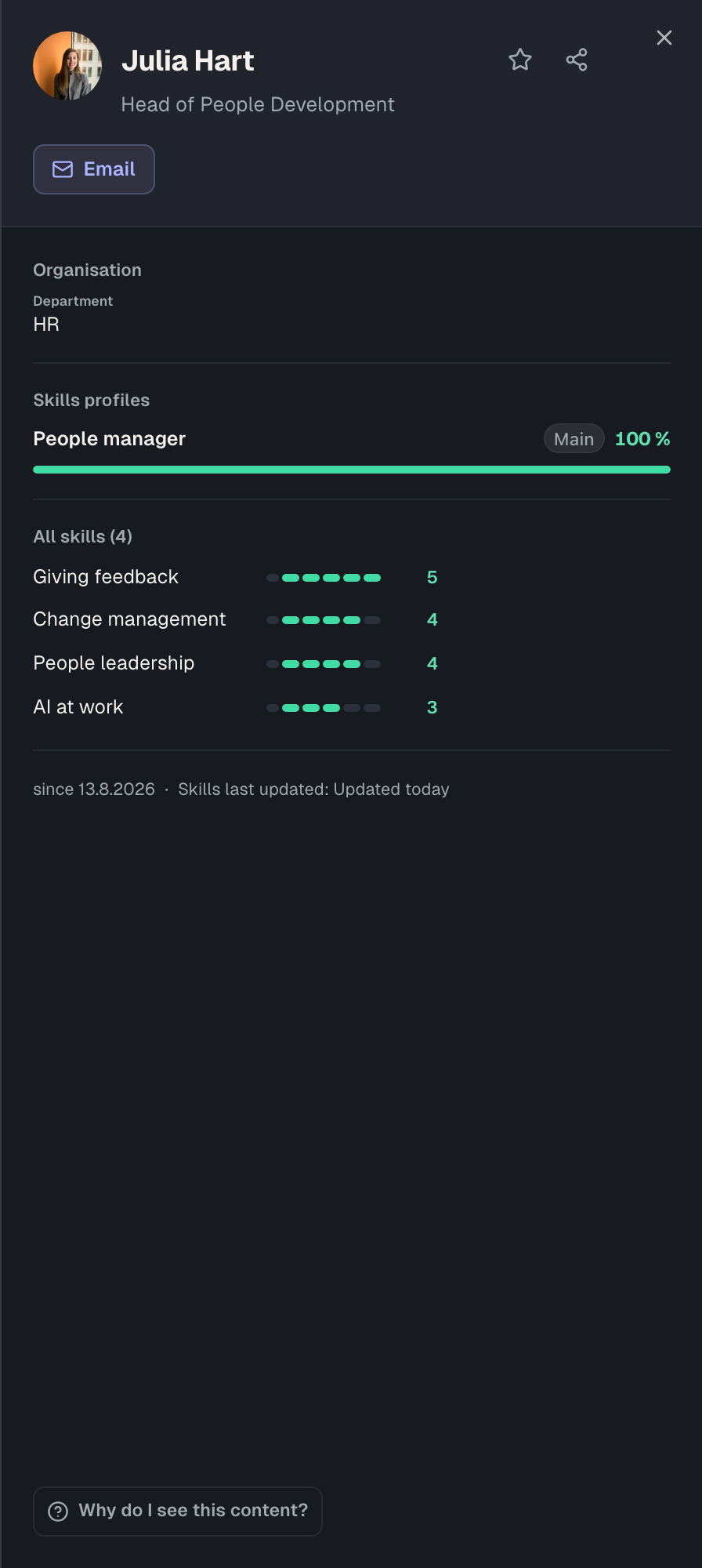
directory.skillsDirect, directory.skillsSubtree, directory.skillsAll. Shows which skills a person has, without the level. In the people list and in the profile sheet the skill names only appear for people within the reach; for everyone else the line stays empty.
- Direct reports. The people who report directly to this person under Organisation.
- Their area. Plus everyone who in turn reports to those, along the whole line downwards.
- Everyone. All members, regardless of the line.
- Without the right. In the people list the person sees only their own skills.
- Only works if. For the first two levels, a reporting line exists. Anyone with nobody below them sees only themselves despite the right. In the Teams app, only the Everyone level counts in addition: the skills of people outside one's own team appear there only with “Everyone”; the two narrower levels are not evaluated there.
- Default. Member has Everyone, People development Everyone, Admin all three levels.
- Codetermination. All three levels are in the preselection. Whoever widens a role's reach files a request when codetermination is on.
See mapping: the same three reaches
directory.levelsDirect, directory.levelsSubtree, directory.levelsAll. Additionally shows the level 1 to 5 per skill.
- Without the right. The person sees that a skill is there, but no level. In the Teams app the team median stays empty.
- Only works if. The skills row has at least the same reach. And only for people who released their mapping: the workspace's visibility rules and the person's own decision come first.
- Side effect. Every level right also decides what feedback looks like. If the participating role sees levels, feedback asks for levels; if it sees none, it only asks whether someone has a skill.
- Default. Member Everyone, People development Everyone, Admin all three.
- Codetermination. All three levels are in the preselection.
Use the Skills Hub
directory.hub. Opens the Skills Hub app: tables across people, skills and profiles, matrices, comparisons and match values. The Hub shows nothing the sight rights do not show anyway, but it shows it in breadth and side by side. Hence a right of its own.
- Without the right. The menu entry is missing. A direct call says the Hub needs this right.
- Only works if. First, the same person holds “Open People”. Second, the Skills Hub switch in the settings is on, otherwise it reads “Skills Hub is disabled”. Third, the workspace has a contract. What the Hub then shows follows the matrix above: without a reach, the people table is a table with one row.
- Default. Not on Member, deliberately. People development and Admin have it. A workspace that wants to give the Hub to everyone ticks it on Member.
- Codetermination. Recommended.


Export hub views as CSV
directory.export. Downloads the current Hub view as a file: visible columns, filtered rows, a matrix as a cross table. The export only writes to a file what the other rights show anyway. Because a file leaves the room, every export is logged; the log is read by people with the rights for the Hub settings or for the log.
- Without the right. The Export button is missing in the Hub.
- Only works if. The person may use the Hub, so holds “Open People” and “Use the Skills Hub”, and the workspace allows export in the Hub settings. If the export switch there is off, the button is missing for everyone, admins included.
- Default. Admin only. The People development template does not have it.
- Codetermination. Not recommended, because the export shows nothing additional.
Where the rights come together
| Right | also needs | Default on Member |
|---|---|---|
| Open People | People app switched on | yes |
| See skills · Direct / Area | Open People, reporting line | – |
| See skills · Everyone | Open People | yes |
| See mapping | the same reach for skills, the person's release | yes, Everyone |
| Use the Skills Hub | Open People, Skills Hub switch, contract | no |
| Export hub views | use the Hub, export switch in the Hub settings | no |
Example
Nordwind wants managers to see only their own area and People development to see everyone. The Head of department role with “Their area” is not enough for that as long as Member still carries “Everyone”; Robert sets both rows on Member to no reach. With codetermination on, that is not a request, because it is a restriction. Now Max Wagner sees the skills and levels of Tom, Sarah and Paul, because they report to him or to Tom under Organisation. Clara Bell has the same role, but nobody reports to her: she sees only herself until Julia assigns sales to her. Julia and Anna still see everyone through People development and open the Skills Hub. Ben Carter may maintain roles but has no sight right: in the people list he sees names and photos, but only his own skills.
Checked with version 0.6.0 · 21 Oct 2026