General: name, type, export, Danger Zone
WhereWorkspace settings › GeneralRightsettings.general
Open the settings
At the top of the sidebar, open the workspace switcher and choose Workspace settings. The areas sit on the left in two groups: Workspace with General, Users, Groups, Roles & rights, Organisation, Skill Governance and Integrations, and Apps with the settings per app. Every area needs its own right. General opens with settings.general, which every admin holds.
Areas your plan doesn't include appear greyed out with an arrow in the list. On Free, only General and Users are real.
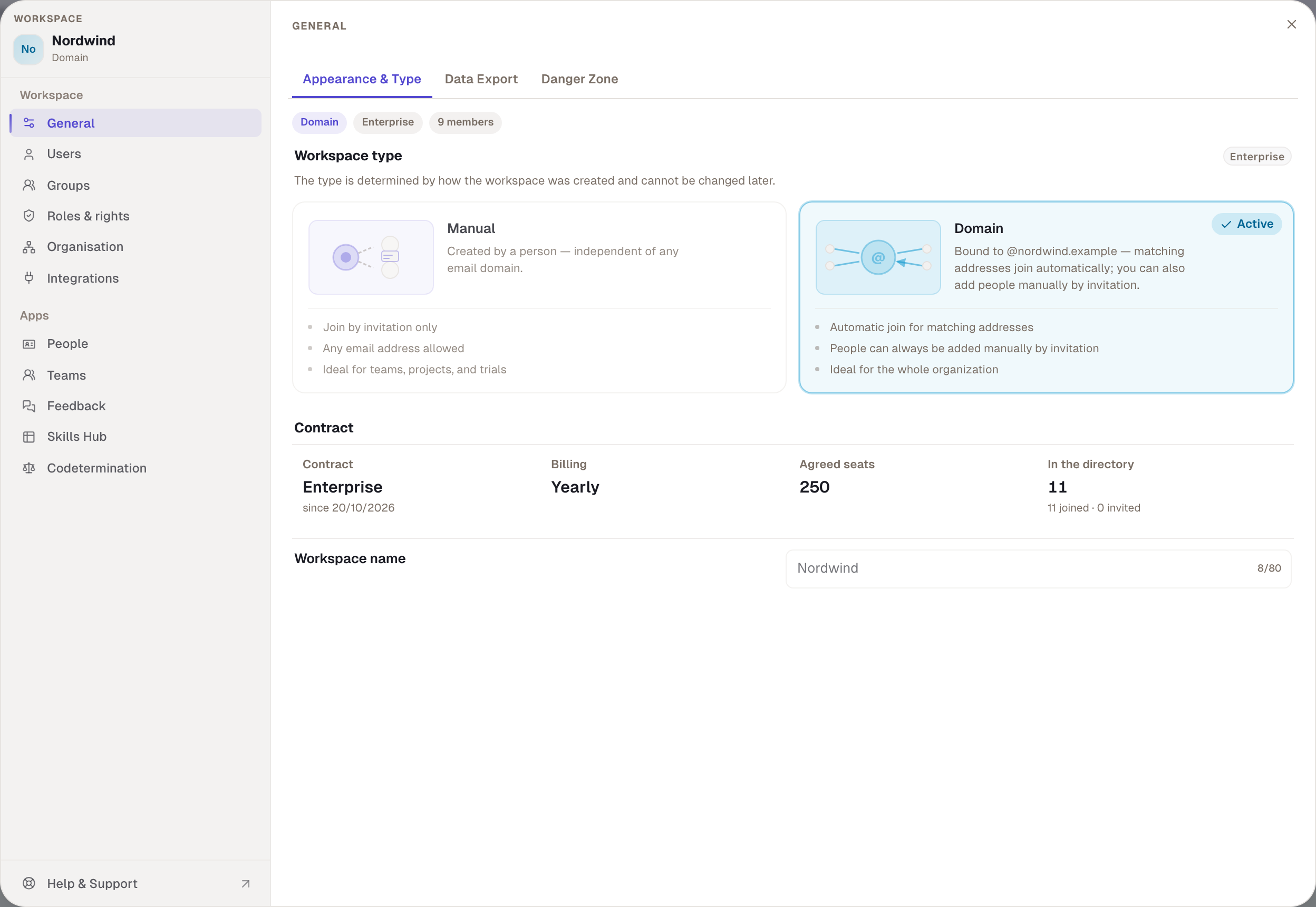
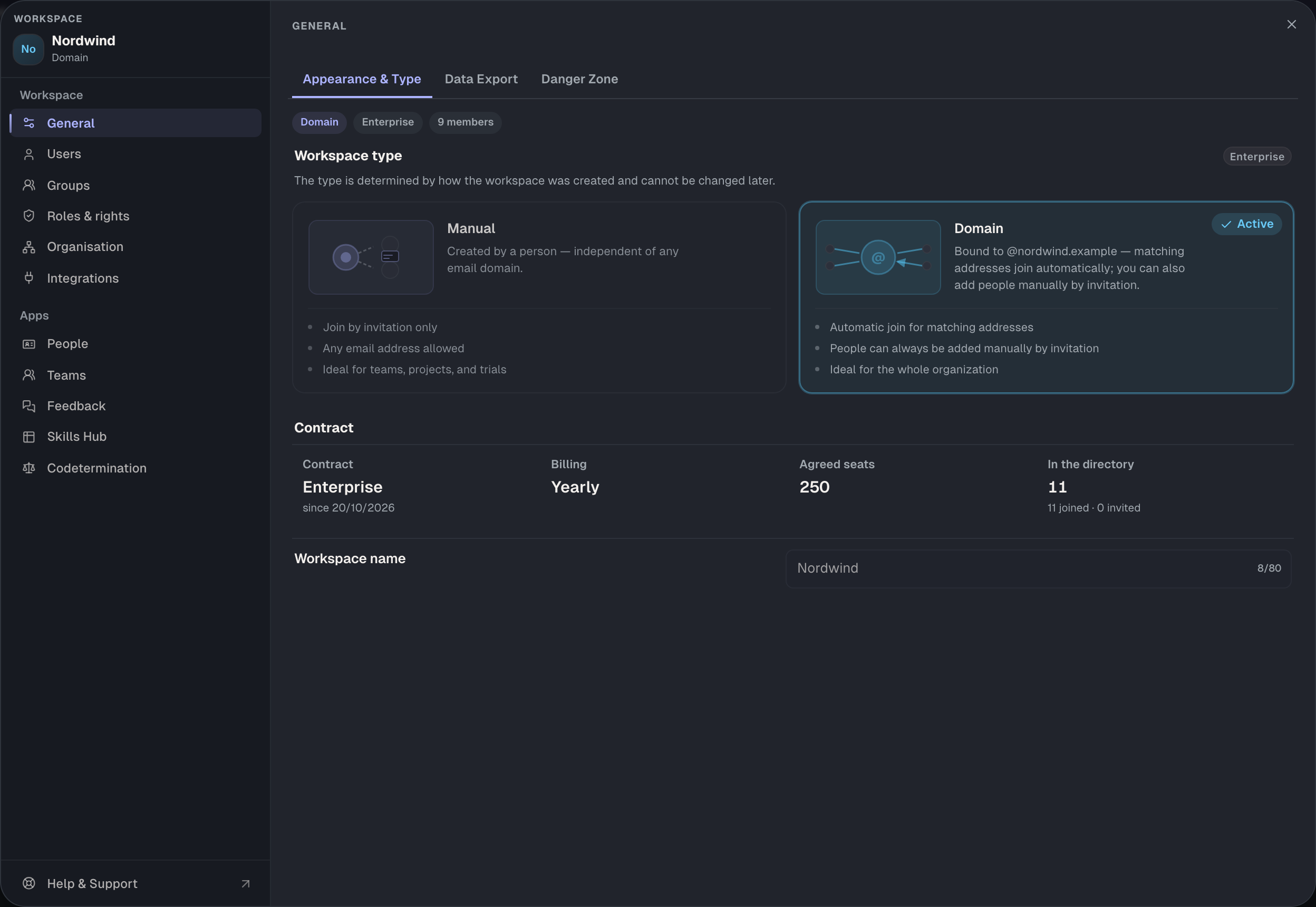
Appearance & Type
| Setting | What it does | Limits |
|---|---|---|
| Workspace type | shows whether the workspace is Manual or Domain | follows from its origin and can't be changed |
| Workspace name | the name in the switcher, the sidebar and emails | 2 to 80 characters, apply with Save |
| Workspace avatar | the image in the switcher and the settings | JPG, PNG or WEBP, at most 5 MB, manual workspaces only |
The workspace's plan sits at the top right as a chip, next to the number of members. The two cards under Workspace type explain the differences: a manual workspace takes any address, but only by invitation. A domain workspace takes addresses of its domain automatically and suits the whole organisation.
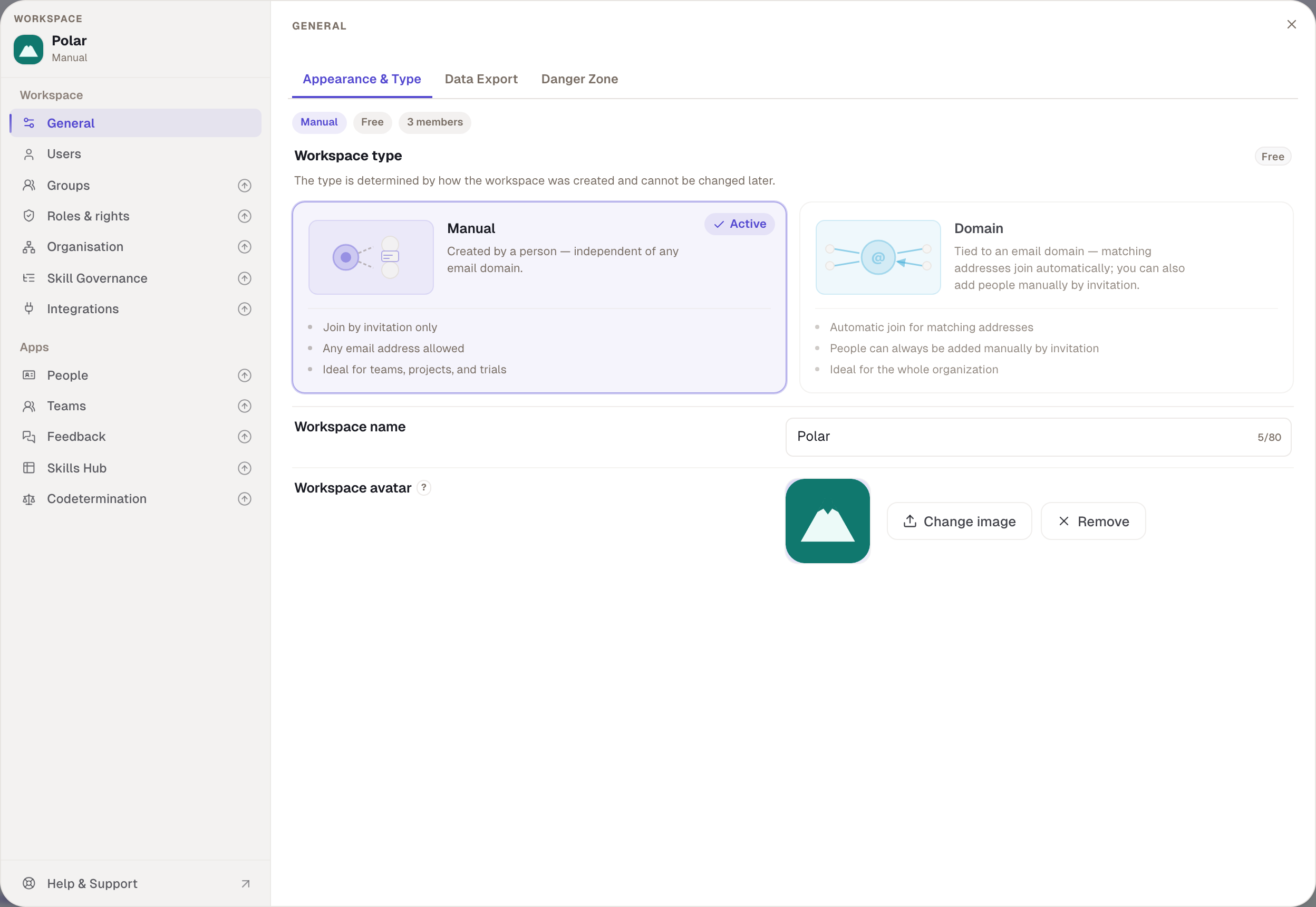
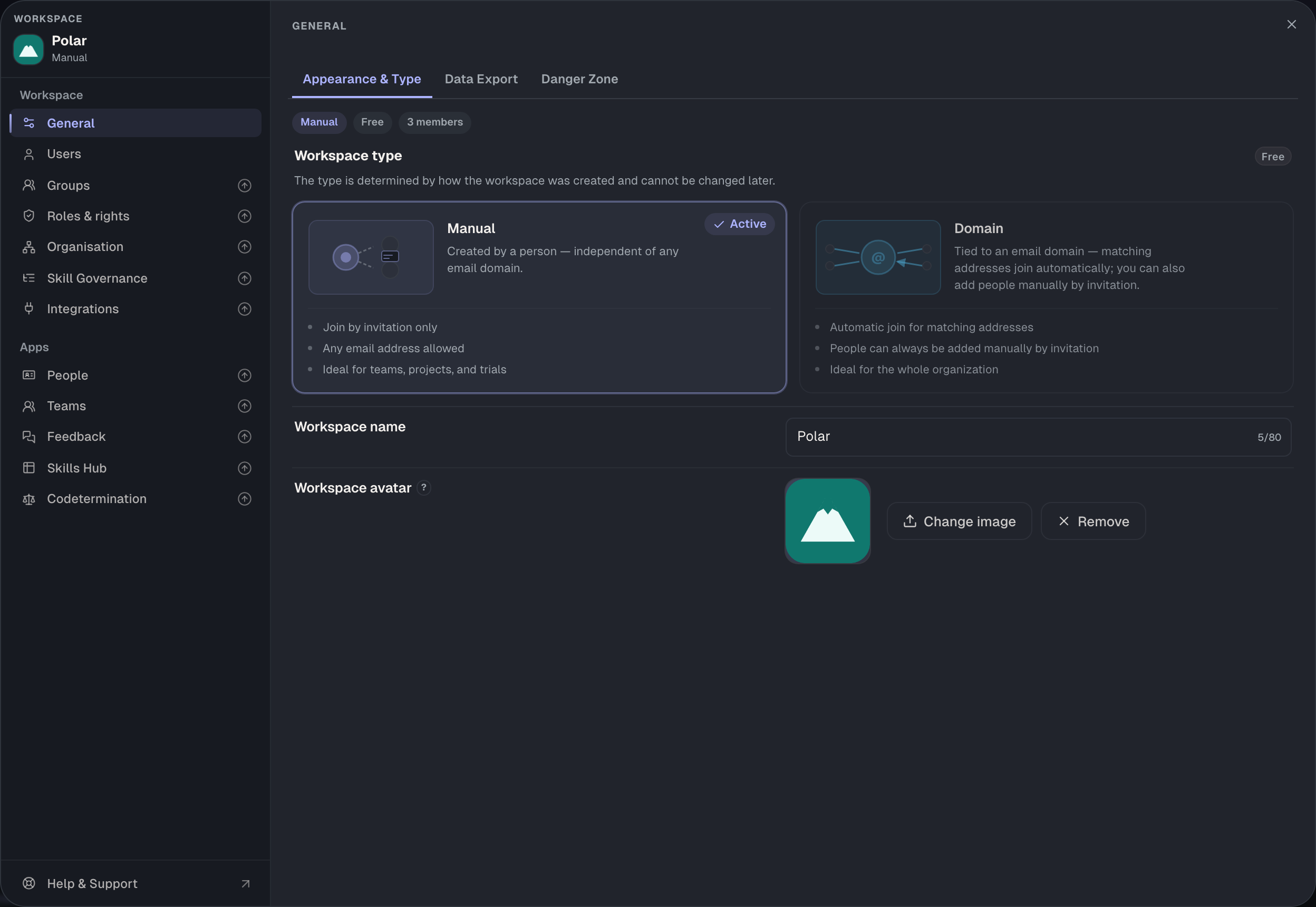
Without its own image, Skillties shows the first two letters of the name. Domain workspaces always show the letters; no image can be uploaded for them.
Data Export
Under Data Export you download the workspace's data as a file: members, groups, roles, teams, profiles, skills and the ratings, as far as they belong to the workspace. The export is the way to secure data before a change or before deleting. Before deleting, Skillties explicitly requires it, and the Danger Zone shows the date of the last export.
With codetermination switched on, an export may need approval. The rule is called “Workspace export” under Codetermination › Rights subject to co-determination.
Danger Zone
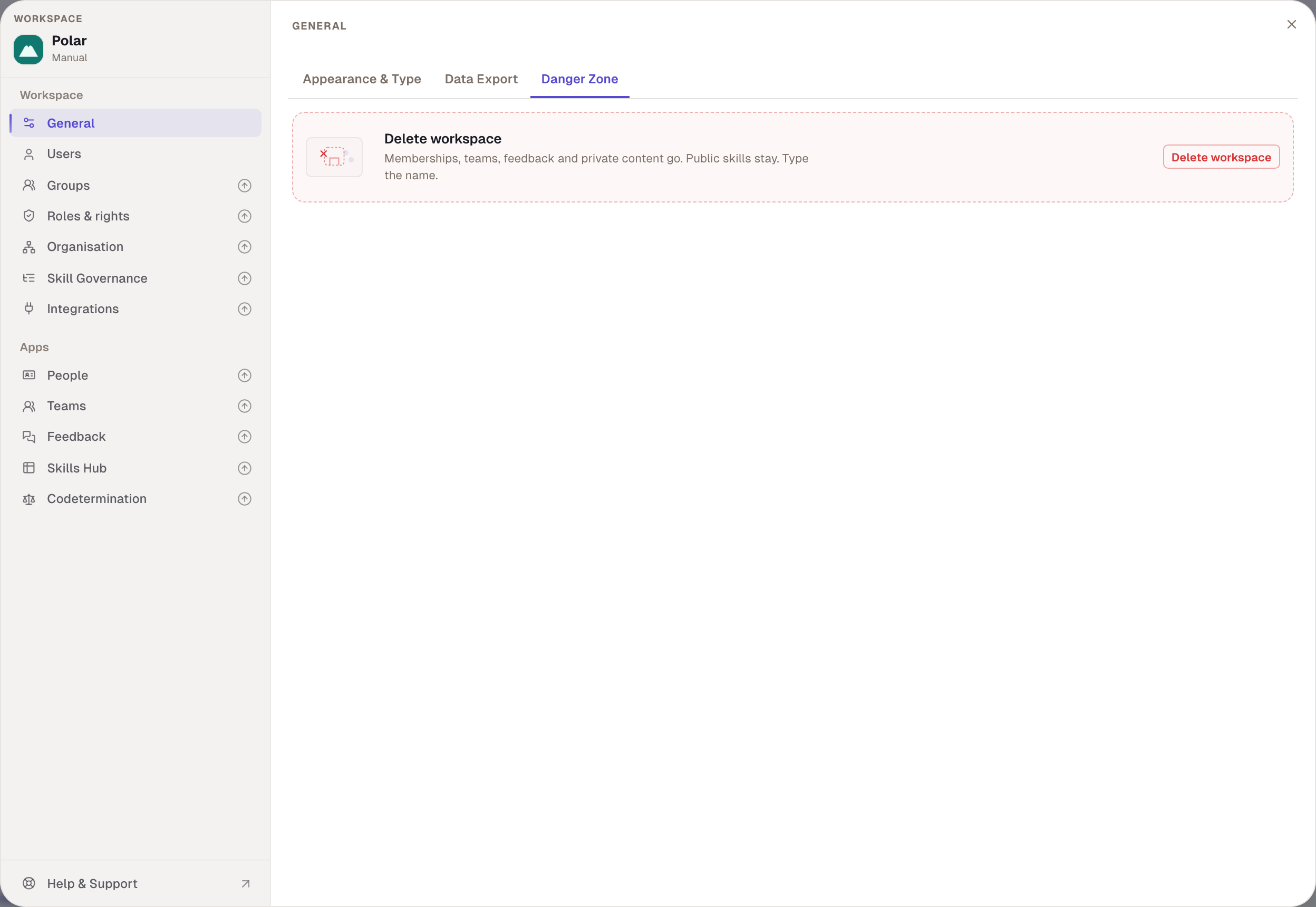
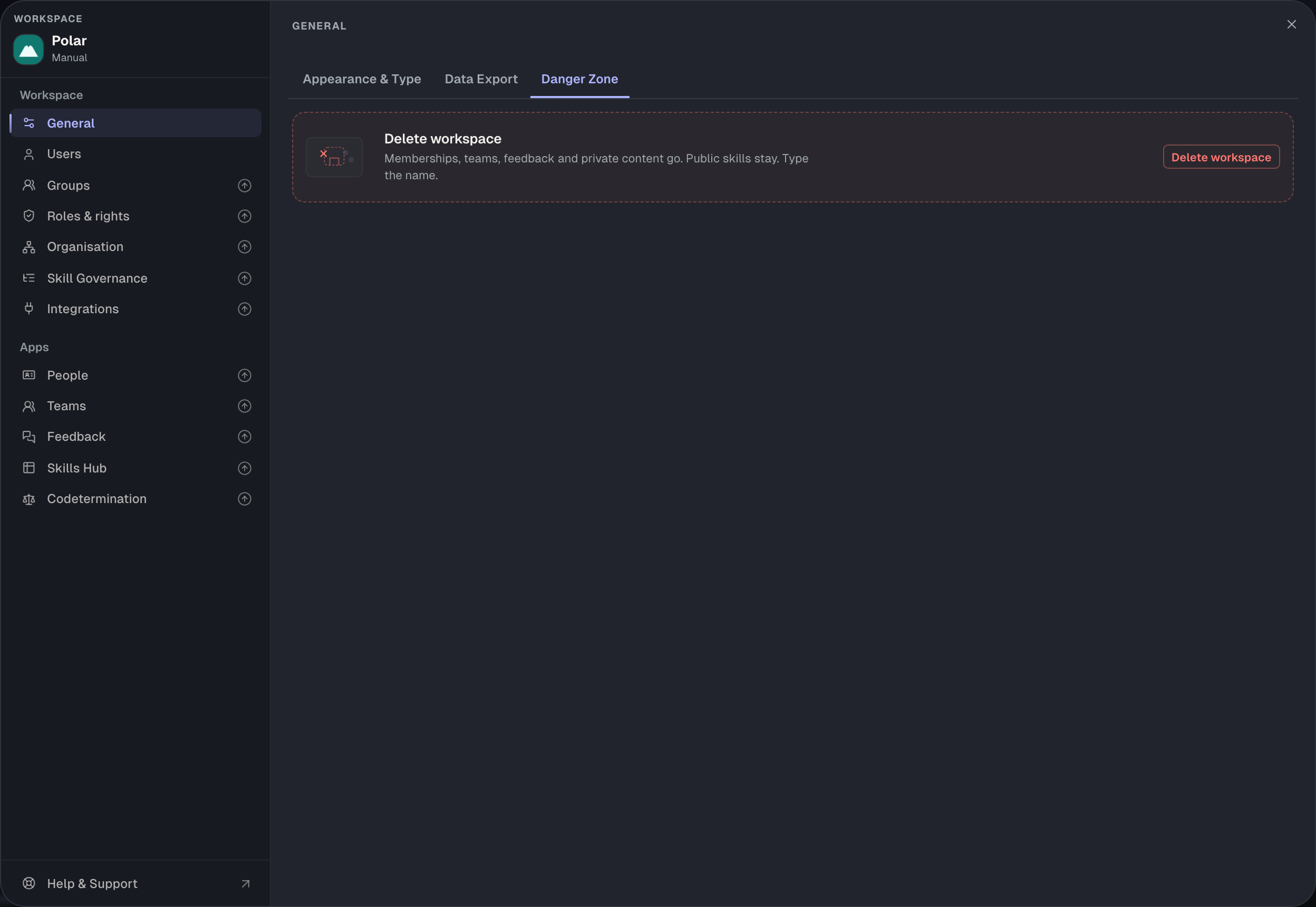
What is possible here depends on the type:
| Manual workspace | Domain workspace | |
|---|---|---|
| Action | Delete workspace | Reset Domain Workspace |
| What goes | memberships, teams, roles, feedback, private content | the same |
| What stays | public skills and profiles, the members' accounts | the same; the workspace is recreated at the next sign-in with a company address, empty and without a contract |
| Delete accounts | no | optionally also the accounts of members with a company address or from Entra, with a mandatory reason |
| Period | 14 days, revocable until then | 14 days, revocable until then |
Before you delete or reset, choose Export first if there is no export yet. Then enter the workspace's name as confirmation and choose Schedule deletion or Schedule reset. All members are notified at once. Until the deadline, the Danger Zone says “Will be deleted on …” with Cancel.
When resetting with accounts, order matters: remove people in Skillties first and only then in Entra ID. Otherwise Skillties can no longer find their accounts, and deleting is only possible through a request to Skillties.
Join rule and memberships
Who gets into a domain workspace isn't set under General but under Users › Blocking Workspace Access with Open or Closed. The blocked people are there as well. Where your members are members elsewhere is shown under Users › Workspace memberships. The workspace article explains both.
Checked with version 0.6.0 · 20 Oct 2026